

Availability: All plans. Role: edit access on the project.
A job rarely arrives as one document. You have the subject deed, two adjoiners, an easement across the back, and a recorded plat that disagrees with one of them. What you owe somebody is a single drawing with all of it on it. This guide takes several documents into one BoundaryLogic Trace project, runs what the AI can read, types what it cannot, checks each tract as it lands, and ends on one clean sheet.
Everything here runs on a Free account. Sheet View, the layer list and manual plotting are on every plan. Only the AI reading spends credits.
What you will need
- One project in Trace, with edit access on it.
- Your documents as PDF, PNG, JPEG, TIF, Txt or Docx files.
- Credits or trial plots for the documents you want read automatically. Manual plotting needs neither.
Put everything in one project. The layer list, the drawing and the exports are all project scoped, so documents split across two projects never meet on a sheet.
1. Load the stack
In the project menu, click Add Document. The pane takes files, a pasted legal description, or a route straight into manual plotting.
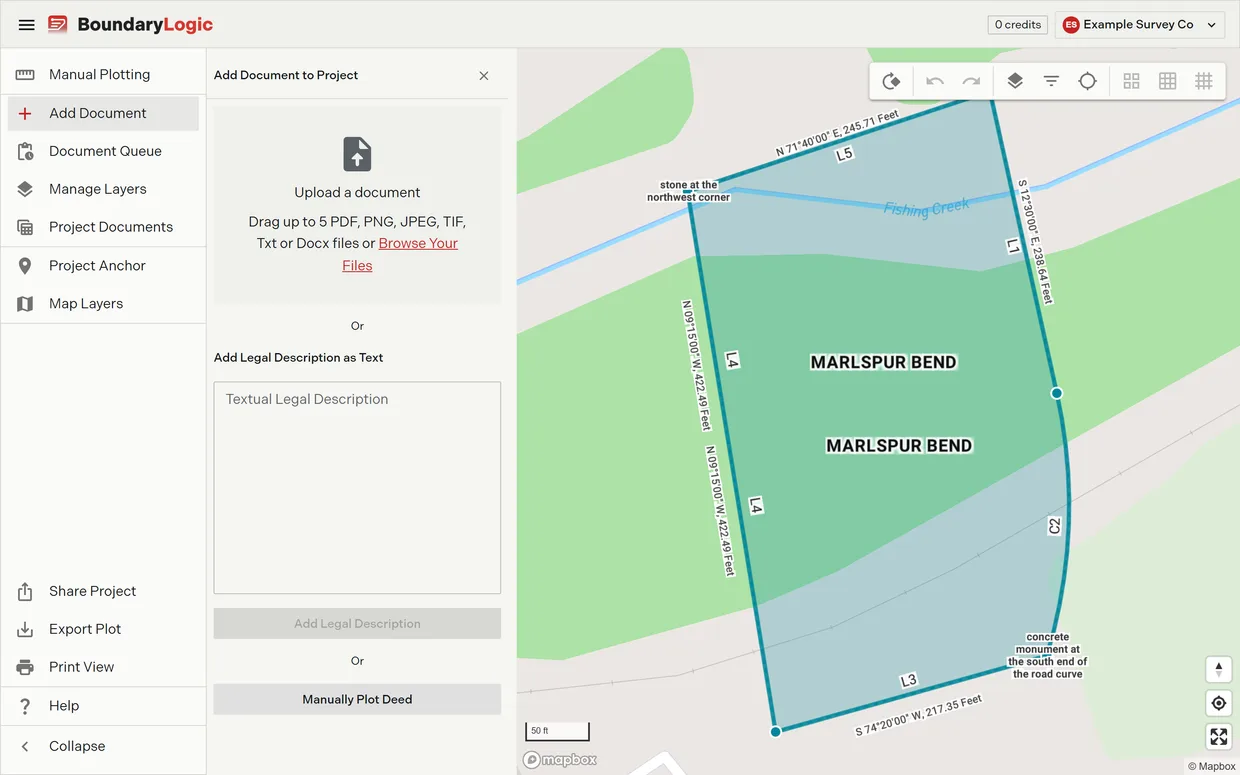
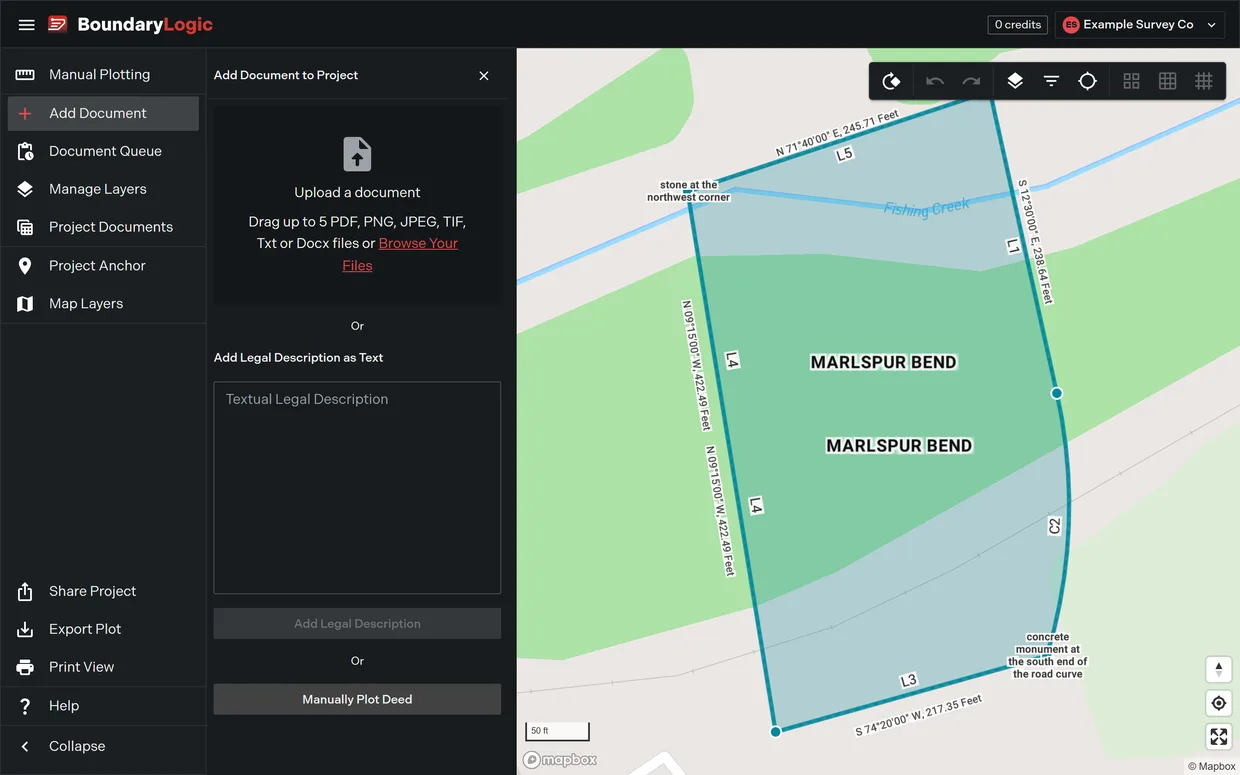
The drop zone takes up to 5 files at a time, so a stack of twelve is three trips rather than one. Each file spends one credit when it goes through.
- Drag the first 5 files onto the drop zone, or click it and pick them.
- Watch the Document Queue in the project menu. Each document walks three steps: Upload, OCR, Plot.
- Drop the next 5 on while the first are still running. The queue takes them.
The progress notification stays over the workspace and warns you before you navigate away mid-run. The badge in the project menu pulses until the last document lands.
Read the warnings before you add anything
A processed document is not yet in the drawing, and that gap is deliberate. Trace flags descriptions it expects to plot badly, and the flag sits on the card in the queue: Lot and Block, Complex Curves, PLSS Boundary References, Internal Angles and Referential. A lot and block description carries no bearings and distances of its own, so there is nothing to plot from. It is the commonest thing in a stack that will not come out.
When a document reads clean, click Add to Project Layers. Its descriptions become layers and the project drawing regenerates.
A document that failed says so on its own card and offers two ways out: another AI attempt, or delete it. The second attempt can carry guidance, which is worth writing rather than skipping, and it spends another credit. When processing fails covers what to write and when to stop trying.
2. Fill what the AI leaves
Some of the stack will not read: scans too poor for OCR, descriptions the warnings caught, a page that is a photograph of a page. Type those rather than fighting them.
In the project menu, click Manual Plotting, or take Manually Plot Deed from the add document pane. Manual plotting costs nothing on any plan and burns no credits, so a document that failed twice is cheaper typed than retried a third time.
The typed traverse becomes a layer in the same list as the read ones. Nothing downstream treats it differently: same card, same metrics, same sheet.
The manual plotting workspace and the deed syntax reference carry the editor itself.
3. Check each tract as it lands
Check them one at a time, as each document lands. Left to the end, you are matching figures back to documents you have half forgotten, and a bad ratio no longer tells you which page caused it.
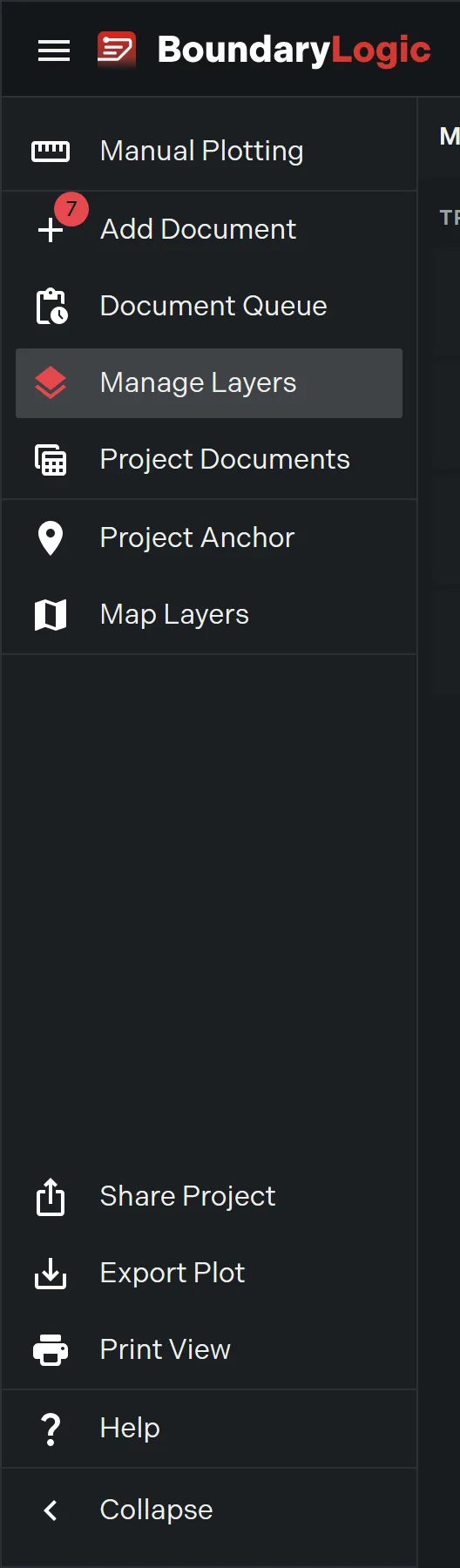
In the project menu, click Manage Layers, then click a card to expand it. The metrics line gives area, perimeter, misclosure and a precision ratio at a glance, and the ratio is colour coded, so a bad one is visible before you read a number.
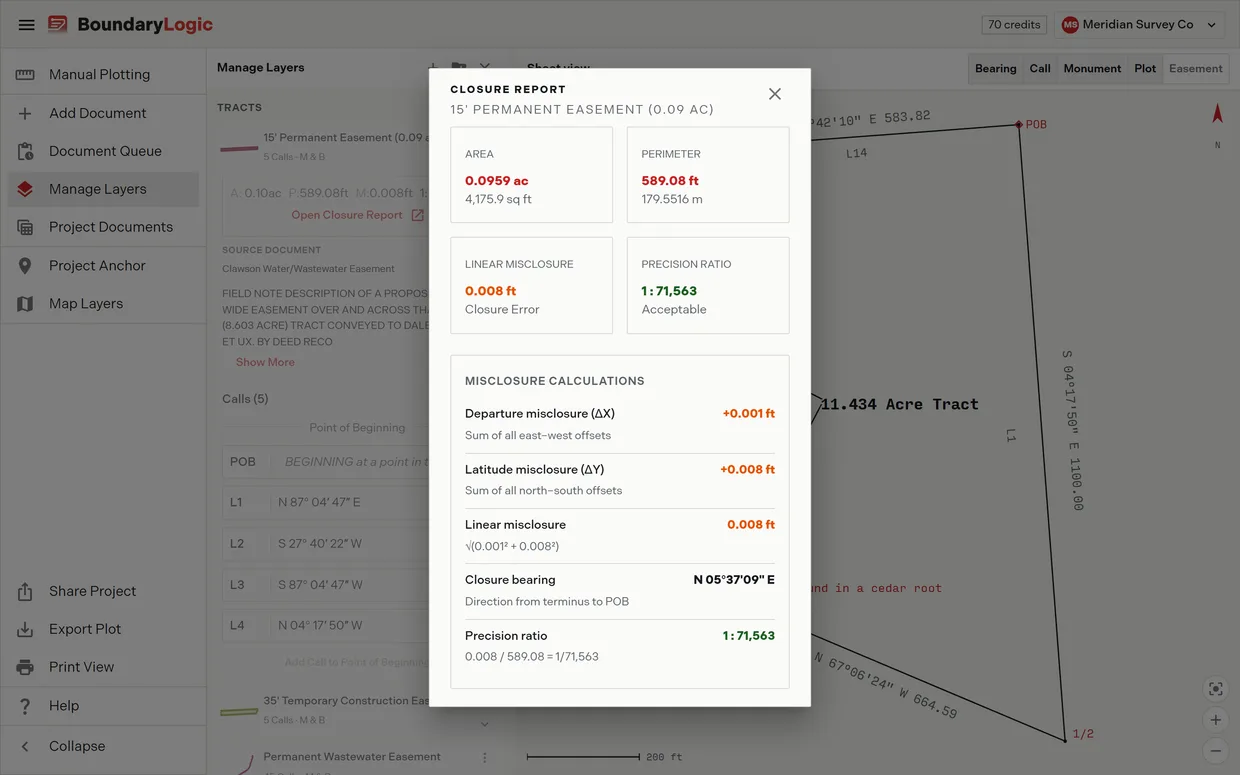
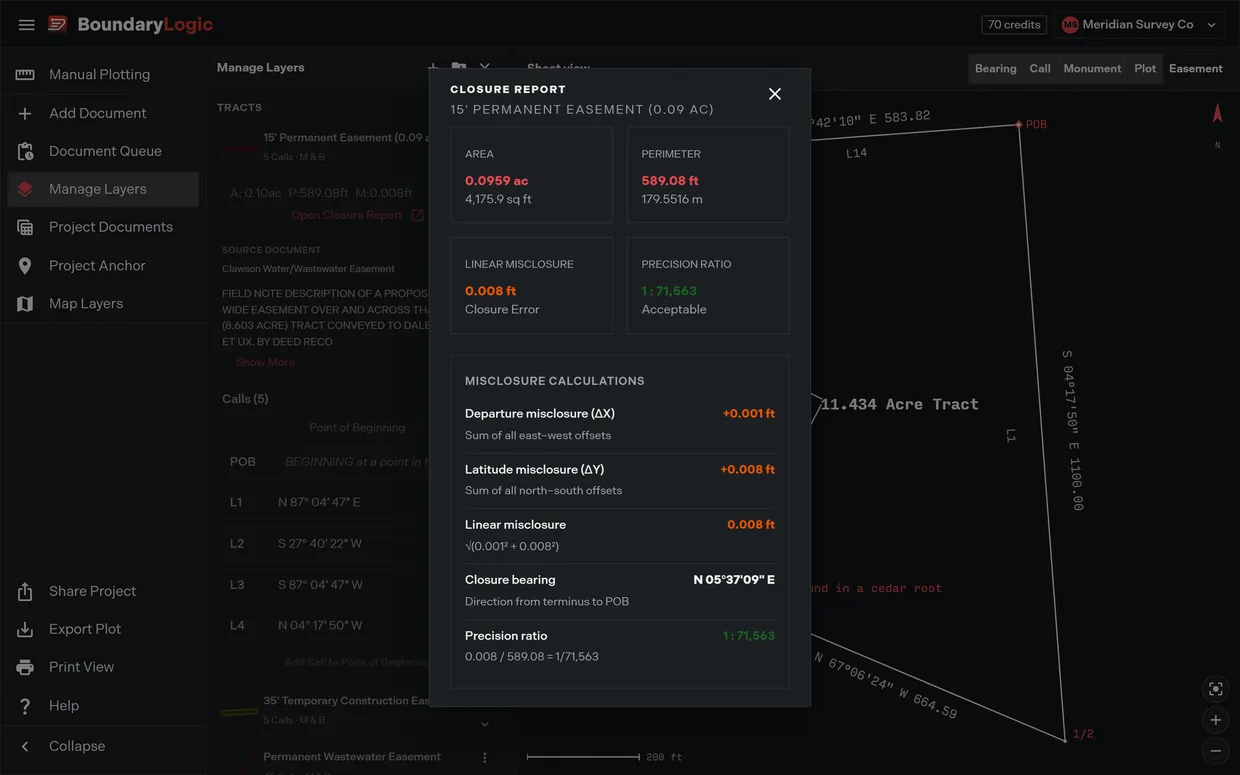
Click Open Closure Report for the full reading: area, perimeter, linear misclosure, and the precision ratio with the arithmetic that produced it. Trace rates that ratio Acceptable at 1 in 10,000 or better, Marginal from 1 in 5,000, and Poor below that. These are checks the app shows you, and the professional verifies them.
Three things you will hit in a stack of ten.
- A tract with no figures. The report reads
Closure has not been computed for this tract.The traverse is open. Add Call to Point of Beginning on the card closes it in one press, where the record really does return to the point of beginning. - An easement that reports differently. A centerline layer offers Open Corridor Report instead, because length and width are the questions there and closure is not.
- A tract that closes badly. That is the document’s problem, not the plot’s. Note it and keep going.
4. Get the layer list under control
Ten layers in one list is where a multi-document project stops being readable. Manage Layers controls all of it: what draws, in what order, and folded into what.

Group what belongs together
Groups are folders. Put the easements in one, the adjoiners in another, and leave the subject parcel loose where you can always see it.
- In the Manage Layers pane, click Create group. Name it and click Create.
- Drag a card onto the group card to put it in. Dropping one card onto the middle of another makes a new group from the pair, and a Release to group badge appears while you hover that middle third.
- Optional: use Add to New Group and Move to Group from a card’s menu instead of dragging. Remove from Group takes one back out.
Collapse a group to get the scrolling back. Hide one to take every layer in it off the map, the sheet and the exports at once, which is how you check what sits underneath. The group menu also renames and ungroups, and ungrouping asks first, then leaves the plots where they sit.
Order is what draws on top
Drag cards up and down to change the stacking. A drop indicator line shows where the card will land, and the project drawing regenerates as soon as you release, so the exports match what you are looking at. Whole groups move as one block.
Put the subject parcel above the adjoiners and any image overlay under everything. Then lock the layers you are happy with, so a later drag cannot quietly move one.
Hiding is the other half. A hidden layer leaves the map, the sheet and every export together, so there is no second setting to remember at export time. Manage layers and layer groups carry the pane control by control.
5. One drawing
Everything so far was deciding what belongs on the sheet. This is the sheet.
In the project menu, click Map Layers, then pick the Sheet View card. The basemap goes, and every visible layer draws together on one plot sheet over a grid, with a north arrow and a scale bar. It is one of the two modes a Free account can select.

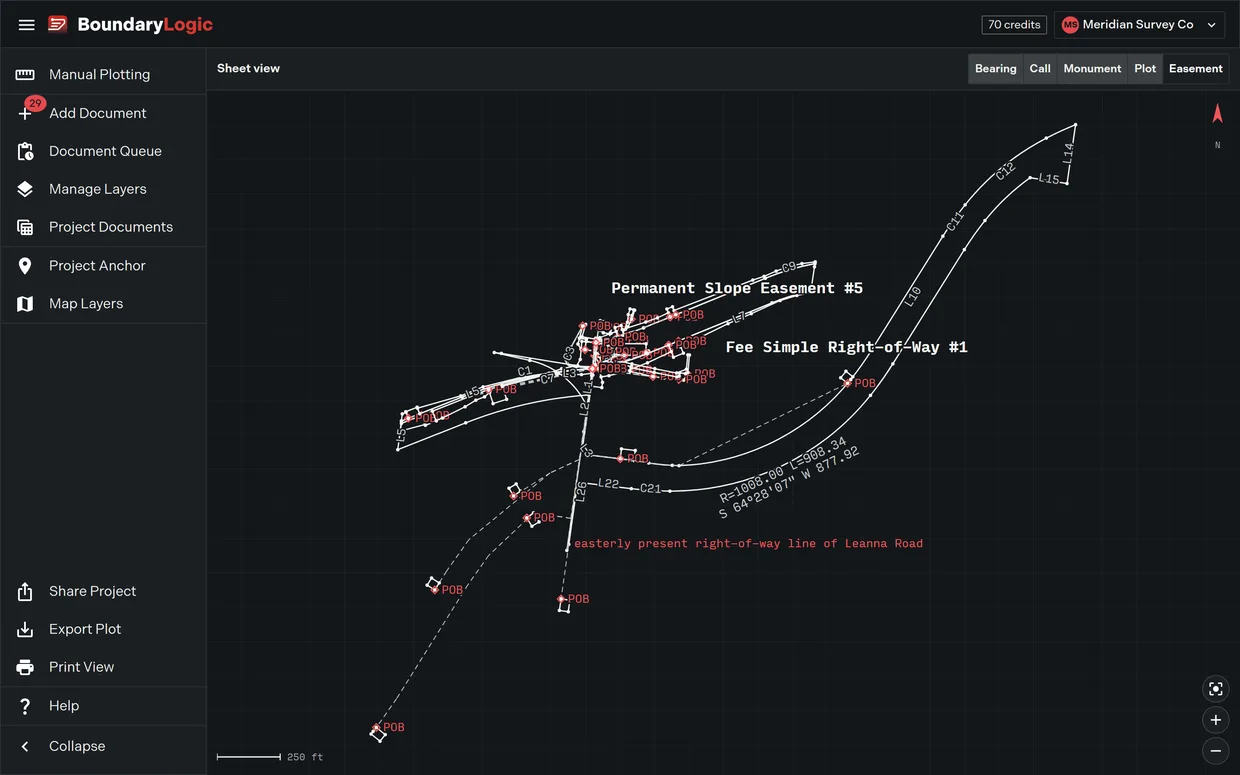
Click Fit to extents to frame the whole assembly, then zoom and pan into whatever you are checking.
The labels are the last decision
The sheet header carries five switches: Bearing labels, Call markers, Monument labels, Plot name labels and Easement widths. Each button shows one word, with the full name on hover.
On one tract you leave them all on. On nine tracts, a bearing and a distance printed against every course is unreadable, and that is where a sheet stops being a drawing. Turn bearings off, leave Plot name labels on, and the assembly reads as parcels rather than as arithmetic.
Easement widths is the one switch that starts off, and it is the one a stack with an easement in it usually wants. Turn it on and the corridor dimensions itself on the drawing.
These five are shared with the map rather than copies of it, so a label you turn off here is off when you go back to a basemap.
What the sheet will not do
The sheet is read only, which saves you hunting for controls that are not there. Clicking a tract does not select it, no readout appears on hover, and there is no full screen button. To work on a plot, switch back to a basemap mode, or open its card in Manage Layers.
It also keeps its own buttons out of anything you capture, so what leaves is the drawing and nothing else.
Getting it out
DXF and the PDF plot sheet are open on every plan, and so is Copy map view to clipboard, which is the fastest way to get the sheet into an email or a report.
Shapefile, KML, KMZ, GeoJSON and the PNG file download need Professional or above.
Whatever you hid, and however you ordered the layers, is what the export carries. That is why the layer list came before the sheet.
Where to go next
- Plot from a document, the canonical upload procedure
- The document queue, every state a document passes through
- When processing fails, for the documents that do not come out
- Manage layers, the pane control by control
- Layer groups, grouping and ordering in full
- The closure report, and the corridor report for centerlines
- Reading precision, for what the ratio is telling you
- Sheet View, the mode and its label switches
- Export formats, and export a PDF plat
- Plot your first deed in Trace, if one document is where you are starting