

Availability: All plans · Role: edit access
Ten layers in one list is a scroll. Fold the easements into a folder, put the subject parcel on top, and the drawing and the exports follow the order you set.
Before you start
- You need edit access. Without it the layer cards carry no drag handles and the group controls are disabled.
- Open Manage Layers from the project menu.
Make a group
Three routes to the same folder.
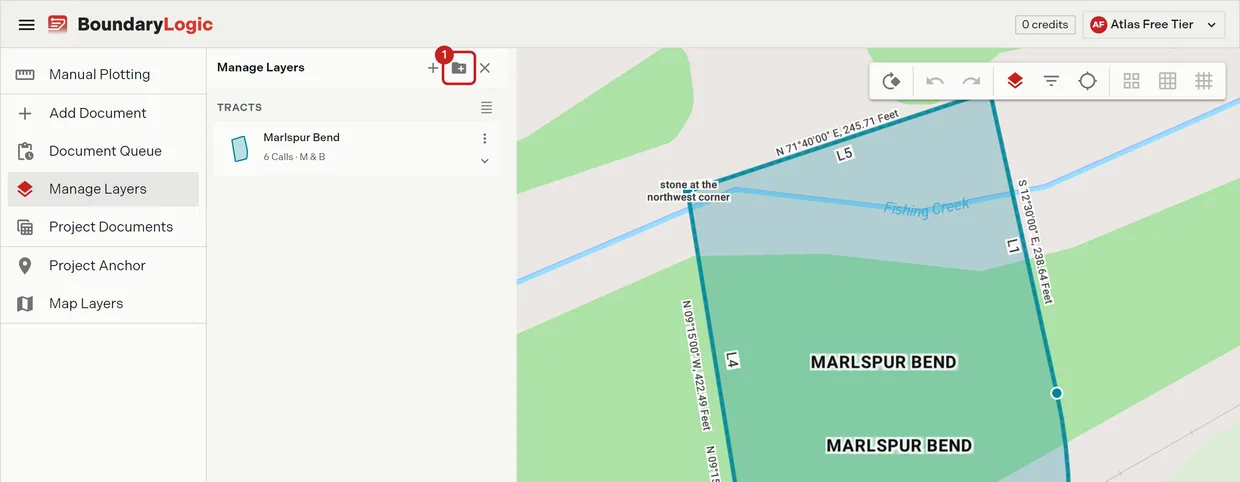
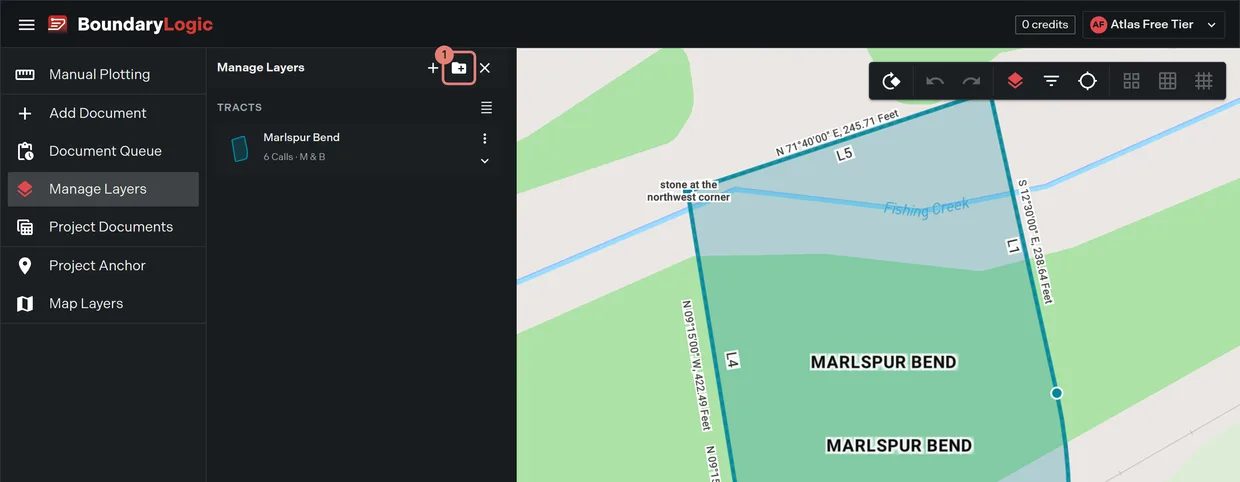
- Click Create group at the top of the pane, name it, then click Create.
- Or drag one layer card onto the middle of another and release when the “Release to group” badge appears. Trace makes a group from the pair.
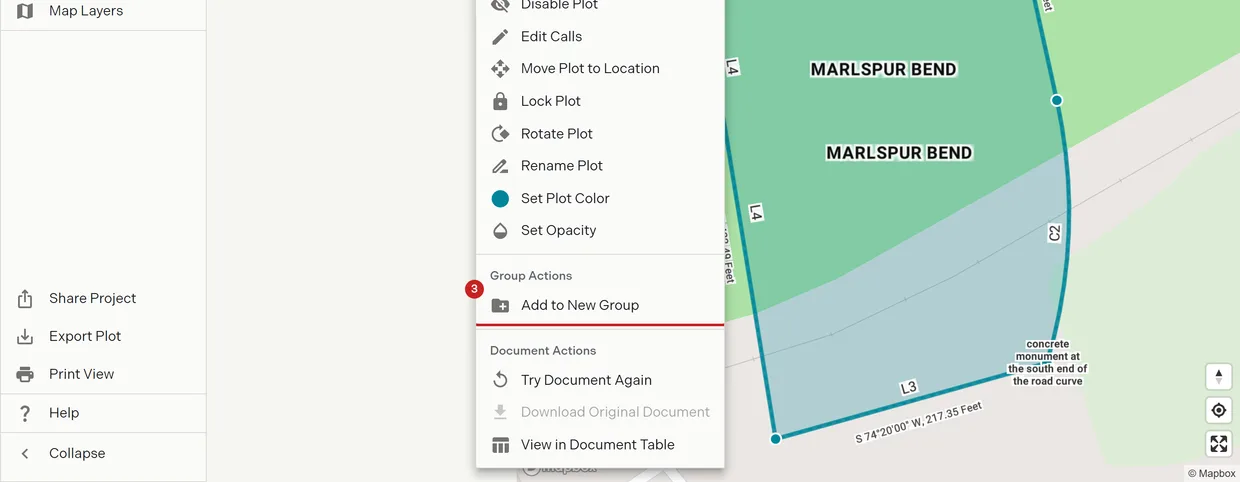
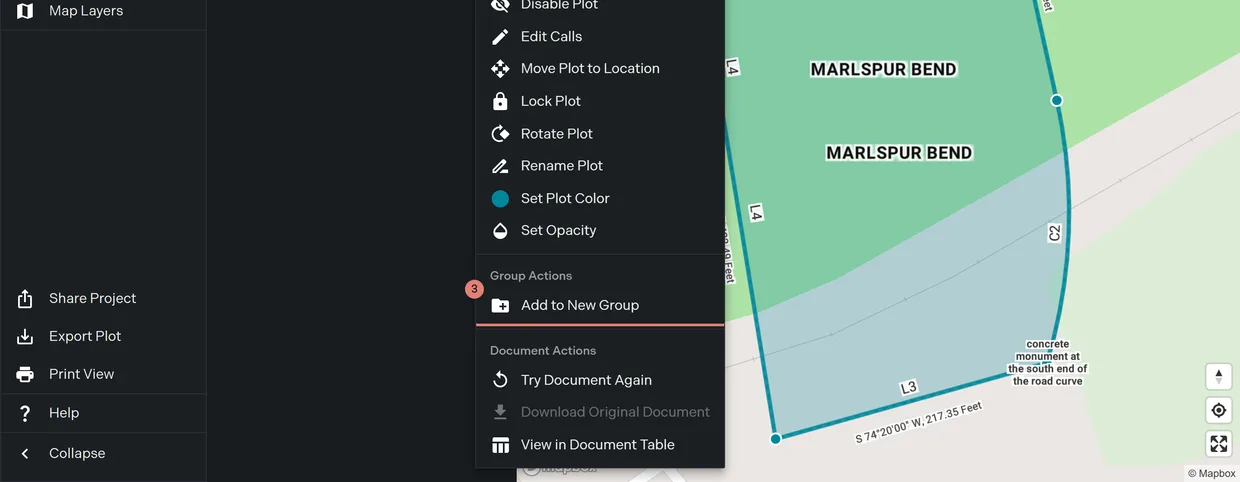
- Or open a card’s More actions menu and choose Add to New Group.
Move layers in and out
- Drag a card onto a group card to add it. The group highlights as a drop target.
- Drag a card just above or below the group block to take it out.
The card menu does the same without dragging: Move to Group lists the existing groups in a submenu, and Remove from Group takes a layer out and leaves it where it sits in the order.
Reorder the draw stack
- Drag a card above or below another. A drop indicator line shows where it will land.
- Release. The project drawing regenerates, so the map, the sheet and the exports all take the new stacking.
A group moves as a block, members and all.
Work a group
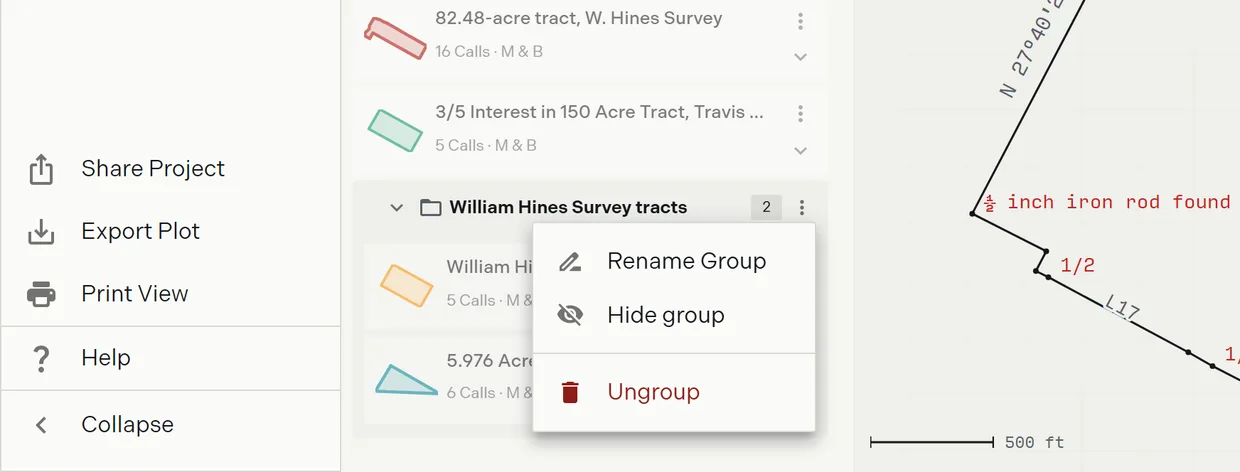
- Collapse a group to fold its member cards away, and expand it to open them again. The group card carries a count of its members.
- Hide a group to take every layer in it out of the map and the exports at once. A hidden group dims.
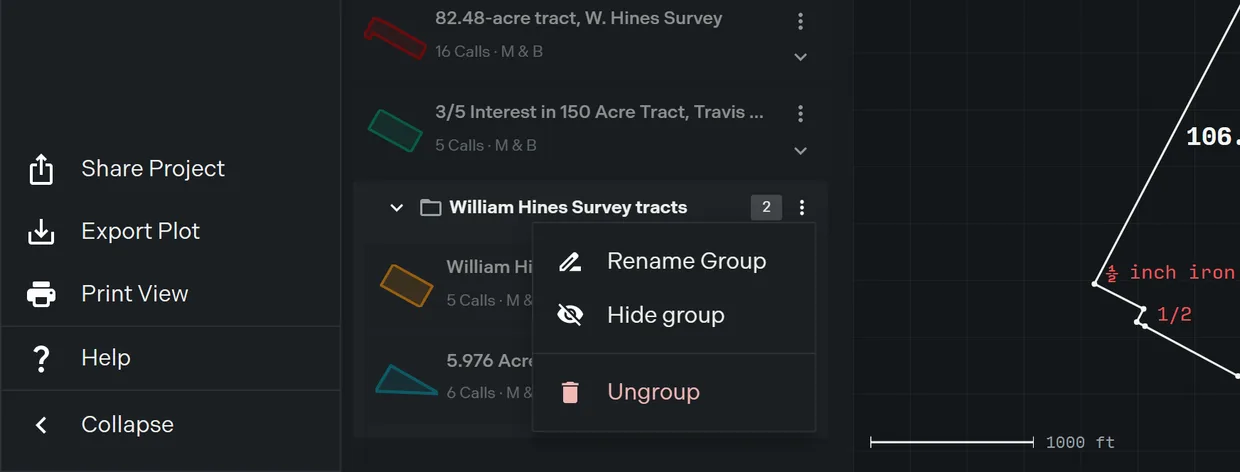
- The group’s own actions menu holds Rename Group, hide, and Ungroup.
Ungroup asks first, then removes the folder and leaves its layers exactly where they sit in the order. Nothing is deleted and no plot moves.
An empty group stays in the list rather than disappearing.
Related
- Manage layers, for the pane and the layer card
- Image overlays, for ordering a scanned plat under the tracts
- Export formats, which follow the order set here
- From deed stack to one sheet, if you are starting from zero