

Availability: All plans · Role: edit access
Summary
Seven single key shortcuts run the plot actions on the map, plus undo and redo. There is no cheat sheet inside the app, so this is the list.
Every shortcut acts on the selected plot. Click a plot to select it first; with nothing selected the keys do nothing.
Usage notes
The keys
| Key | What it does | Without edit access |
|---|---|---|
| M | Opens Move Plot to Location for the selected plot | Nothing happens |
| L | Locks the selected plot, or unlocks it | Nothing happens |
| C | Opens the color picker | Nothing happens |
| R | Opens the rotate dialog | Nothing happens |
| Q | Opens the rename dialog | Nothing happens |
| E | Opens the plot’s document in manual plotting | Opens read only |
| Delete | Hides the selected plot and regenerates the project drawing | Nothing happens |
| Ctrl+Z | Reverses the last move or rotation | Nothing happens |
| Ctrl+Y or Ctrl+Shift+Z | Re-applies what was just undone | Nothing happens |
What blocks a shortcut
Three things, and each fails quietly rather than warning you.
- No selected plot. The seven single key shortcuts need one.
- No edit access. E is the exception: it stays available and opens the calls read only.
- An undo or redo still running. R is ignored while one is running, and so is a second undo.
Delete on a plot that is already hidden does nothing. Undo and redo do nothing on an empty stack, and the stack holds moves and rotations only.
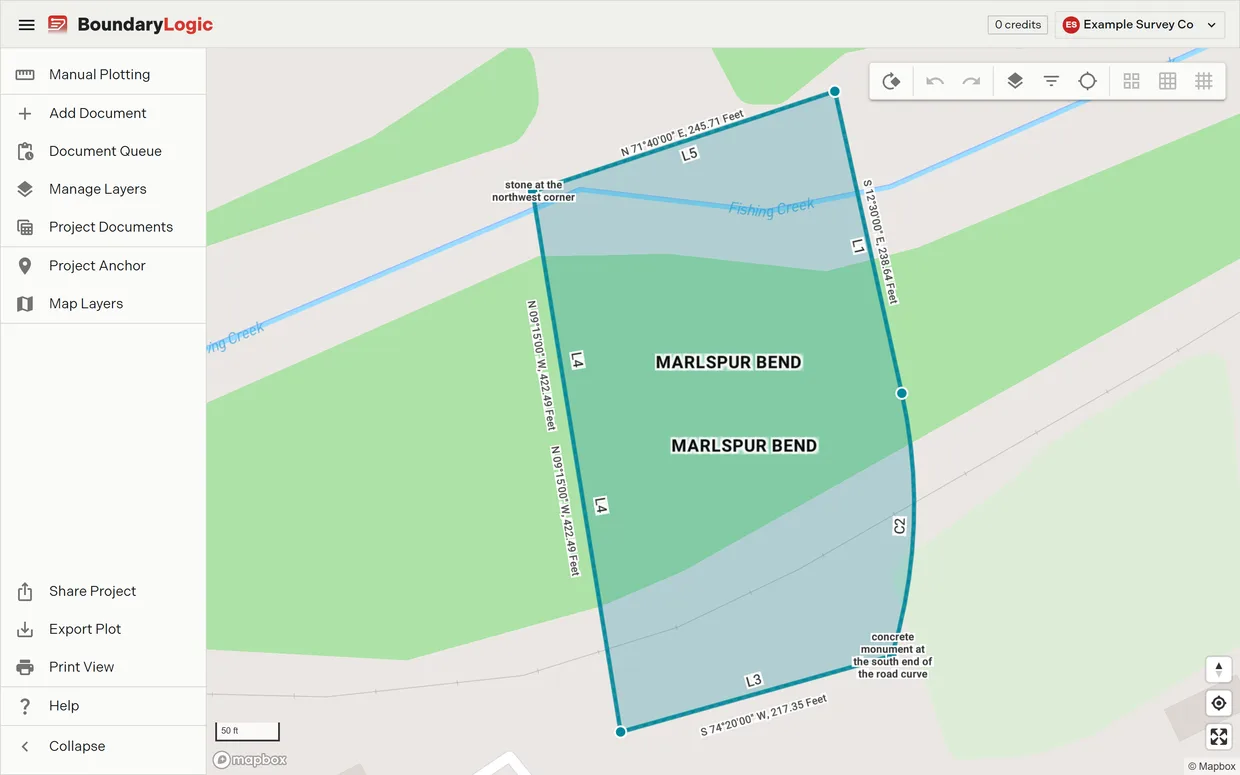
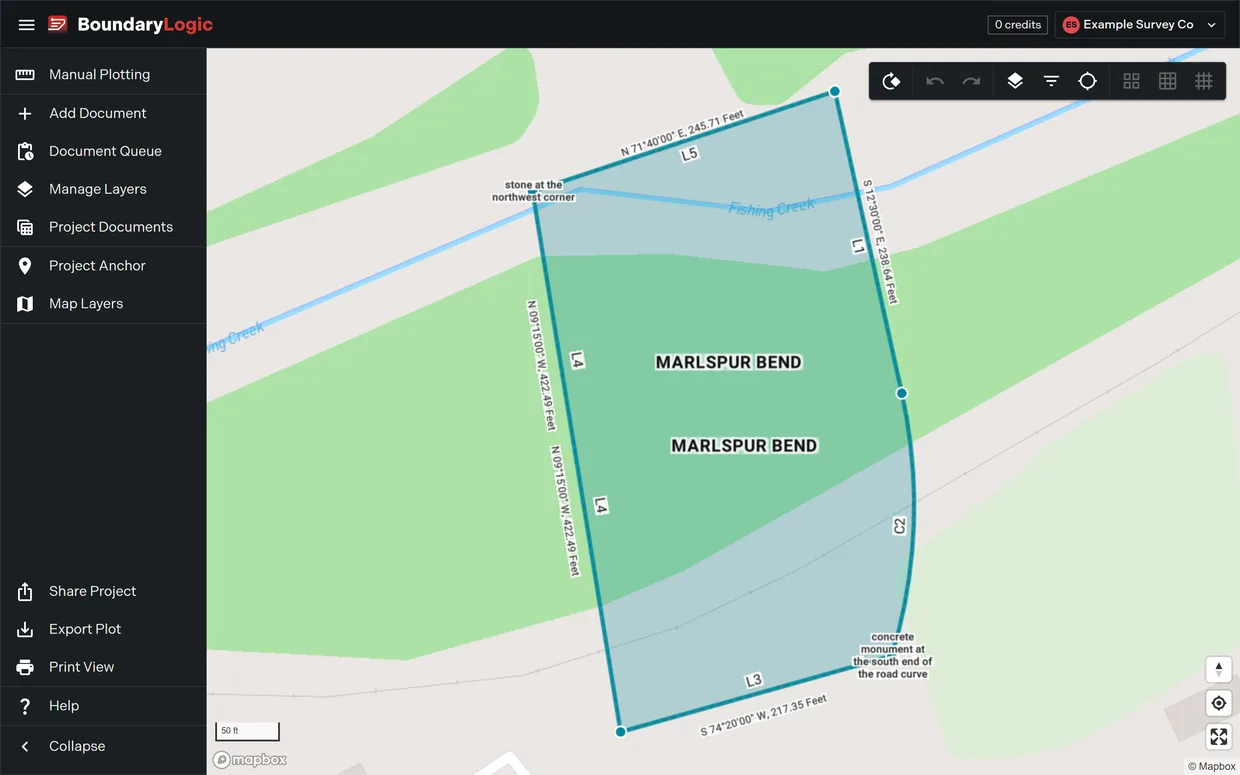
Delete hides, it does not delete
The Delete key is the same action as Disable Plot on the right-click menu. It takes the plot out of the map, the sheet and the exports and leaves it in the project, dimmed on its layer card. Press the eye on that card, or right-click and choose Enable Plot, to bring it back. Nothing on the map deletes a legal description.
Related
- Plot actions, for what each action does in full
- Right-click menus on the map, for the menu route to the same actions
- Move a plot
- Manage layers, for selecting a plot from the pane instead