

Availability: All plans
Summary
Manage Layers is the list of everything drawn in the project: one card per legal description and one per image overlay. From it you set what draws, in what order, and on top of what. Layer visibility here is what the workspace draws by, so hiding a layer takes it out of the map, the sheet and every export at once.
Usage notes
Opening and closing the pane
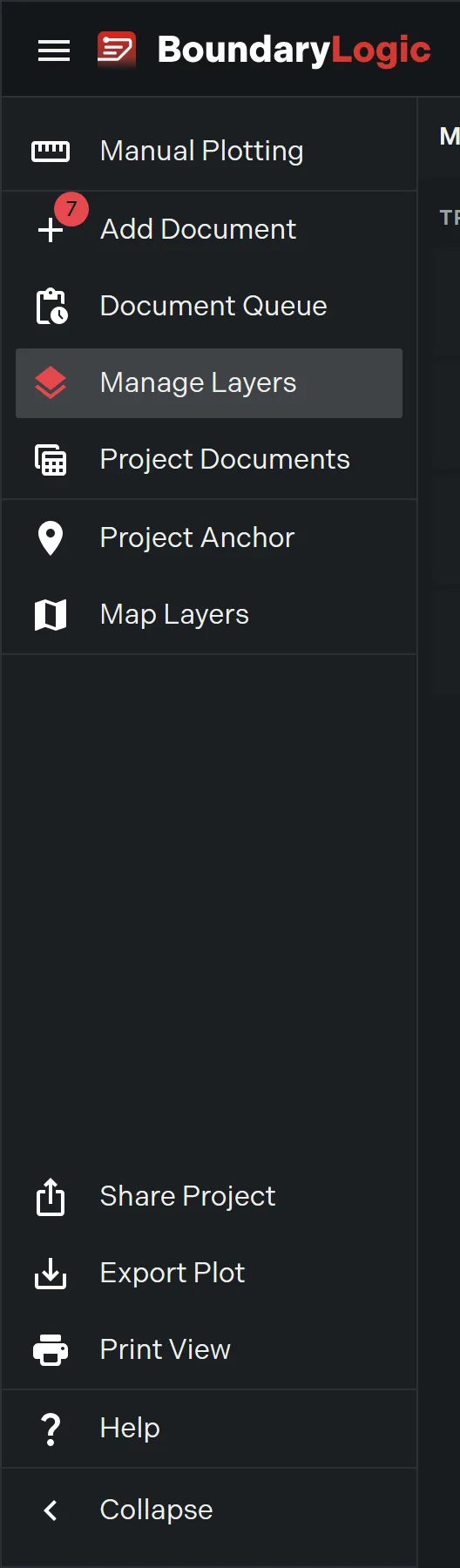
Click Manage Layers In the project menu, or the layers button on the map toolbar, which turns blue while the pane is open. Clicking either again closes the pane and gives the map its full width back. The pane’s own Close pane control does the same.

The list
Cards sit under a Tracts heading in draw order, top card on top. Two controls sit at the top of the pane.
- Add layer offers the three ways to add one: Upload Document, New Manual Plot, Add Image Overlay.
- Create group makes a folder to gather cards into. Layer groups and ordering covers grouping and drag ordering.
The density control switches the list between full cards and condensed rows, and remembers your choice. Condensed hides each card’s call count subtitle.
A project with nothing plotted reads “No plots found. Upload a document or start a manual plot to see layers here.”
The card
Each card carries a thumbnail of the layer’s calls, or the image itself for an overlay, and a summary line naming its call count and legal description type, or marking it an Image Overlay.
Four controls sit on every card: copy the legal description to the clipboard, center the map on the boundary, hide or show the layer, and expand or collapse it. A hidden card dims. A locked layer shows a lock indicator, tooltip “Plot is locked” or “Image is locked”, and clicking it unlocks the layer.
Clicking a card selects the layer, outlines the card in the plot’s own color and highlights it on the map. Selecting the plot on the map works in reverse and expands its card.
Inside an expanded card
The metrics line reads the layer’s area, perimeter, misclosure and precision ratio at a glance, with the precision color coded. Values it has not computed are left out.
Under that sits the source document name, the legal description text, and the calls.
- The deed text shades each call and explains it on hover. Text over 150 characters truncates behind Show More.
- The calls list marks the point of commencement and point of beginning with dividers. Clicking a call flies the map to its midpoint at close zoom; clicking it again clears it. Hovering one reads its type, bearing, distance, monuments and curve values.
- The edit control beside the calls heading opens the layer’s document in manual plotting.
- Add Call to Point of Beginning closes an open traverse by adding the final call back to the point of beginning. It disables once the plot is closed, reading “Plot is closed”.
A centerline layer adds a width table listing left and right offsets per station. An overlay card shows the image itself, or “Image unavailable” when the file cannot load.
The card menu
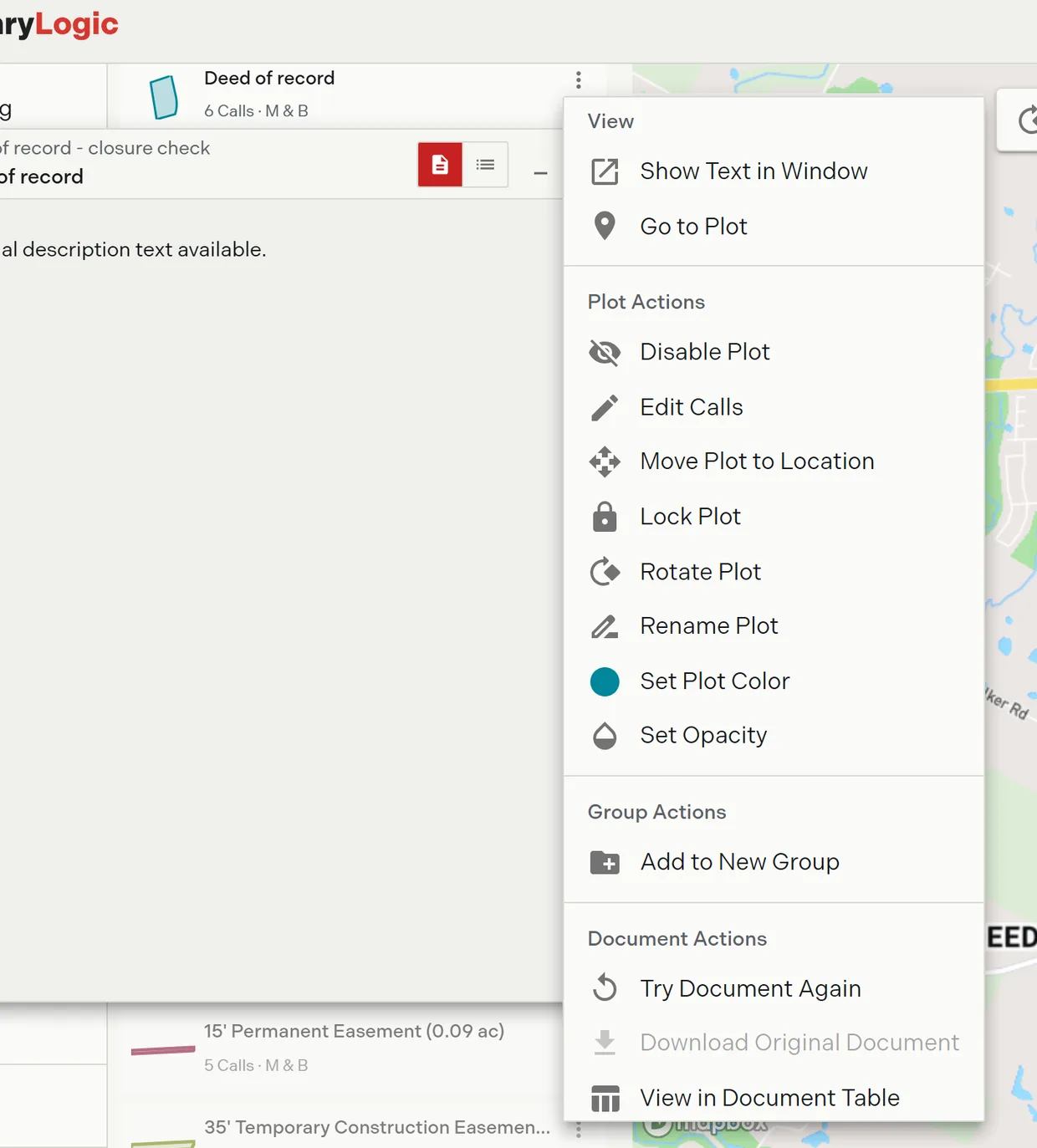
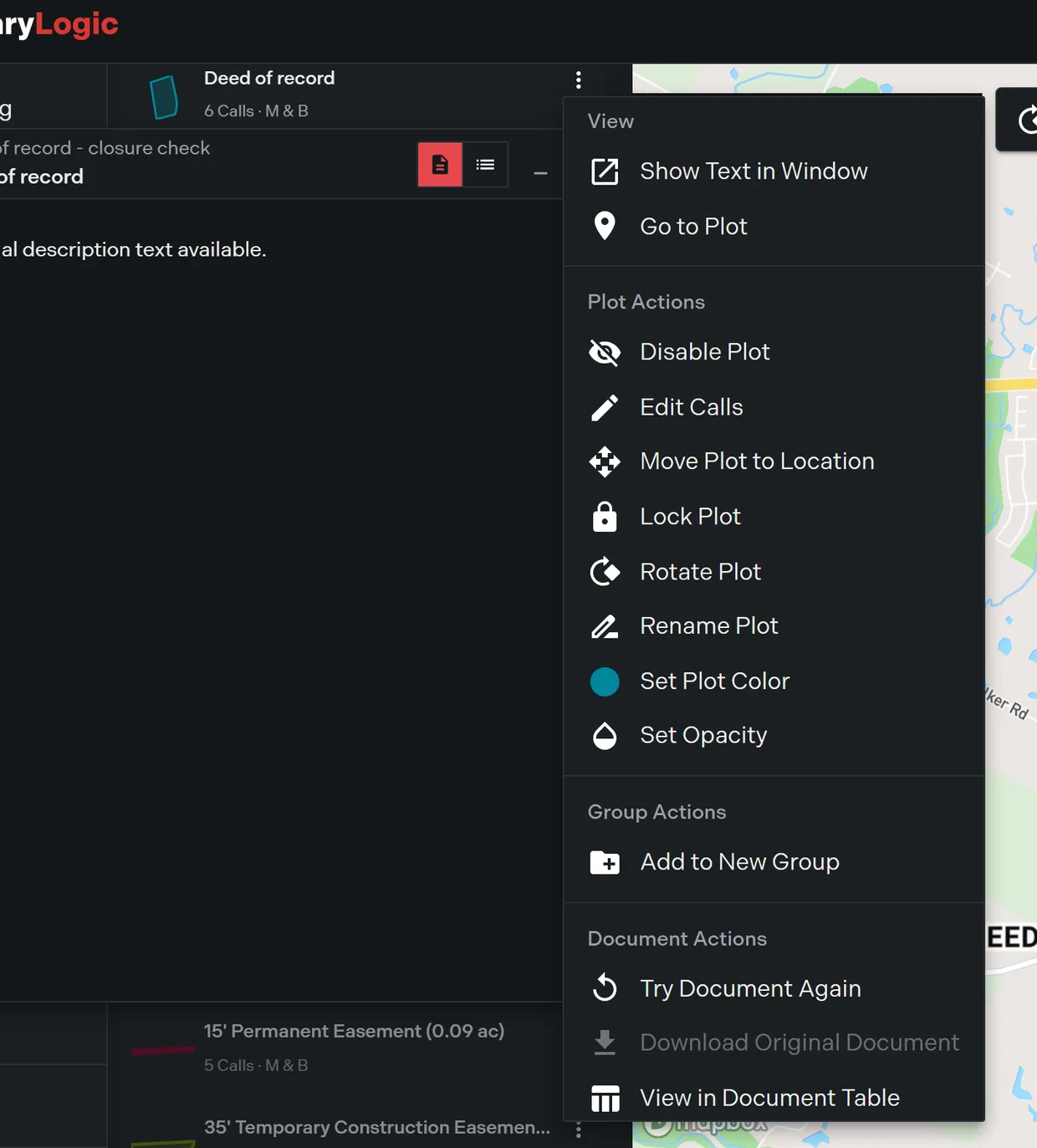
More actions opens the layer’s full menu, grouped into four sections for a tract and three for an overlay. The plot actions here are the same actions as the map right-click menu, run from the pane instead. Plot actions is the reference for what each one does.
Options
| Section | Items | Notes |
|---|---|---|
| View | Show Text in Window, Go to Plot | The window is covered in Floating description windows |
| Plot Actions | Hide, edit calls, move, lock, rotate, rename, Set Plot Color, Set Opacity | Same actions as the right-click menu, anchored to the card |
| Group Actions | Add to New Group, Move to Group, Remove from Group | Move to Group appears only when another group exists; Remove from Group only while the layer is in one |
| Document Actions | Try Document Again, Download Original Document, View in Document Table | Tract layers only. Try Document Again spends a credit. Download Original Document is disabled on a manually plotted layer, which has no uploaded file behind it |
Without edit access the add, group and document actions are disabled, the hide control is disabled, and the drag handles are absent.
Related
- Plot actions, the canonical action list
- Layer groups and ordering
- The closure report, opened from the expanded card
- Image overlays
- Floating description windows