

Availability: All plans
Summary
Right-clicking the map opens one of three menus, and which one you get depends on what sits under the pointer: a plot, an image overlay, or empty map. They carry different items and different item counts, so knowing which menu you opened tells you what you can do next.
The map menu appears only once the project has plotted data. Right-clicking the map of an empty project opens nothing.
Usage notes
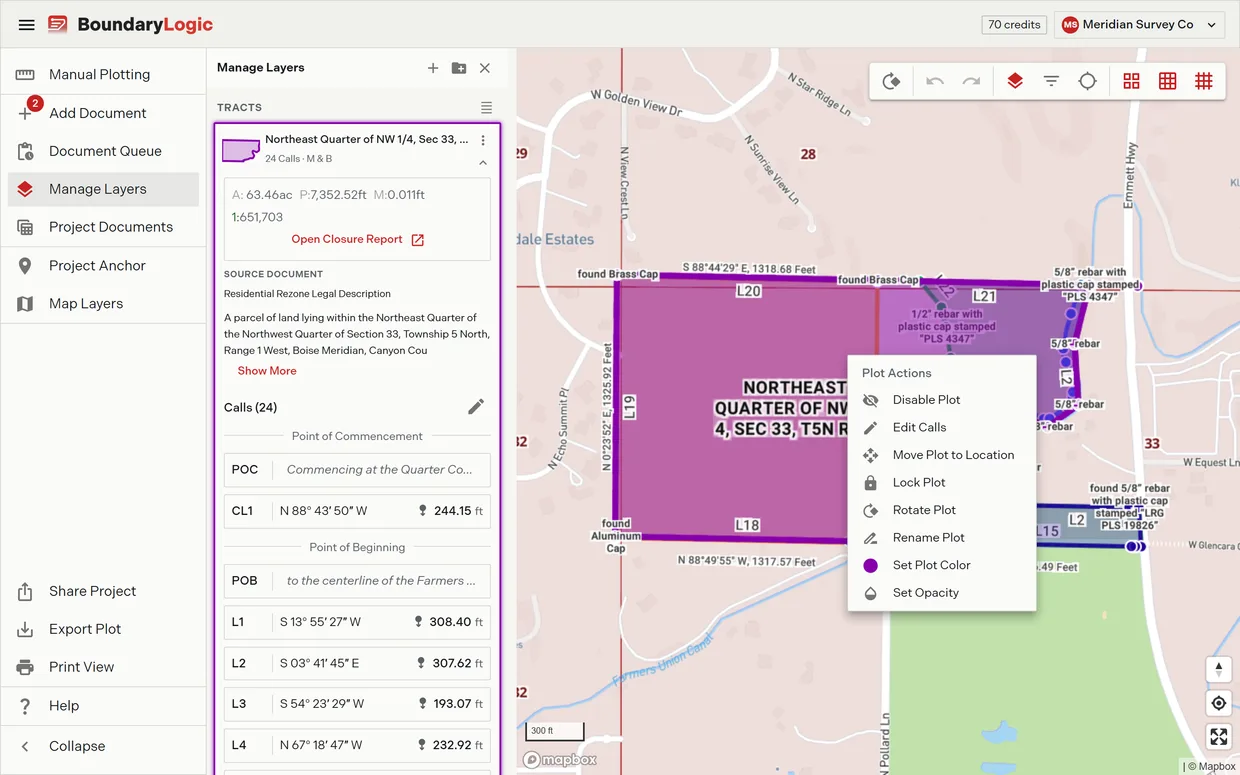
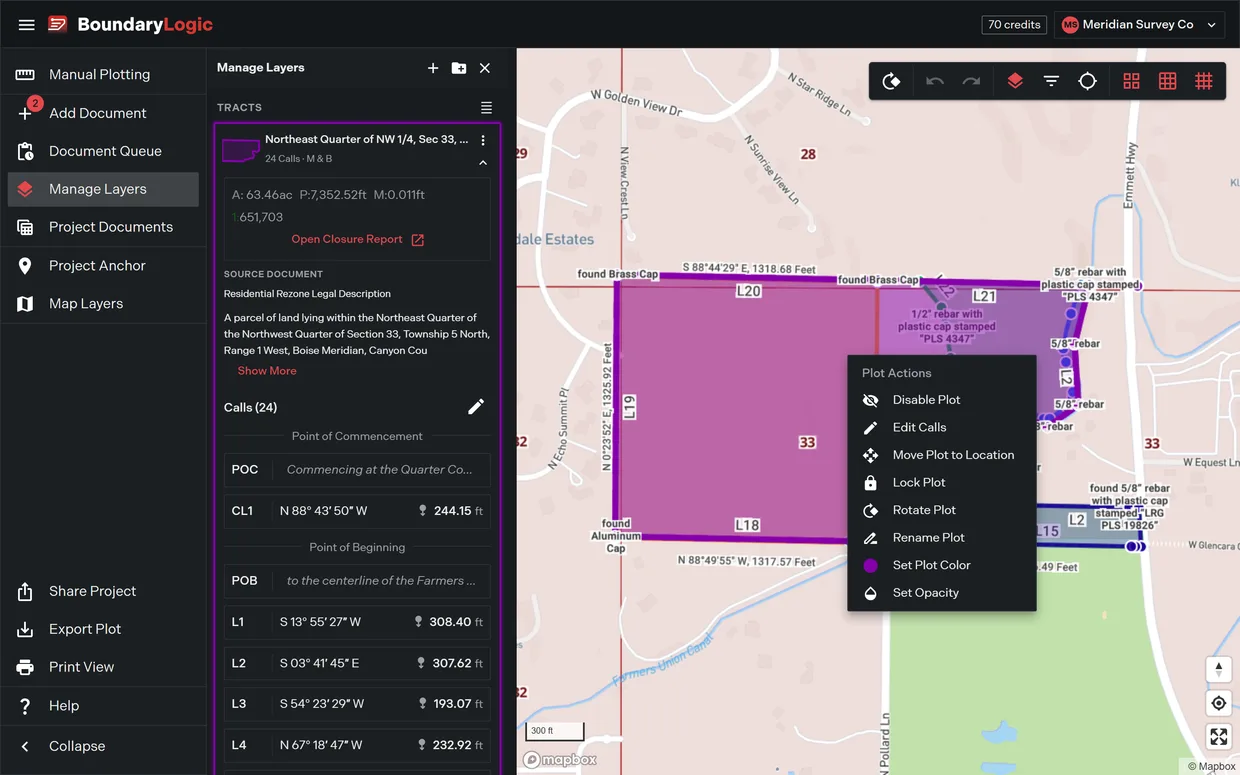
Plot Actions, on a plot
Eight items, headed Plot Actions. It shows a skeleton for a moment while the plot loads.
| Item | What it does | Alternate label |
|---|---|---|
| Disable Plot | Hides the plot from the map, the sheet and the exports | Enable Plot when already hidden |
| Edit Calls | Opens the plot’s document in manual plotting | View Calls without edit access |
| Move Plot to Location | Re-anchors the plot by address, coordinates or PLSS description | |
| Lock Plot | Stops the plot being dragged | Unlock Plot when locked |
| Rotate Plot | Opens the degrees and minutes rotate dialog | |
| Rename Plot | Renames the legal description | |
| Set Plot Color | Sets the boundary color | |
| Set Opacity | Sets how transparent the plot draws |
Without edit access every item except Edit Calls is disabled. Move Plot to Location and Rotate Plot are also disabled while an undo or redo is running.
Locking a plot changes what the menu offers rather than shortening it: the lock item flips to Unlock Plot and the plot refuses to drag, panning the map instead.
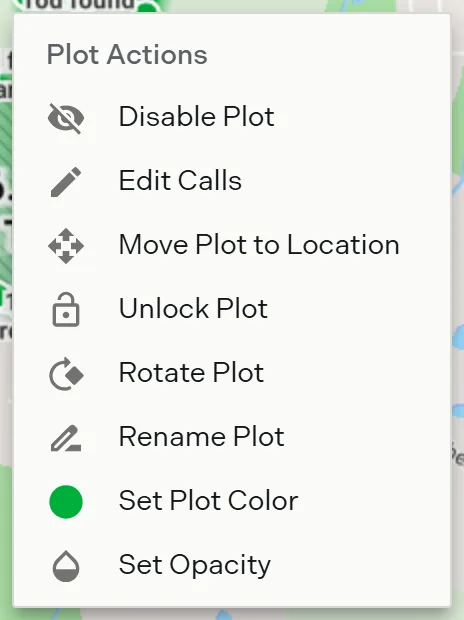
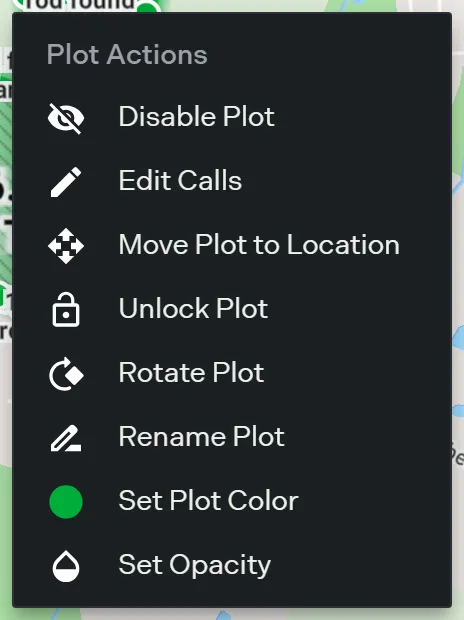
Image Overlay, on an overlay
Seven items, headed Image Overlay. It is the only one of the three menus with a delete.
| Item | What it does | Greyed while locked |
|---|---|---|
| Disable Image | Hides the overlay from the map. Reads Enable Image when hidden | No |
| Move to Location | Re-anchors the overlay by address, coordinates or PLSS description | Yes |
| Lock Image | Pins position, scale and rotation. Reads Unlock Image when locked | No |
| Rotate Image | Opens the rotate dialog for the overlay | Yes |
| Rename | Renames the overlay layer | No |
| Set Opacity | Sets how transparent the image draws | No |
| Delete Image Overlay | Removes the overlay from the project for good | No |
Two items grey out while the overlay is locked, and the overlay’s corner handles disappear at the same time. Choose Unlock Image to get both back.
Map Actions, on empty map
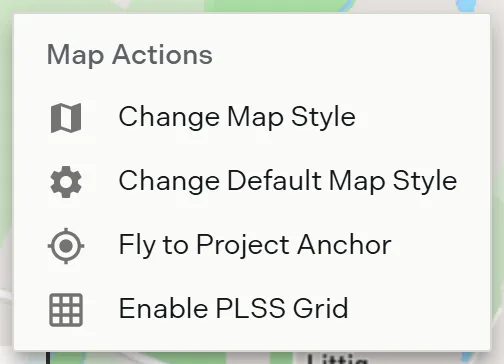
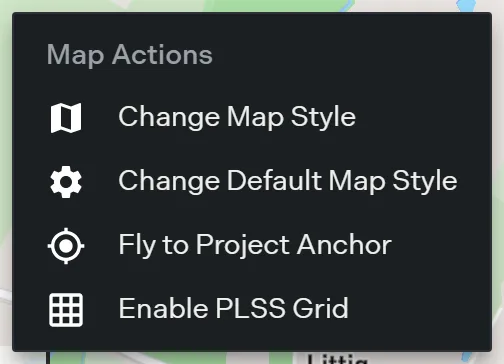
Four items, headed Map Actions, reached by right-clicking where the pointer misses every plot.
| Item | What it does |
|---|---|
| Change Map Style | Opens the Map Layers pane to pick a different map mode |
| Change Default Map Style | Leaves the project for the profile setting that chooses the mode new projects start in |
| Fly to Project Anchor | Recenters the map on the project anchor |
| Enable PLSS Grid | Turns all three PLSS grids on at once. Reads Disable PLSS Grid while any are showing |
Enable PLSS Grid needs Professional or above and is frozen on Free with the upgrade tooltip. The image overlay menu needs Professional or above to exist at all, since overlays do.
Related
- Plot actions, for what each plot action does in full
- Image overlays, for the overlay menu in context
- Map modes and styles, for both style items
- PLSS grid overlays
- Keyboard shortcuts, for the plot actions without the menu