

Availability: All plans
An easement described from a centerline does not close, so it gets its own report. The corridor report gives the easement area, the centerline length, the number of stations, the width, and a table of the left and right offsets course by course.
Before you start
- The project holds a layer plotted from a centerline with a width: a strip, corridor or variable width easement.
- Easement centerlines covers writing one. A closed tract opens the closure report instead.
Steps
- In the project menu, click Manage Layers.
- Click the easement’s card to expand it. Because the layer is plotted as a centerline, the report button reads Open Corridor Report rather than Open Closure Report.
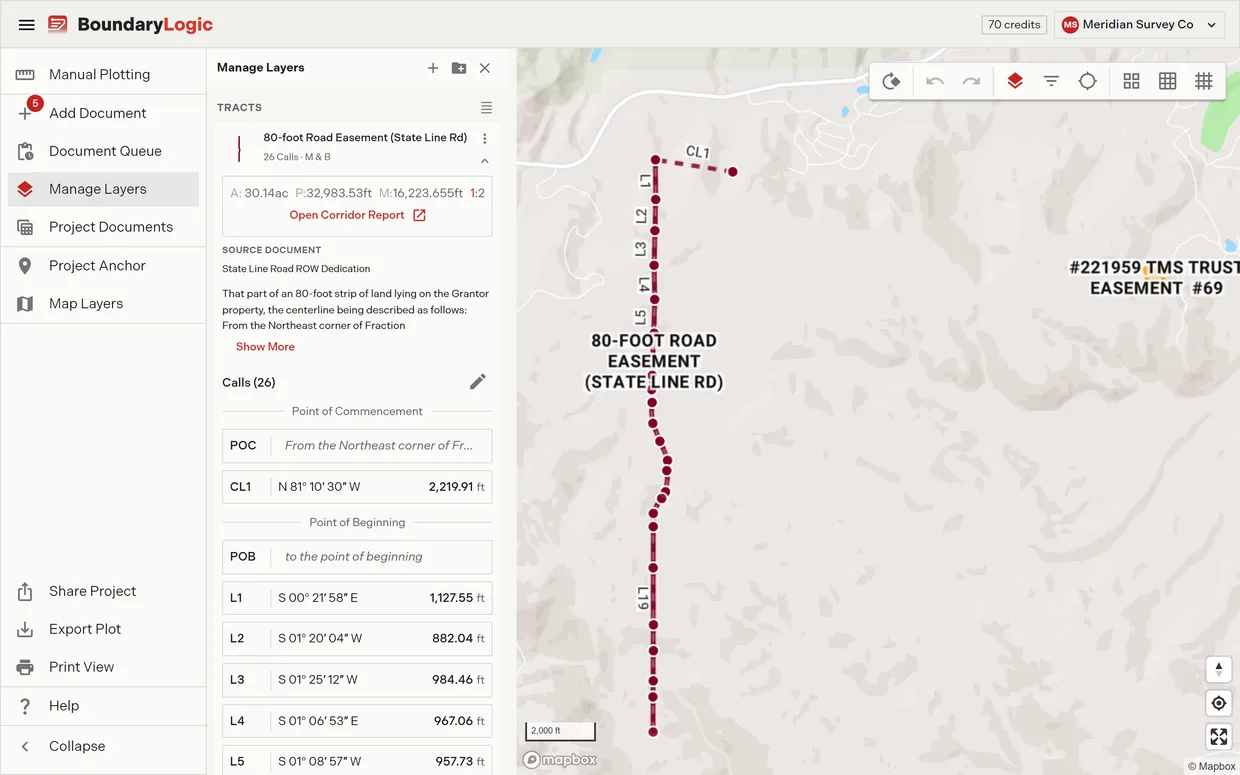
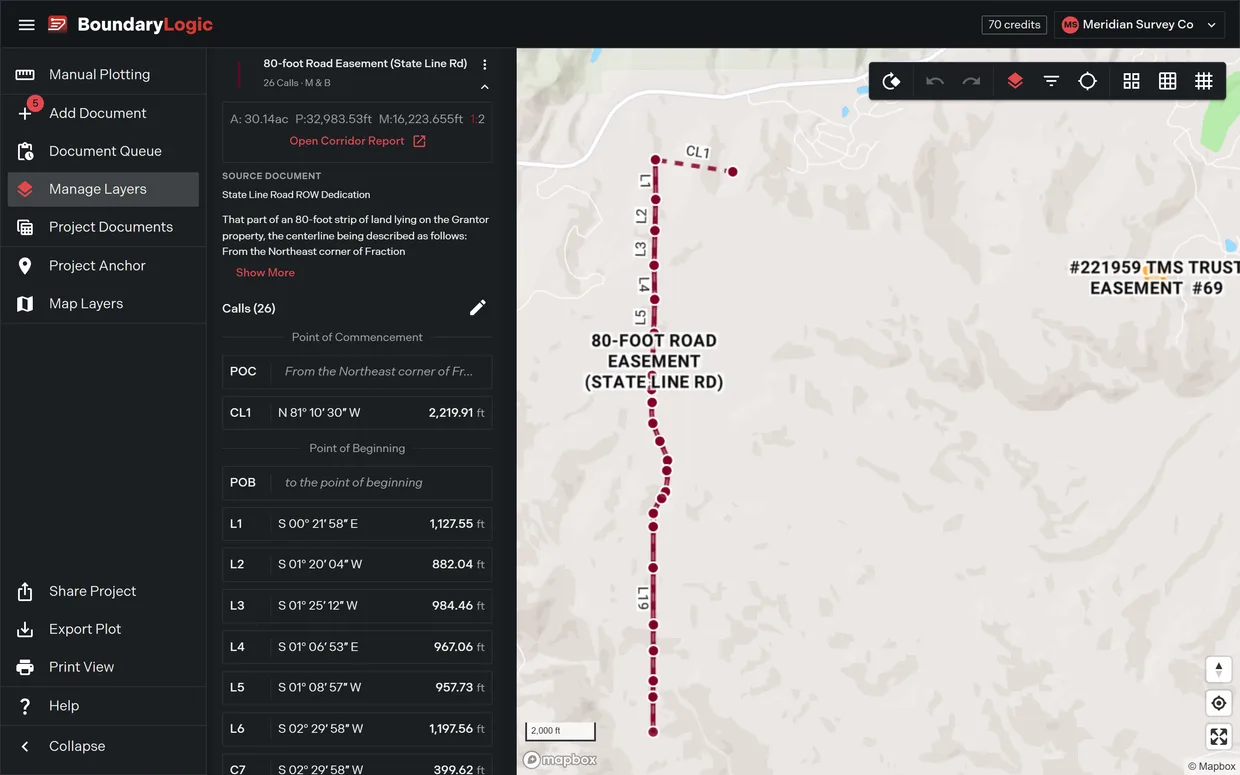
- Click Open Corridor Report.
- Read the four cards. Area gives acres over square feet, Centerline Length gives feet over meters, Stations counts the courses along the centerline, and Width gives the corridor width with its left and right split.
- Read the Width Table for the course by course detail: number, type, bearing or curve, length in feet, and the left, right and total offsets, totaled at the foot. A course with no width set is shaded and italic.
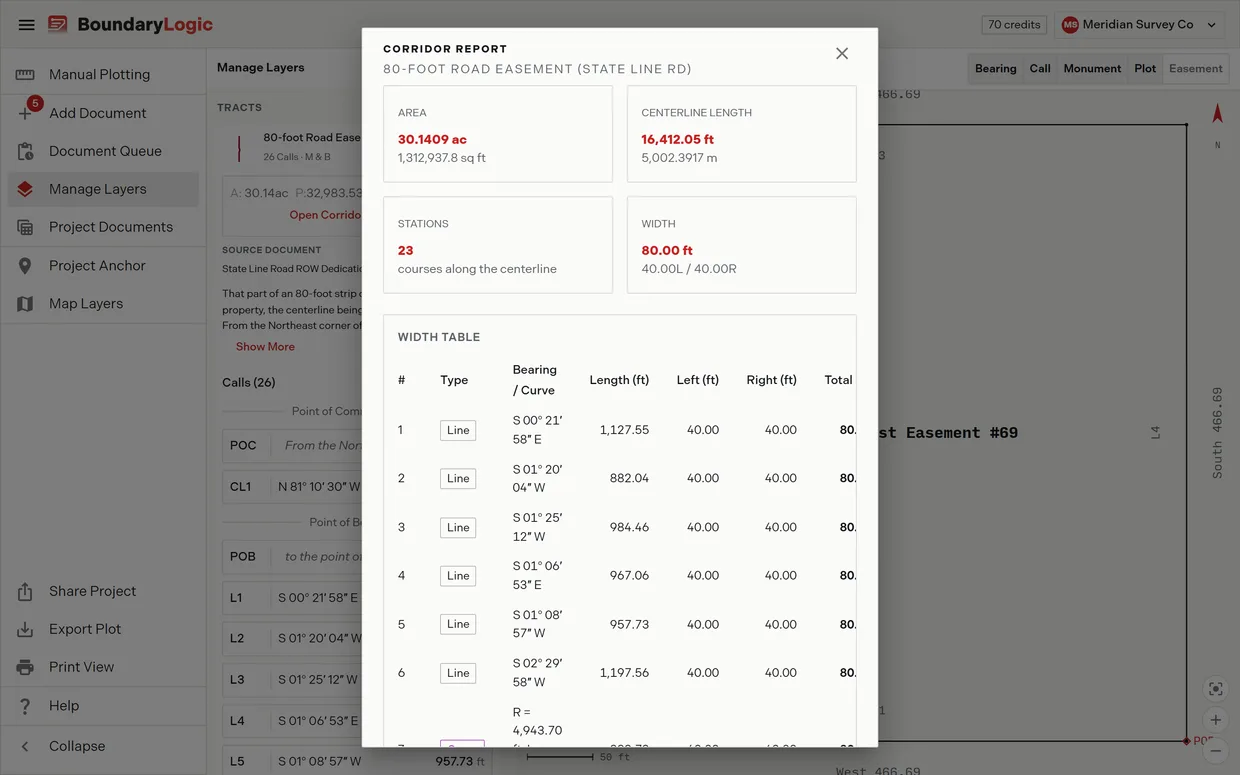
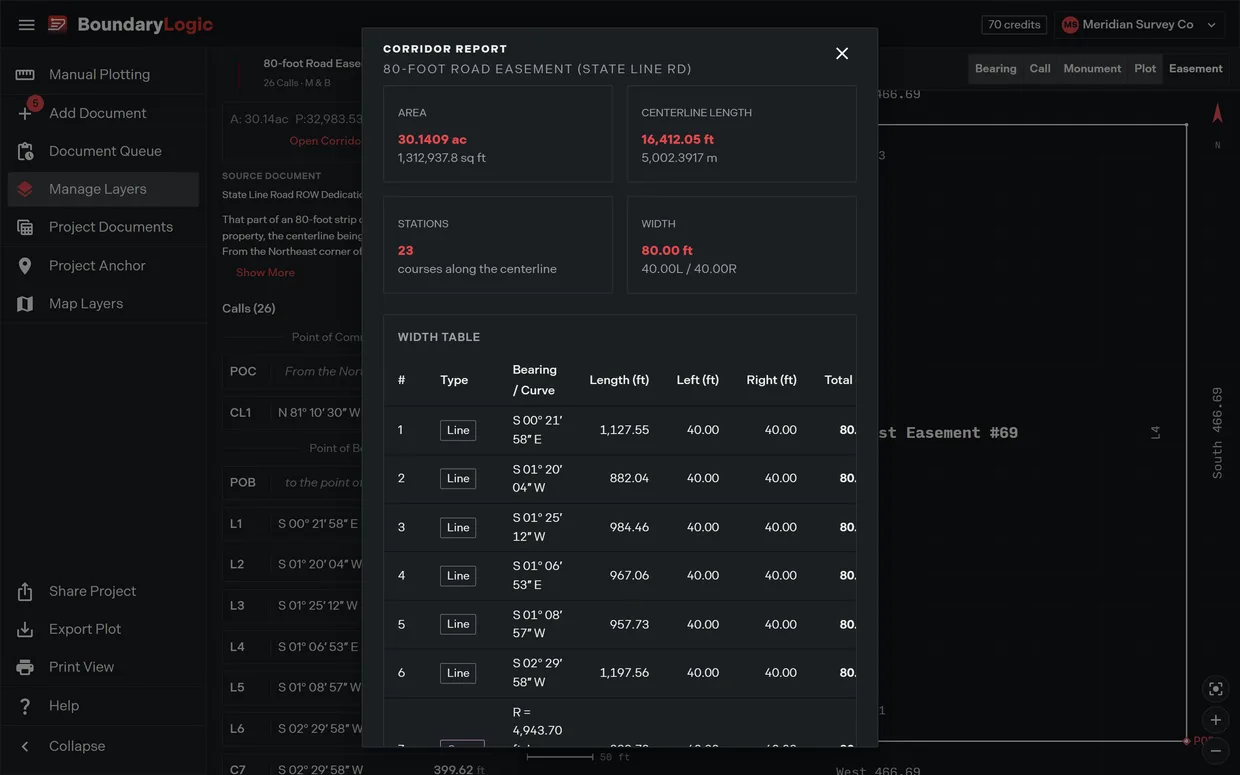
- Click the close control to return to the map.
For a quick read without the dialog, the expanded card carries its own compact width table of the left and right offsets per station.
A worked report
An 80 foot road easement running just over 3 miles reports like this.
| Card | Value |
|---|---|
| Area | 30.1409 ac over 1,312,937.8 sq ft |
| Centerline Length | 16,412.05 ft over 5,002.3917 m |
| Stations | 23 courses along the centerline |
| Width | 80.00 ft, split 40.00L / 40.00R |
The Width card gives a single figure only when the width holds all the way along, which is why this easement reads 80.00 ft rather than Varies by station. Where a width does change, the table shows the new offsets on the course where they change and the Width card reports the range instead.
Why there is no closure figure
Closure error, precision and the remainder to the point of beginning are properties of a closed traverse. A centerline runs from one end to the other and never returns, so none of them apply. The manual plotting tract card says as much for a centerline description: it reports the easement area and the line “Open centerline traverse. No closure figures.” The corridor report is the equivalent check, and the reviewing professional reads it the same way.
Manually plotted easements
A centerline you typed by hand reports the same way, from the same card. There is no report entry point inside the manual plotting workspace: leave the editor, open Manage Layers, and open the report from the layer’s card.
Trace works the corridor area out twice and the two disagree slightly. On that easement the manual plotting tract card reads 1,312,914.89 sq ft where the report reads 1,312,937.8 sq ft, a difference of about 23 sq ft in 1.3 million. Quote the one you are reading.
When there is nothing to report
A centerline with no width set anywhere reports “No corridor segments have been plotted yet.” Add the width to the description and the table fills in.
Getting the widths onto a drawing
Sheet View can annotate the half widths onto the plot itself with the Easement widths toggle, which is off by default. Sheet View covers the label toggles.
Related
- The closure report, for closed tracts
- Easement centerlines, for writing a centerline with a width
- Verifications, for the checks on a closed tract
- Sheet View, for annotating the widths on a drawing
- Reading easement descriptions: centerlines and corridors, if you are starting from zero