

Availability: Expert and Enterprise
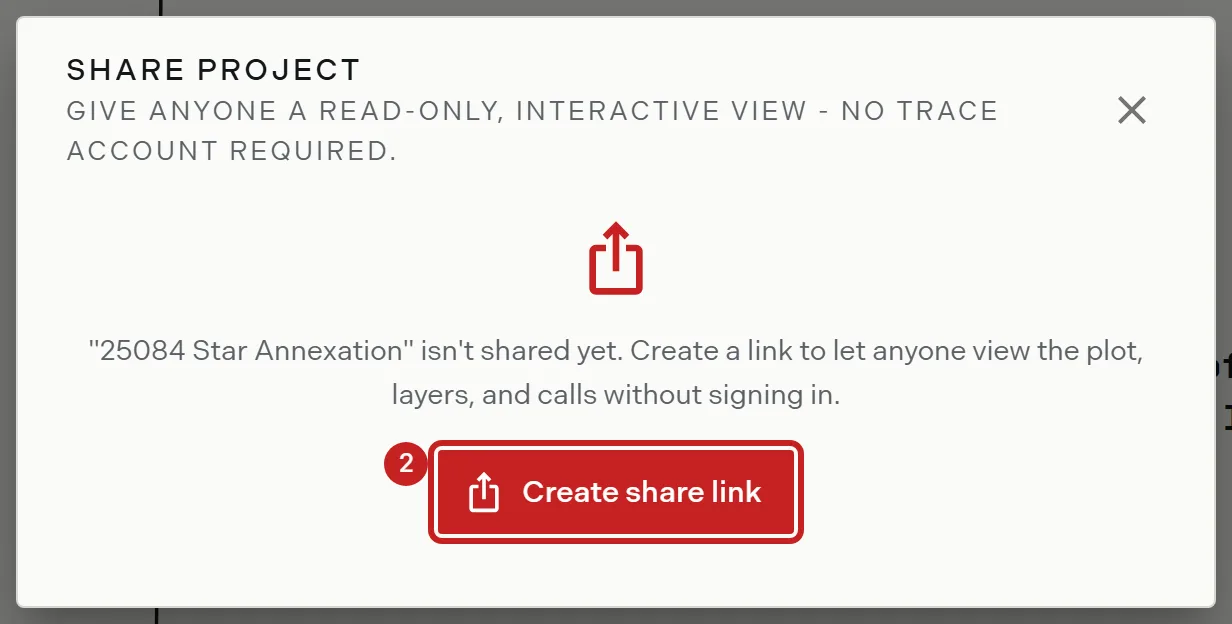
Send a plotted project to somebody who has no Trace account. They get a read only page in their browser: the map, the sheet, the layers, and the calls. Nothing they do writes back.
Before you start
- Your team is on Expert or Enterprise.
- You created the project, or you are the owner or an admin, or your team project access is Can edit.
Steps
- In the projects list, open the project’s more options menu and choose Share. In the map workspace, use Share Project in the sidebar.
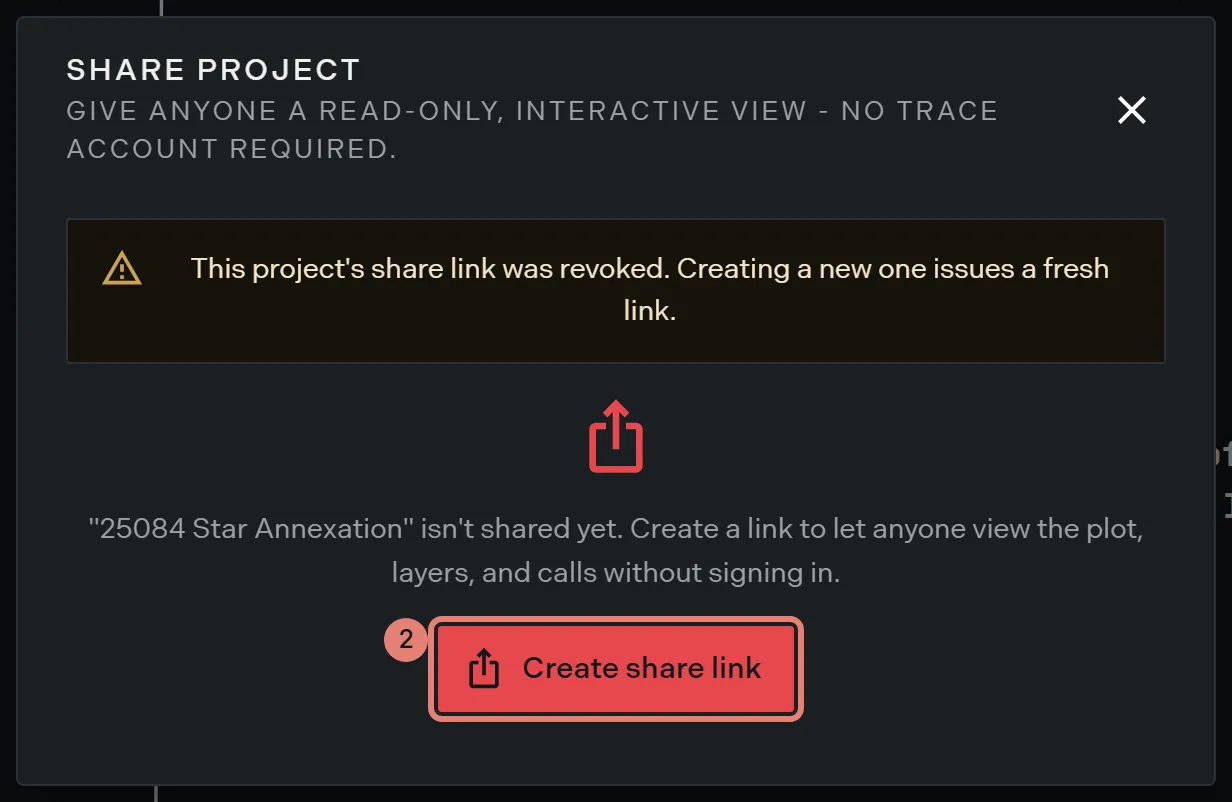
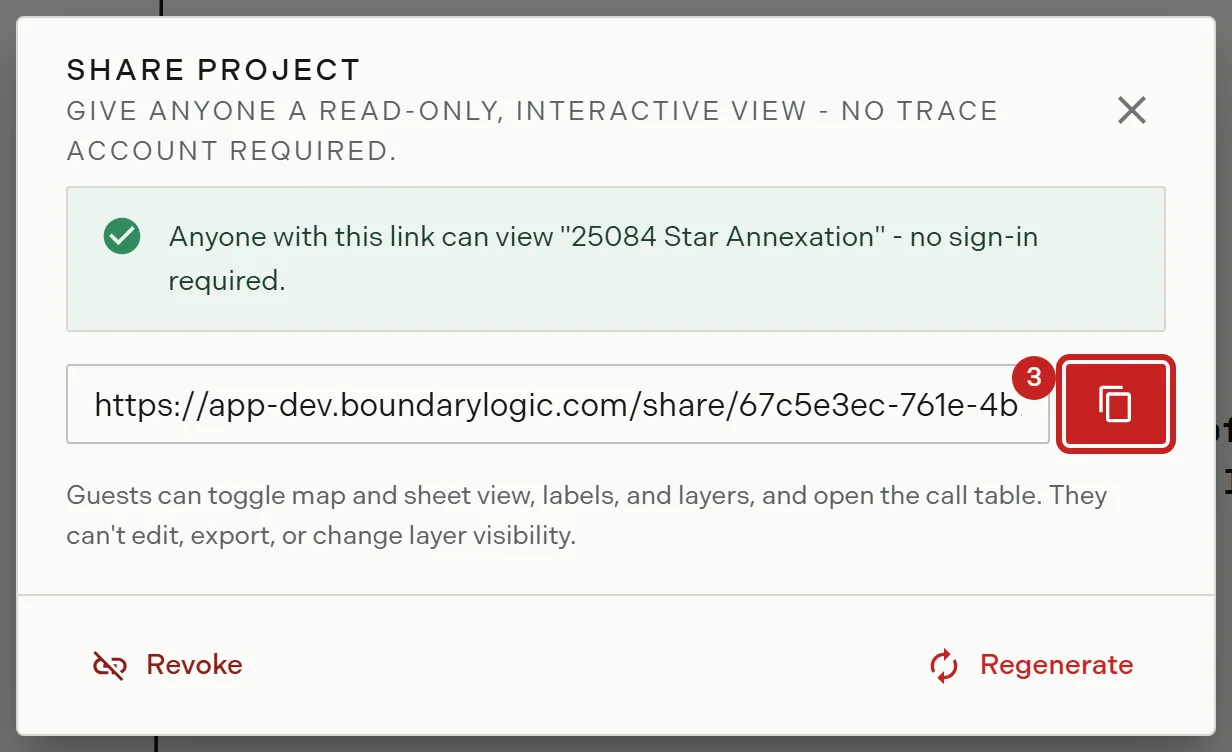
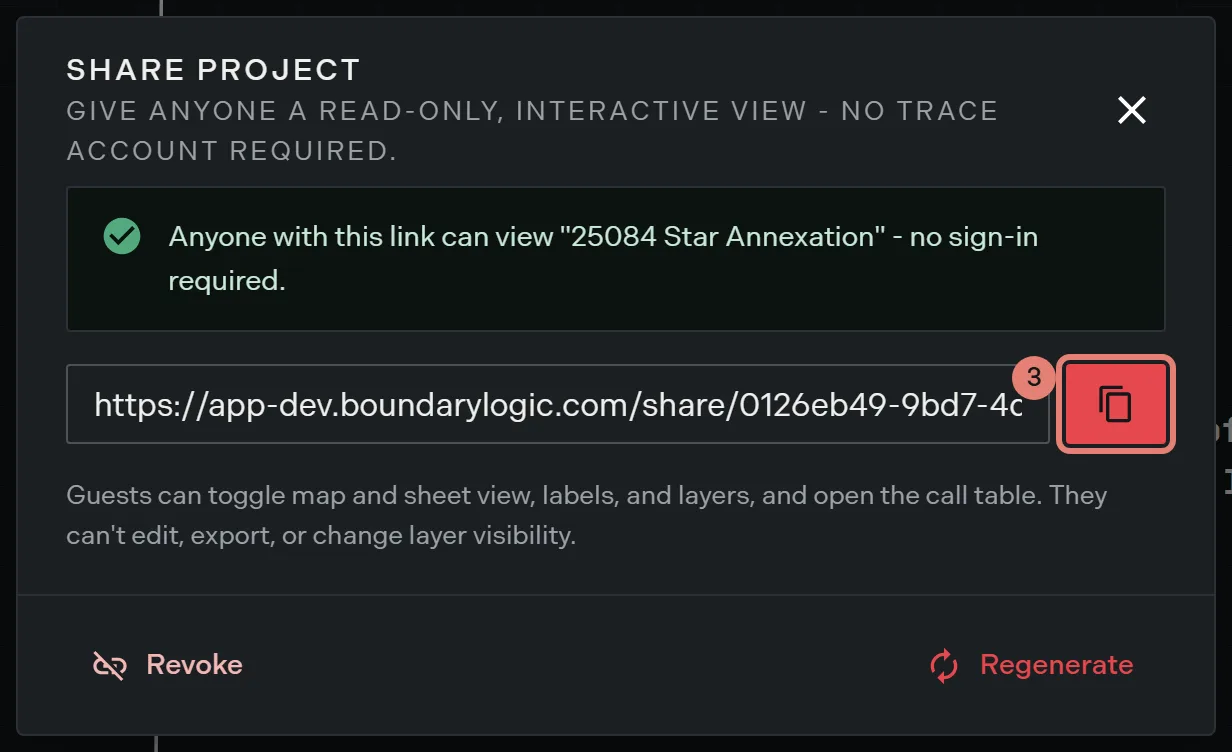
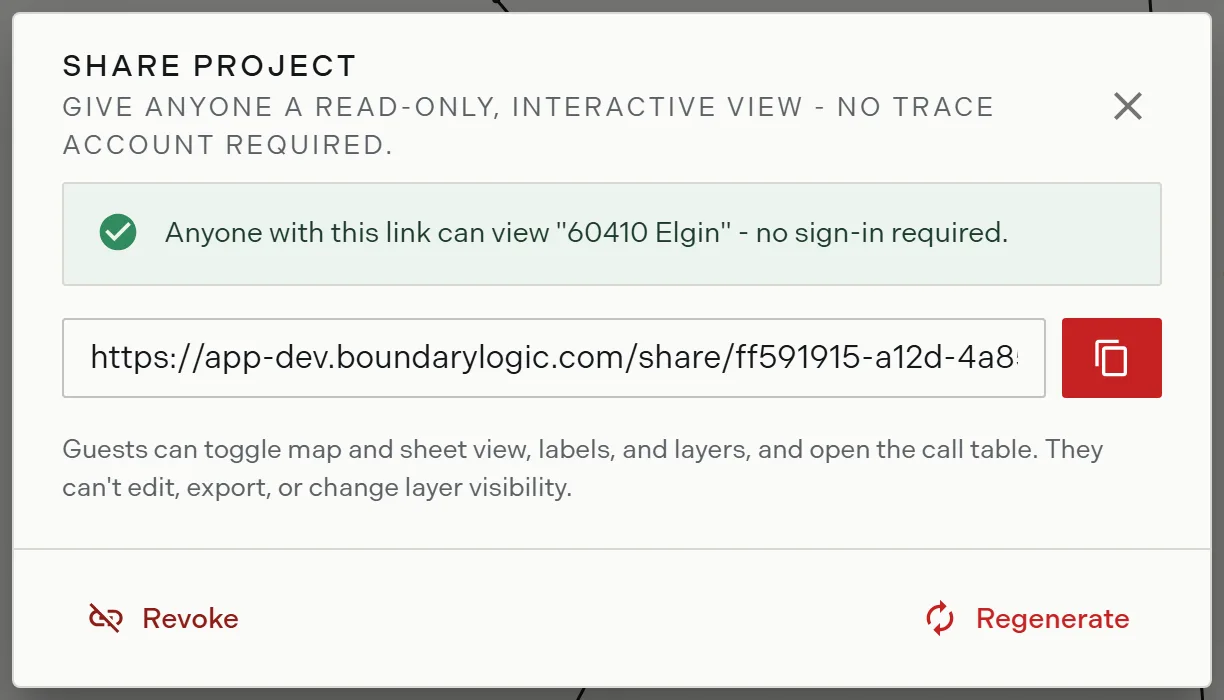
- Click Create share link. The link appears in a read only field with copy, regenerate and revoke actions beneath it.
- Click Copy link. Trace confirms that the link is on your clipboard.
- Send the link however you like. There is nothing for the recipient to install or sign into.
Who can share what
| You are | Projects you can share |
|---|---|
| The project’s creator | Your own project, whatever your role or team project access |
| Owner or admin | Any project in the team |
| A member with Can edit | A teammate’s project as well as your own |
| A member with No access | Only your own. On a teammate’s project the Share menu item does not appear, and neither does the entry in the project menu. |
Sharing follows edit access, on the reasoning that somebody trusted to change the plot is trusted to send a read only view of it.
Replacing a link
Click Regenerate to issue a fresh link. Trace confirms that the current one stops working right away, so anyone already holding it needs the new one. Use this when a link went somewhere it should not have.
Reopening the dialog on a link that is still active does not rotate it. A URL you already handed out is never invalidated by looking at it.
Switching a link off
Click Revoke and confirm. Anyone with the link loses access at once. The dialog then shows a revoked warning, and Create share link issues a new link with a new address; the revoked one never comes back to life.
A project holds one share link for its whole life. Revoking, reactivating and regenerating all reuse the same record, so the history of the link stays in one place.
What the recipient can do
Guests can switch between the map and the sheet, turn labels on and off, show and hide layers in their own browser, and open the call table. They cannot edit and cannot export. What guests see walks the page they get.
Related
- What guests see, for the recipient’s view
- When a share link stops working, for a link that has stopped serving
- Team project permissions, for the access levels this follows
- Organization profile and logo, for putting your logo on the guest page