

Availability: All plans · Role: owner or admin
Add someone to your team and decide what they can do. Invitations go out by email; the seat is claimed when they accept.
Before you start
- You are the team owner or an admin. Members are sent back to the dashboard from every Team page.
- On a paid plan, you have a free seat. Adding seats is a billing change.
Steps
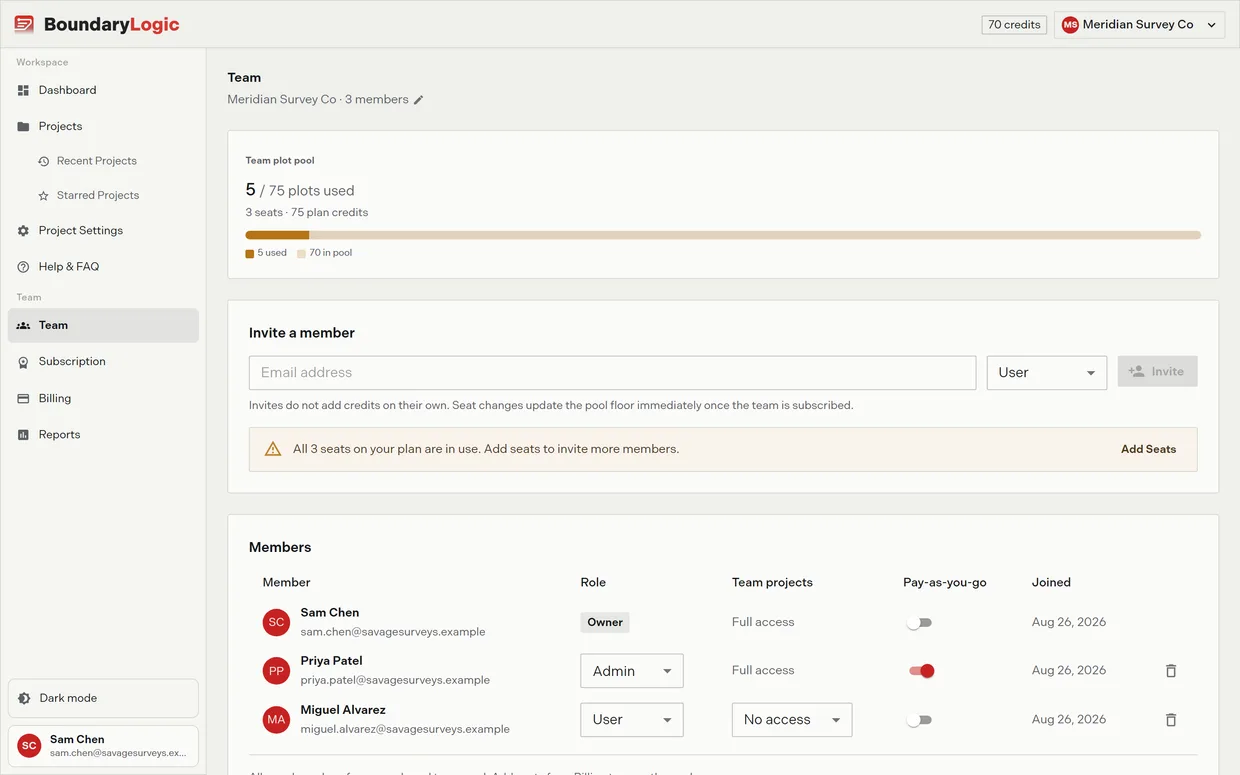
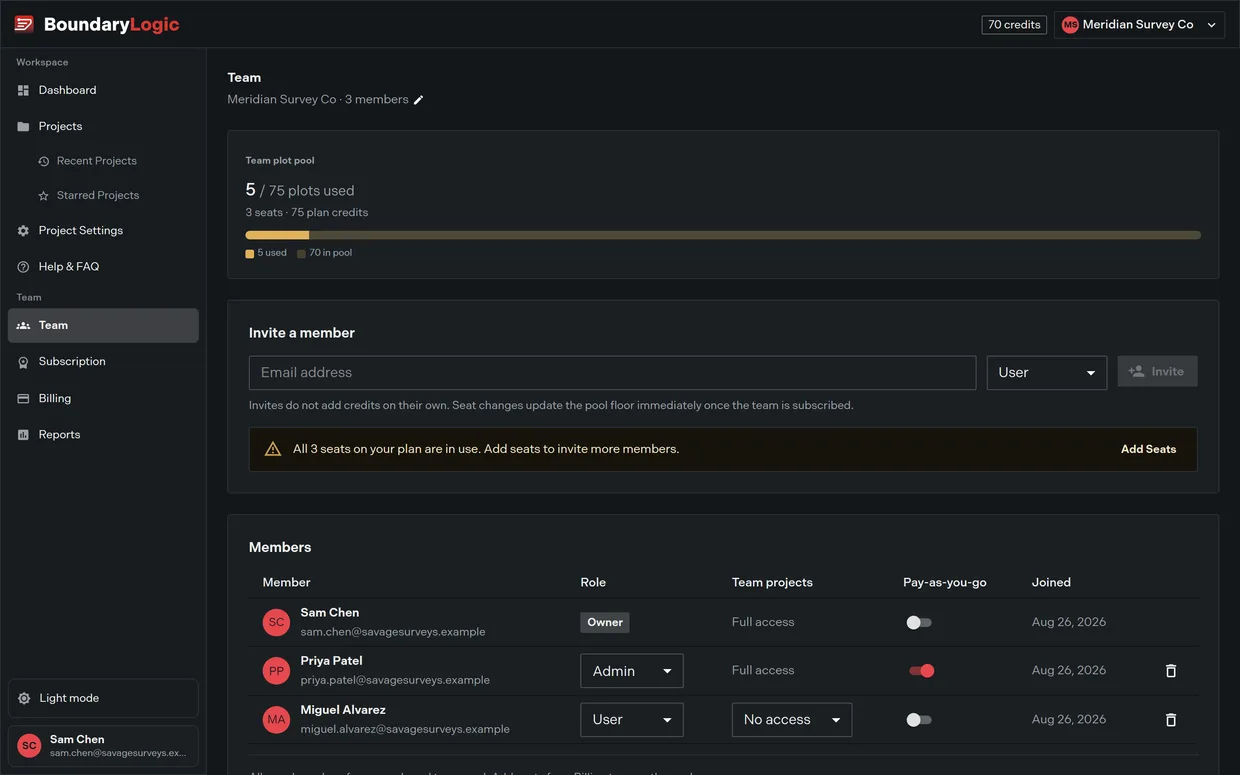
- In the app header, open the space switcher and confirm the right team is active.
- Go to the Team page.
- Under Invite a member, enter the person’s email address.
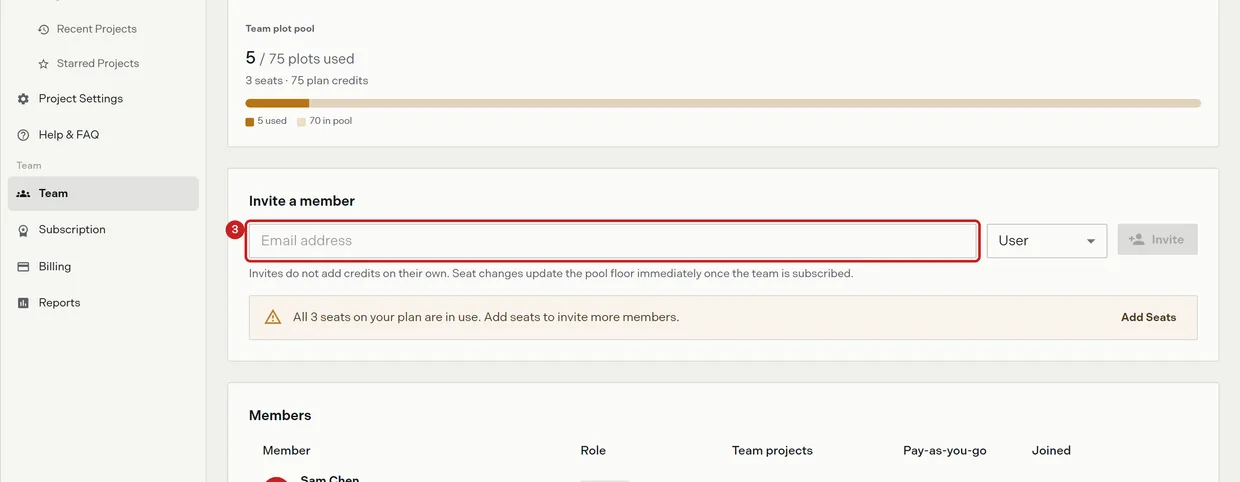
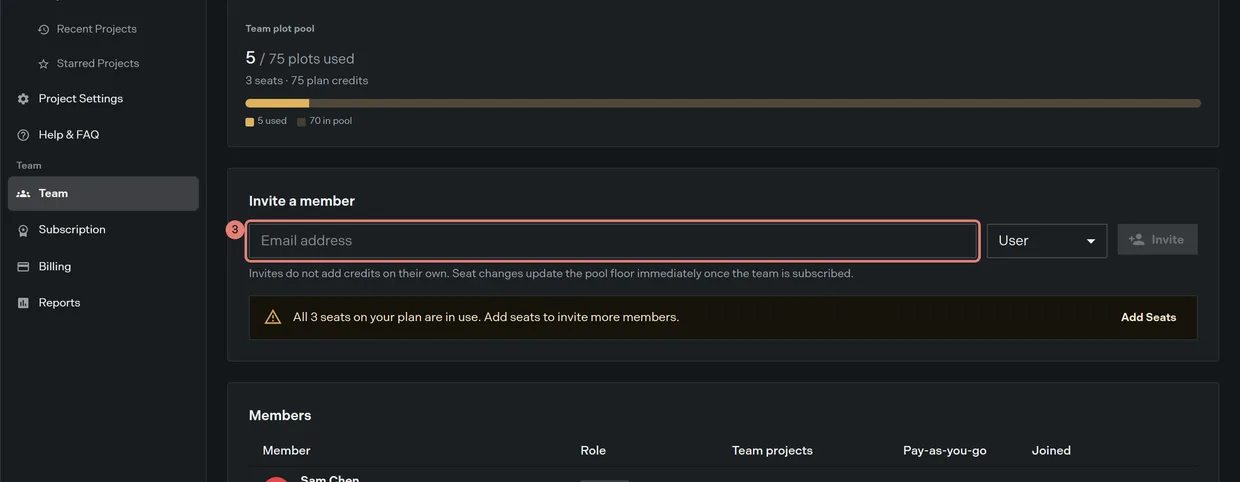
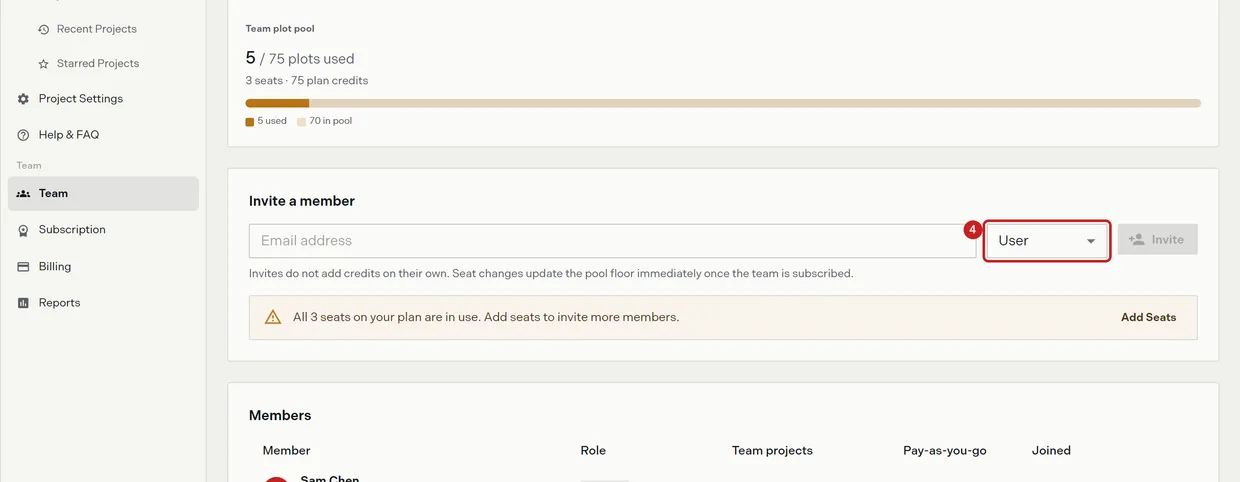
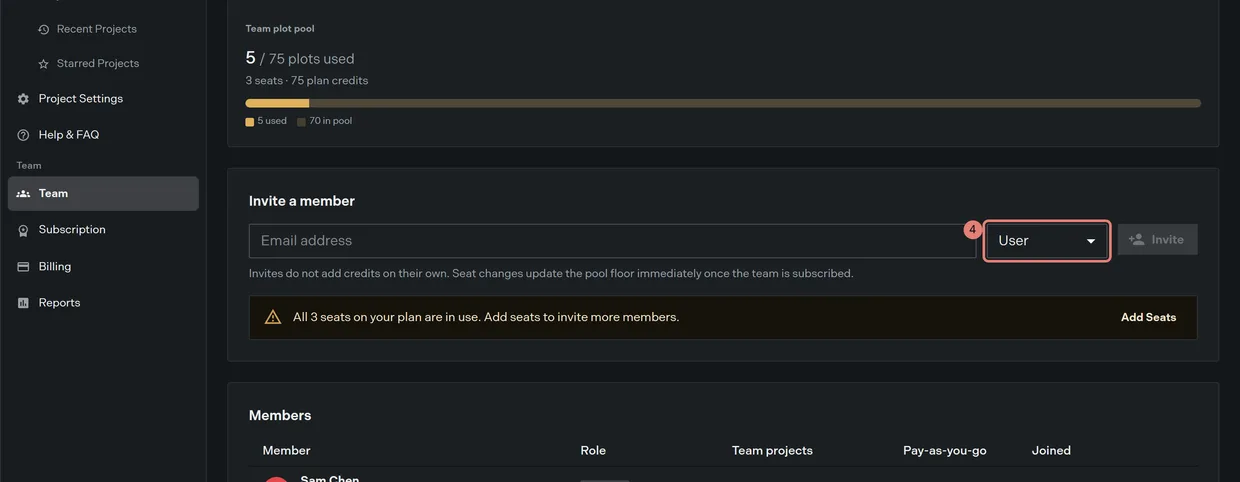
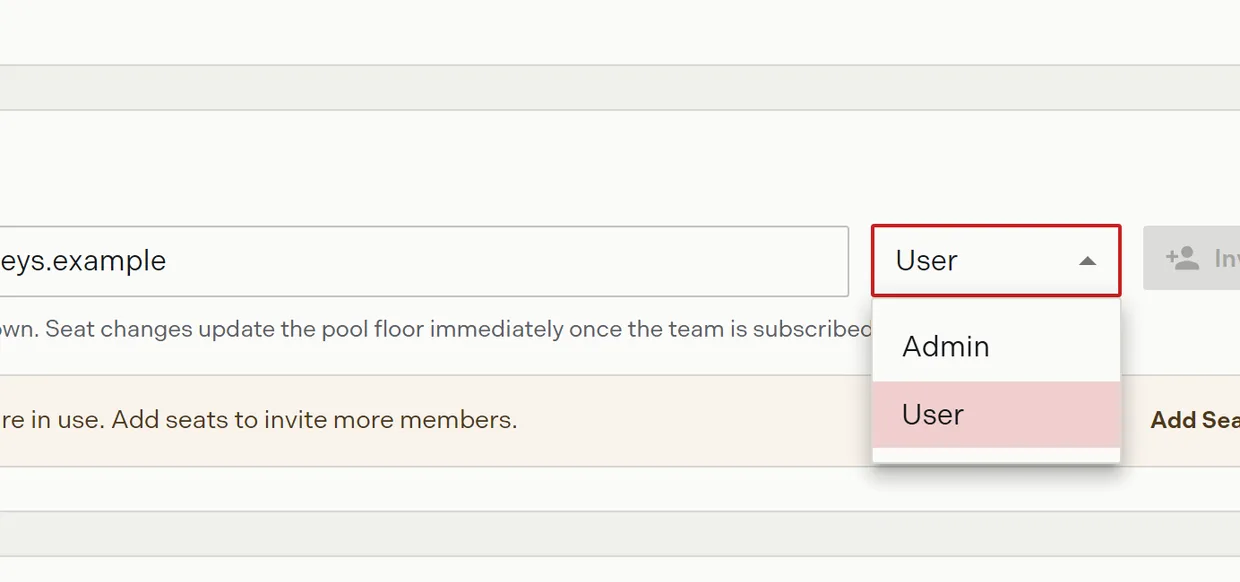
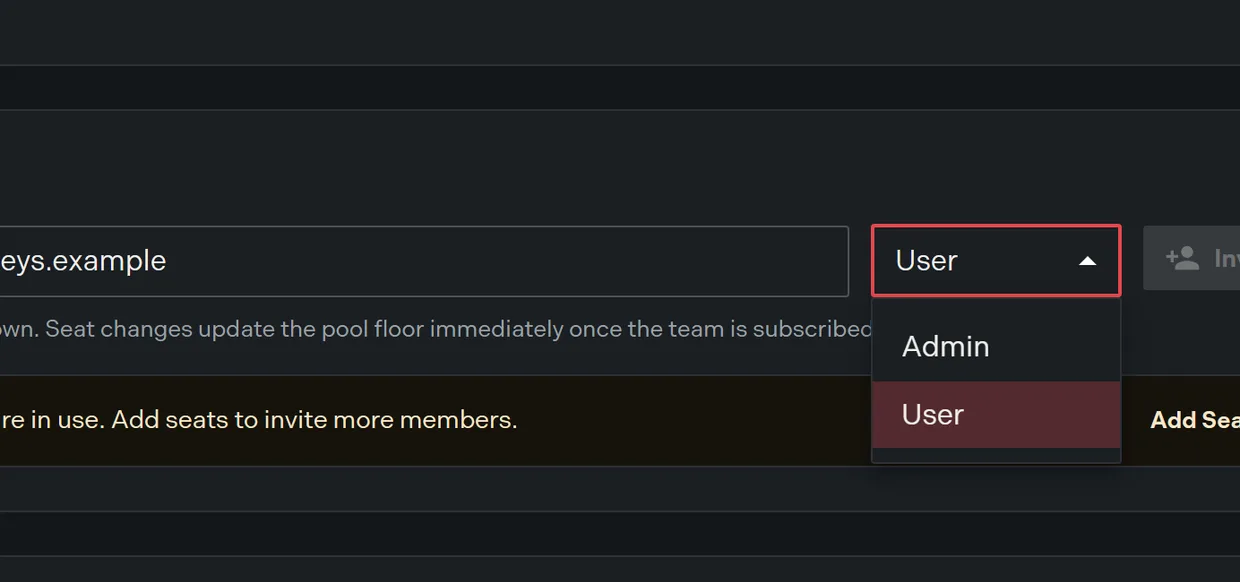
- Choose a role: Admin or User. Owner is never offered here.
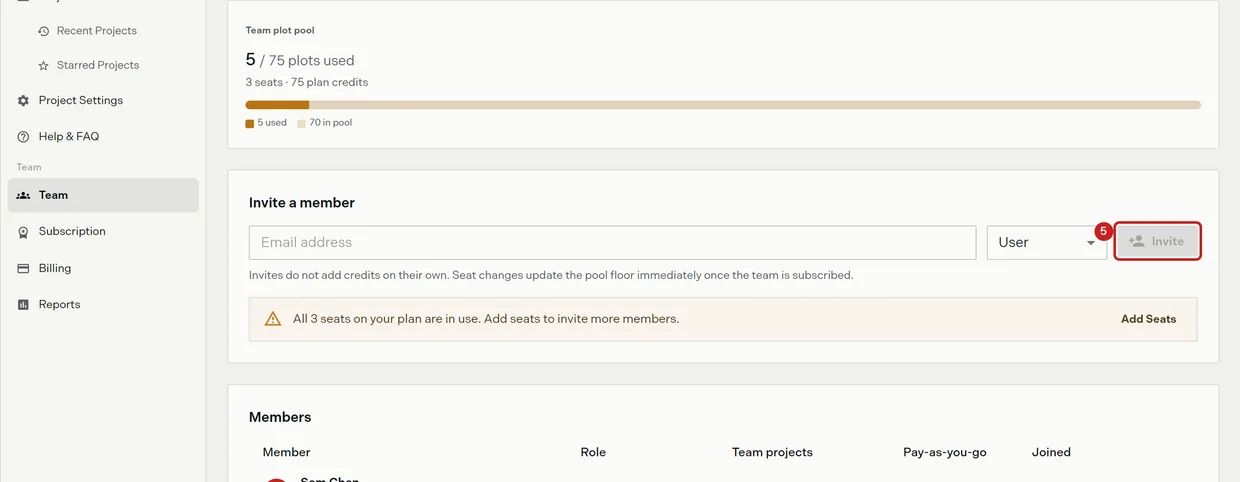
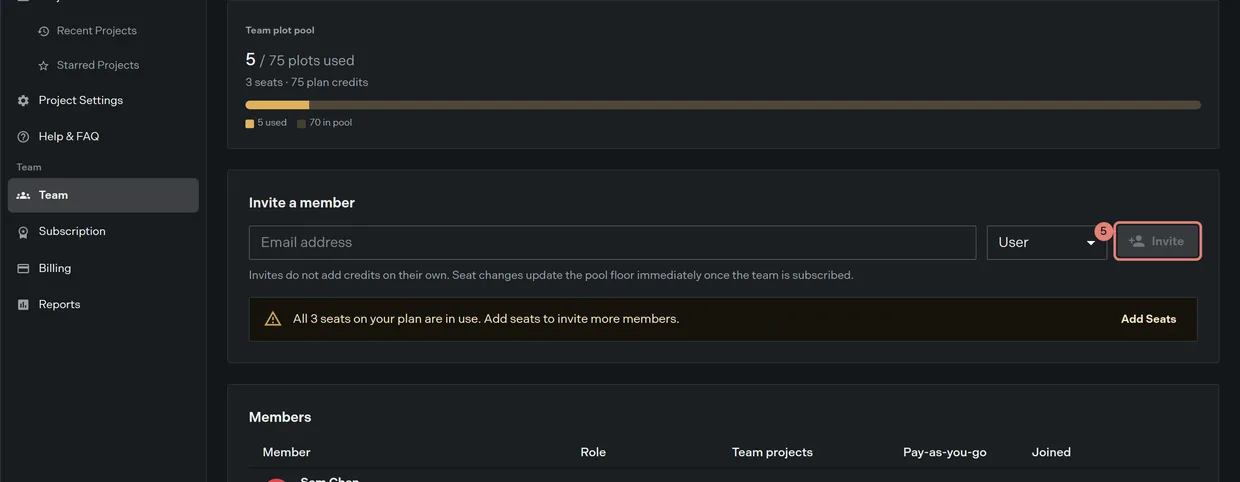
- Click Invite. Trace confirms that the invitation was sent and the person appears in the members table as pending.
What each role can do
| Role | Can do | Cannot do |
|---|---|---|
| Owner | Everything, including billing, transferring ownership, and deleting the team | There is one owner per team, and the role is not assignable from the members table |
| Admin | Invite, change roles, remove members, set team project access, and manage billing on Expert and above | Transfer ownership, delete the team, or delete the owner |
| User | Work in projects | Reach any Team page at all |
Change someone’s role from the select on their row in the members table. It saves as soon as you pick. Your own row shows your role as a badge you cannot change, and the owner’s row is plain text.
Running out of seats
On a paid plan the members table is capped at the seats you bought. When every seat is filled, Invite disables, a warning explains that all of your seats are in use, and an Add Seats button takes you to Billing. Free teams have no seat cap.
Inviting somebody does not add credits on its own. Seat changes move the pool floor as soon as the team is subscribed. Seats and credit pools covers the arithmetic.
Chasing a pending invite
A member who has not accepted yet carries a menu on their row instead of the delete icon:
- Copy Invite Link puts their personal invite URL on your clipboard, for sending through your own channel.
- Resend Invite Email sends the invitation again.
- Delete Member withdraws the invitation.
Removing someone
The delete icon on a joined member’s row asks you to confirm, then removes their access to the team. It does not appear on the owner’s row, on your own row, or on somebody who has a pending ownership transfer. Removing a member does not count against your future team capacity, and you can invite them back with the same email address.
Related
- Accept a team invite, for what the person you invited sees
- Team project permissions, for what a member can reach
- Transfer ownership, for changing who owns the team
- Seats and credit pools, for adding seats