

Availability: All plans
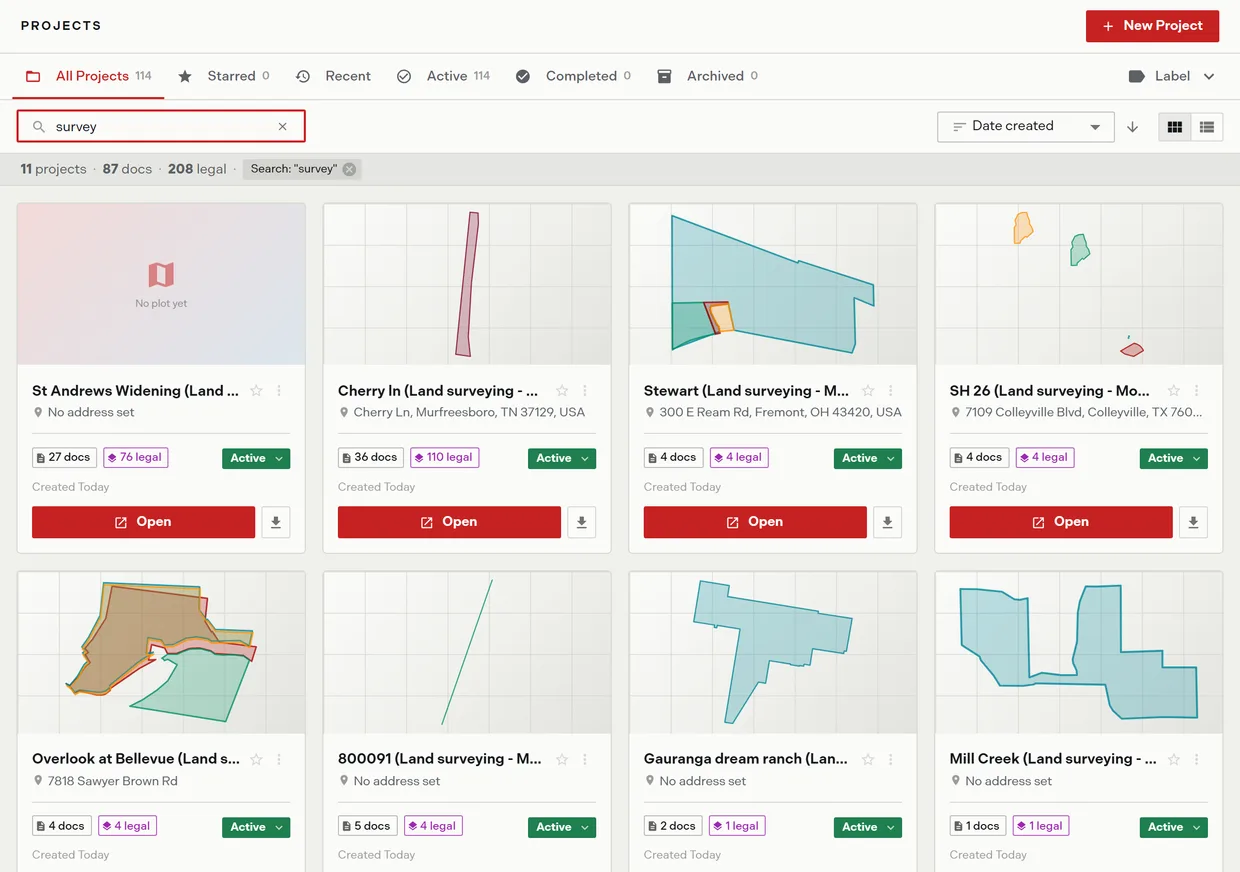
Six scope tabs, a search field, and a sort control narrow a long project library down to the job you want. Trace remembers your sort and view choices, so the list comes back the way you left it.
Steps
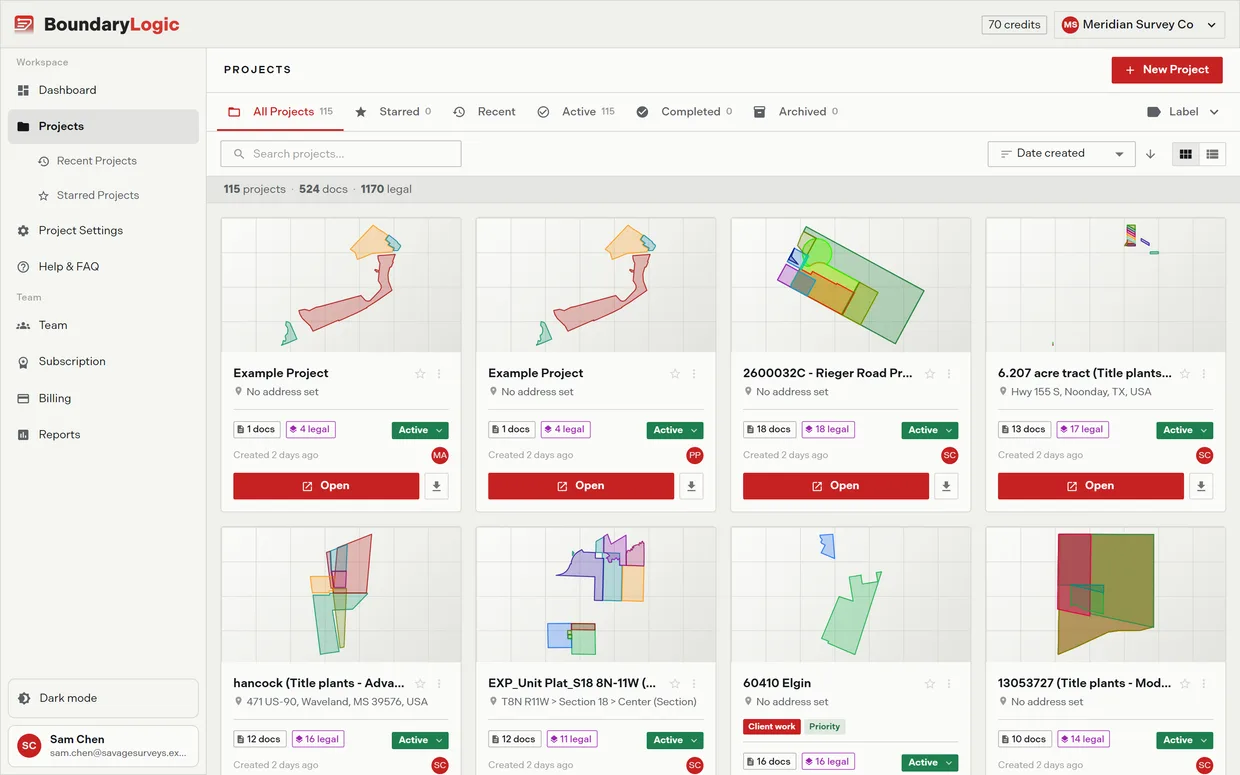
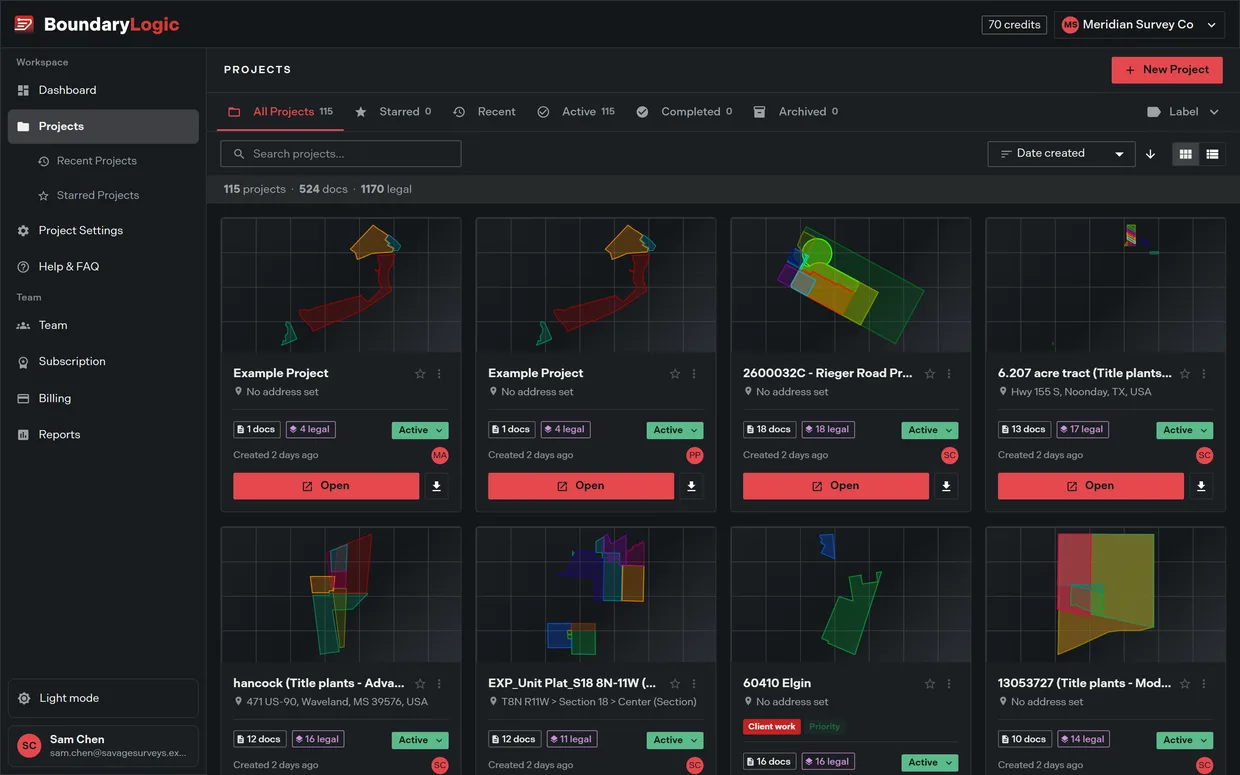
- In the sidebar, click Projects. The list opens on All Projects.
- Click a scope tab to narrow the list. Each tab except Recent carries a count that updates whenever the list refreshes.
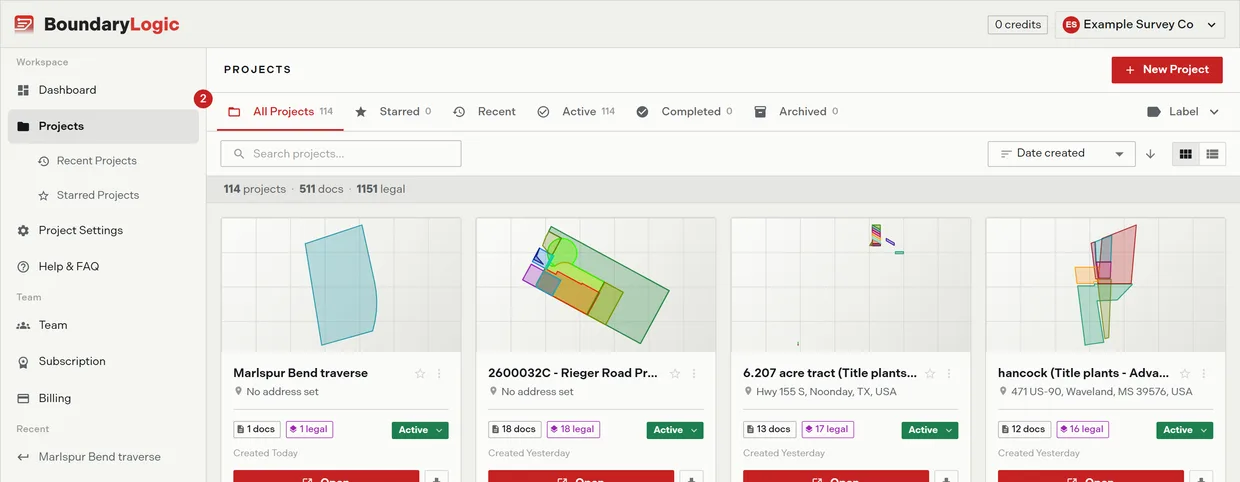
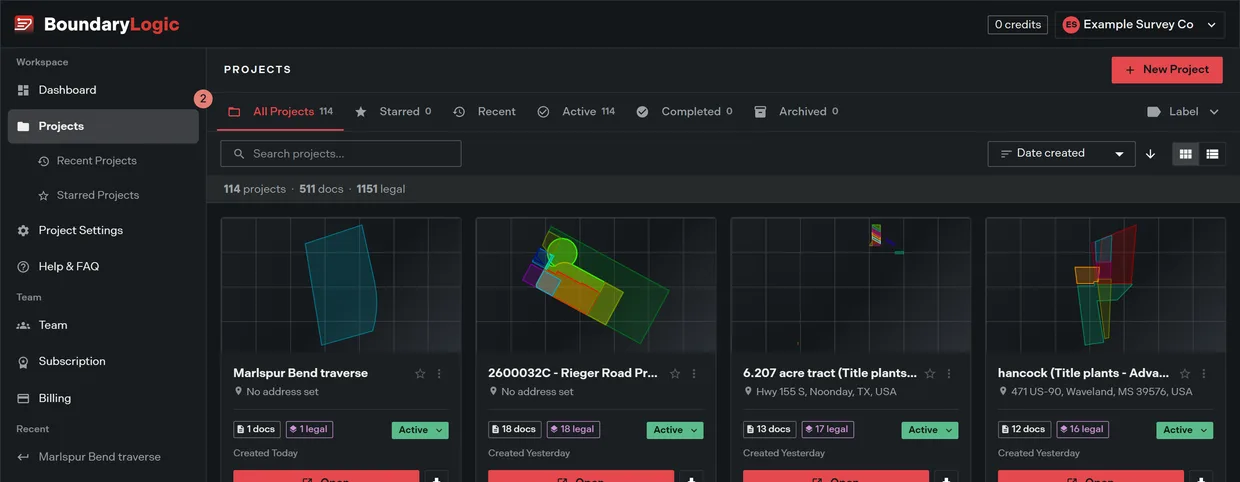
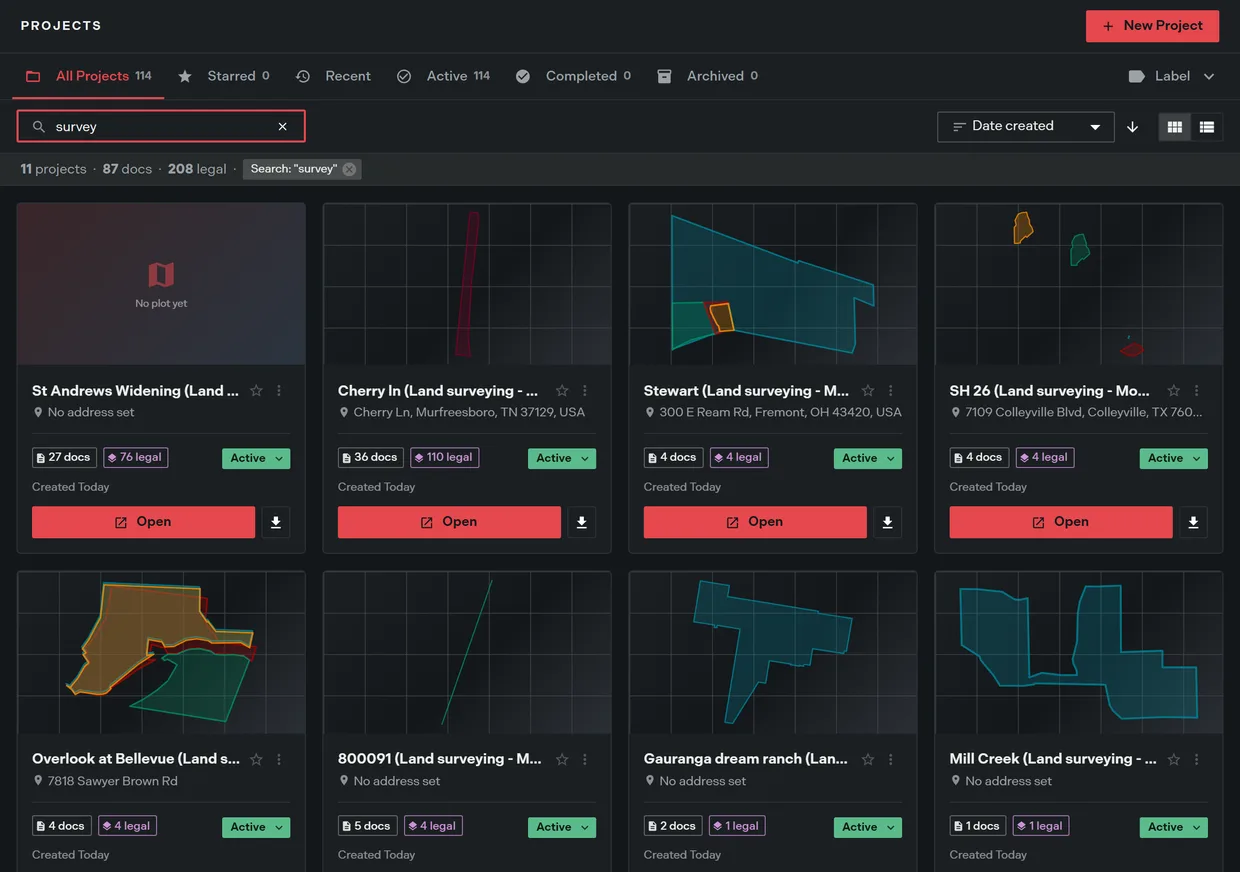
- In the Search projects field, type a project name or address. The list filters as you type, and a removable Search: “term” badge appears in the totals bar.
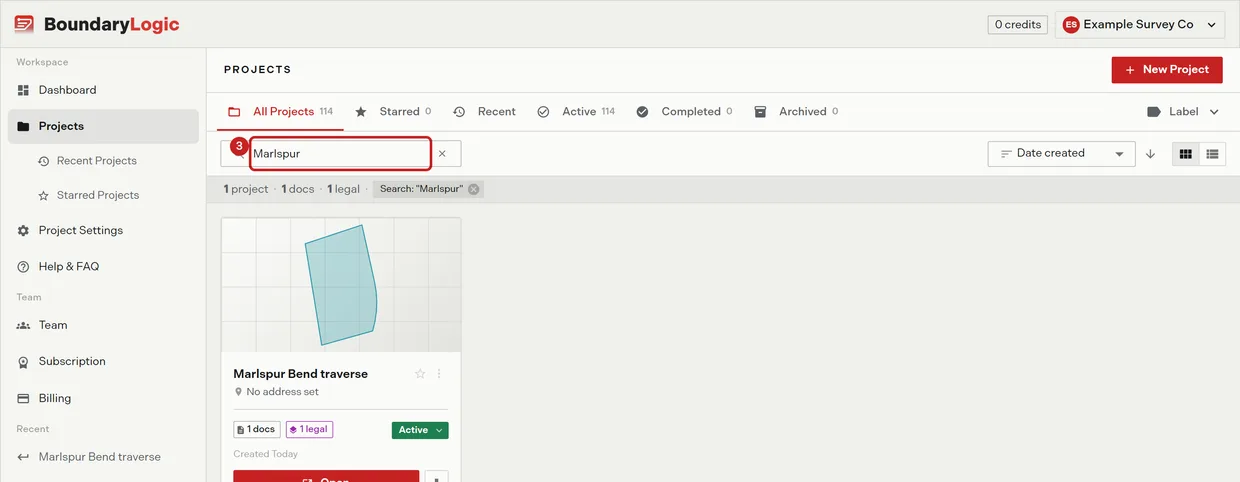
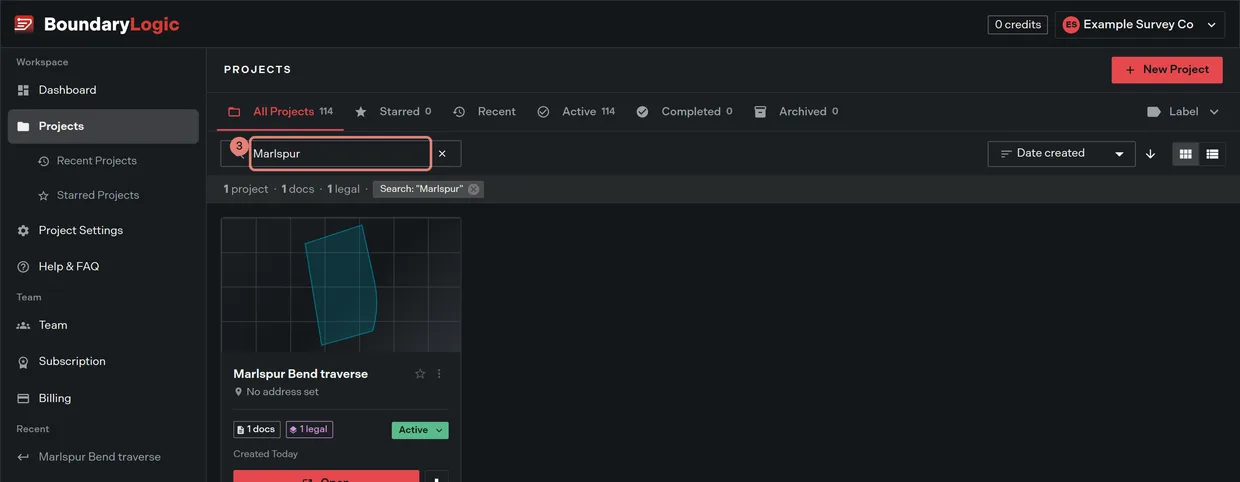
- Optional: click the X in the field, or the badge’s X, to clear the search.
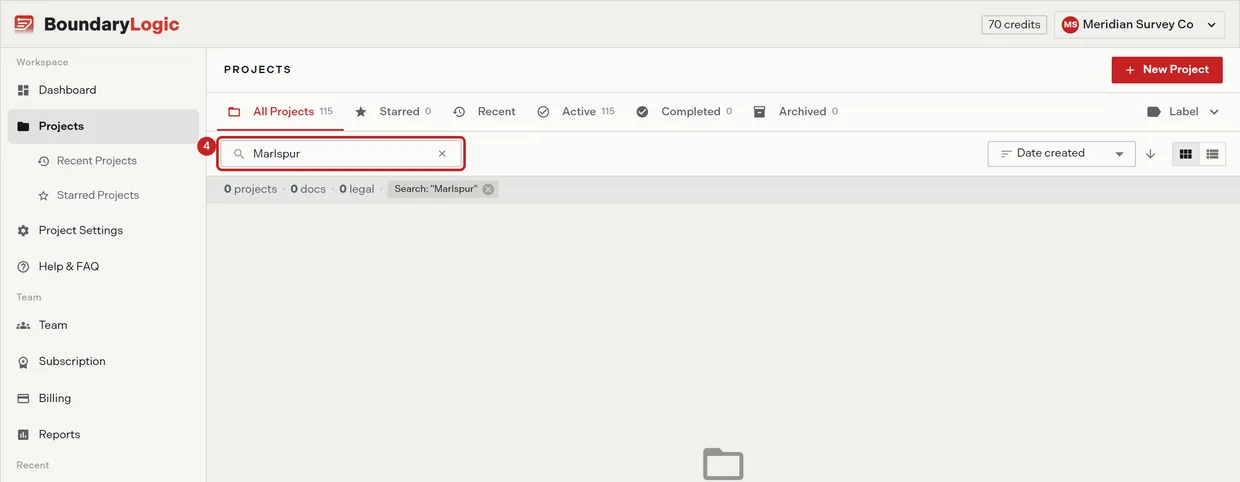
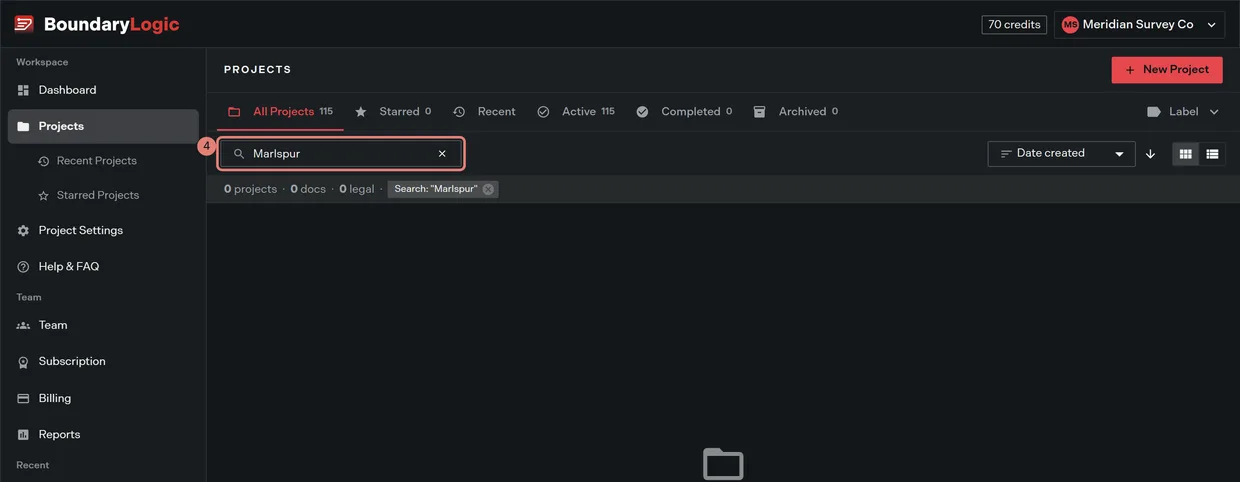
- In the Sort by select, choose Date created, Name, or Documents. Each field opens in its natural direction: newest first, A to Z, or most first.
- Optional: click the arrow button to flip the direction. Its tooltip words the direction in the field’s own terms, such as Oldest first or Z to A.
- Optional: click the grid or list icon to switch between the card grid and the table.
The scope tabs
| Tab | What it holds |
|---|---|
| All Projects | Every project you can see, except archived ones |
| Starred | Projects you starred |
| Recent | The five most recently created projects. The only tab with no count |
| Active | Projects at the Active status |
| Completed | Projects at the Completed status |
| Archived | Archived projects. The only place they appear |
Every scope and every filter except the Archived tab leaves archived projects out. If a project has gone missing from a search, check that tab first.
Filtering by label
The Label button right of the scope tabs filters the list to one label. While a filter is active the button renames itself to that label and the scope tabs deselect. Project labels covers creating and applying them.
What Trace remembers
Your sort field, sort direction, and grid or list choice persist in that browser and restore on your next visit.
The active tab and label filter live in the page address instead, so refresh, the back and forward buttons, and a link you paste to yourself all restore the same view. Older links carrying the previous filter parameter rewrite themselves to the current one.
Starring the work you come back to
Click the star on a card, or Star in the project’s More options menu, to gather a project under Starred. Archiving a project clears its star, so archived work leaves that tab too.
Related
- The projects dashboard, for card anatomy and the details panel
- Project labels, for label filtering
- Project statuses, for what feeds the Active and Completed tabs
- Archive and delete, for the Archived tab