

Availability: All plans
Summary
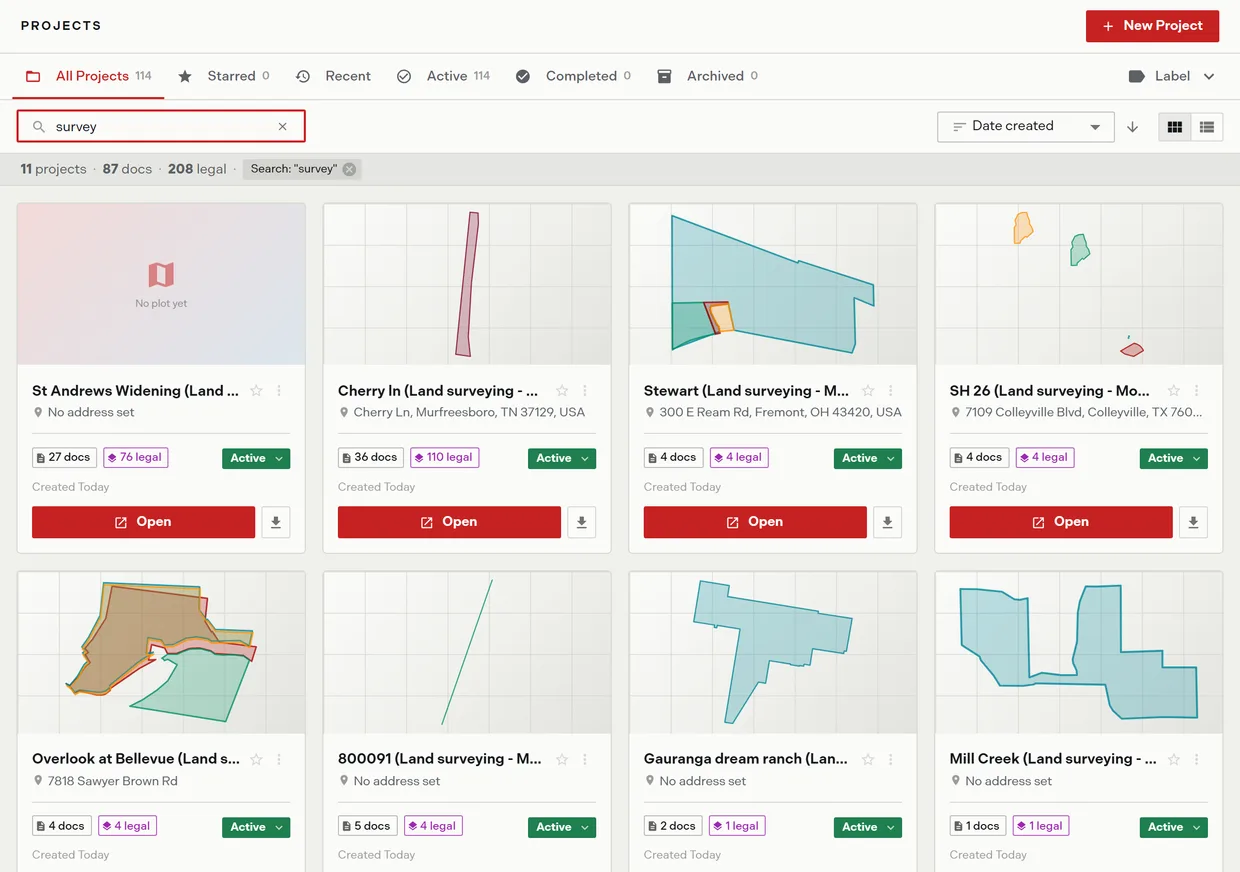
The projects dashboard at /projects is where you find, organize, and retire projects. It is the hub the rest of Trace opens from: opening a project lands in the map workspace, and the export icon on a card jumps straight to export. On Expert and above it doubles as the team’s shared project console.
The Dashboard entry in the sidebar is a landing summary, not project management. Everything on this page lives under Projects.
Usage notes
Getting to the list
In the sidebar Workspace section, Projects opens the full list. Two sub-links open it pre-filtered: Recent Projects and Starred Projects. The Projects entry stays highlighted anywhere in the create wizard.
Find and filter projects covers the scope tabs, search, sort, and view controls at the top of the list.
What the result set tells you
A totals bar under the controls always reports the current result set: the number of projects, total documents, and total legal descriptions. Sixty projects load at a time, and scrolling near the end adds the next sixty. A spinning marker shows while the list first loads.
Three messages appear when the list is empty: NO PROJECTS FOUND, No results matching “term” during a search, and Create your first project to get started with a New Project button when the account has none.
What a project card carries
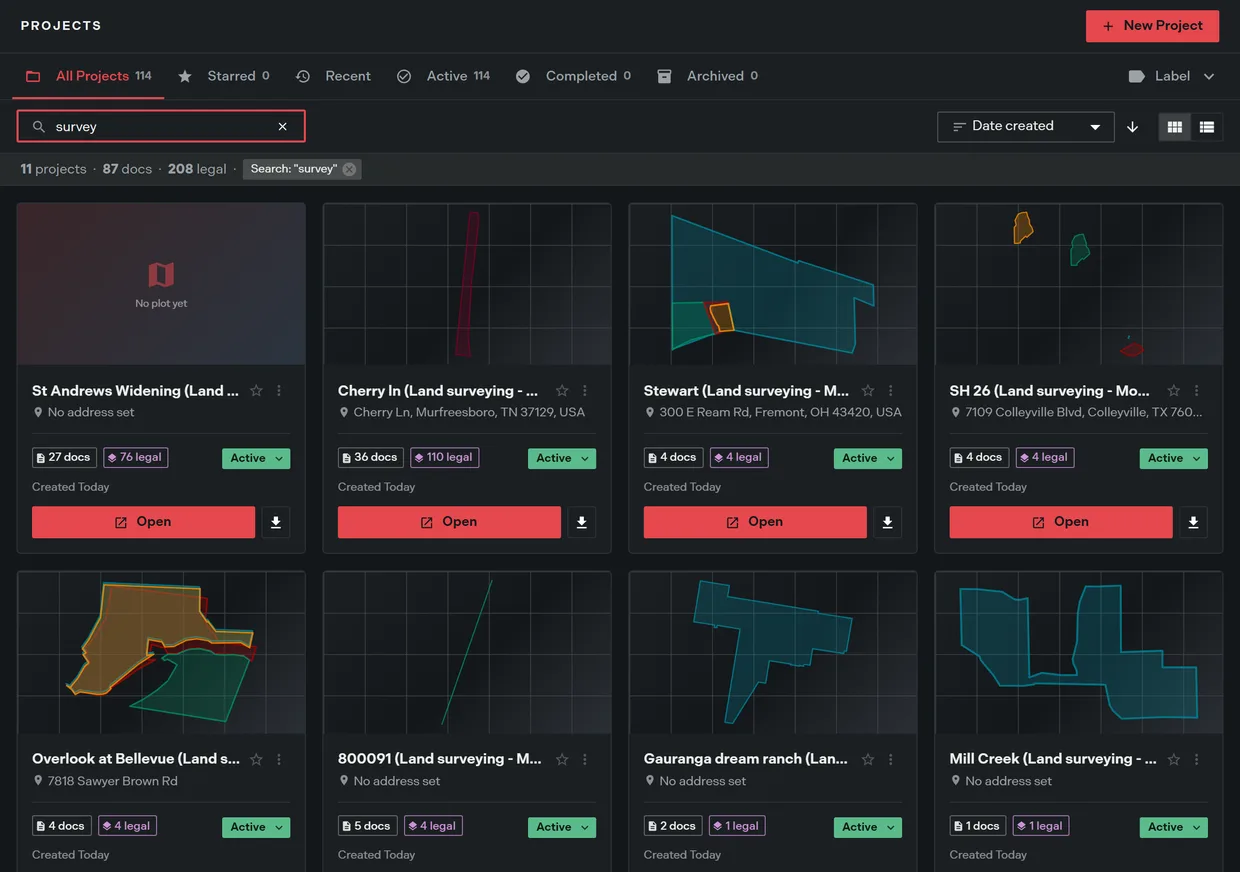
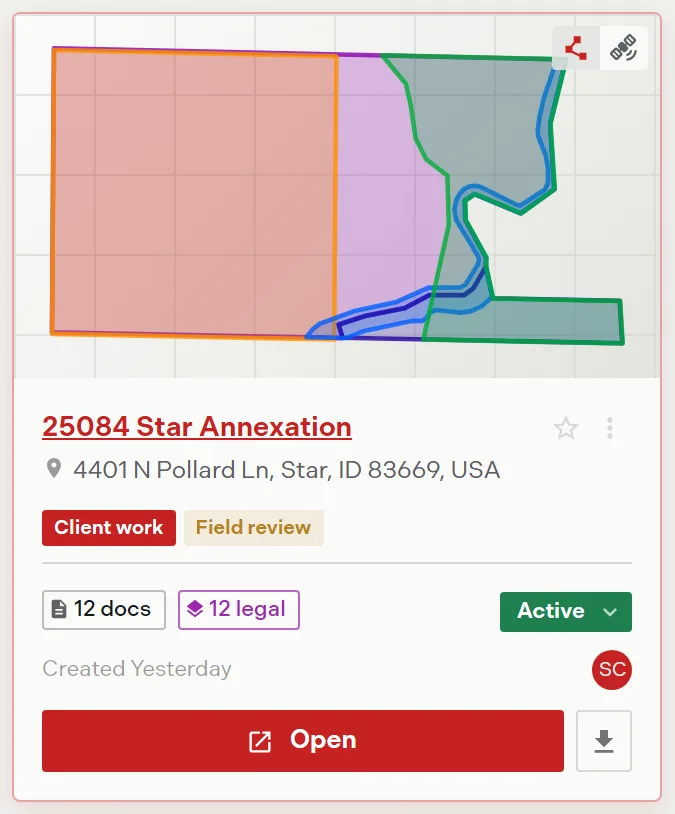
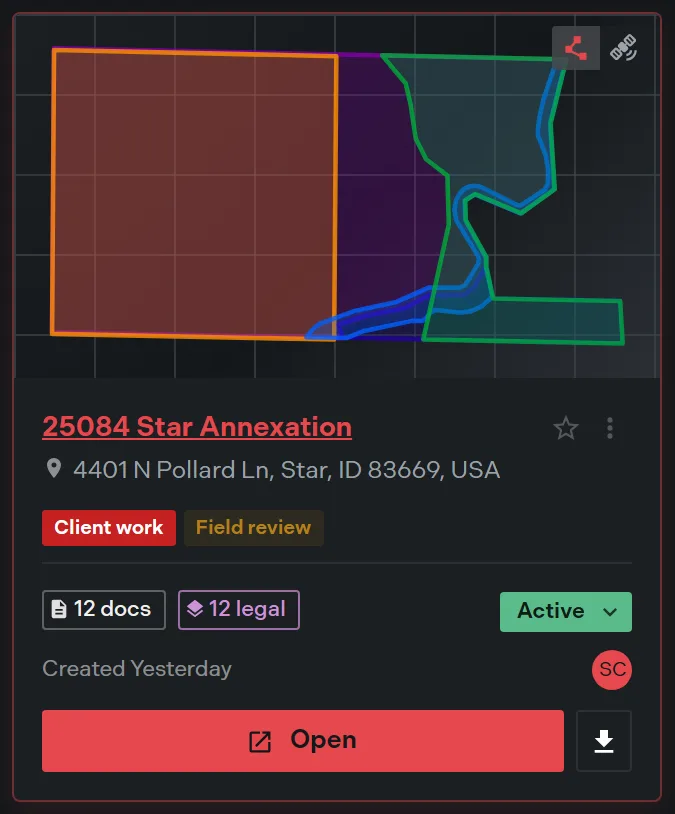
Each card shows a plot preview, the project name, a star, a More options button, the address (No address set when there is none), label badges, document and legal description badges, a status button, the created date, an Open button, and an export icon. In team-wide view the card adds the owner’s avatar.
Plot previews
The preview draws the project’s tracts as a sheet-style plot, each tract in its boundary color, dashed where a traverse does not close. Previews load as cards scroll into view.
Hover a card to reveal a two-button Plot and Satellite toggle. The choice flips every card at once and persists in that browser. Satellite draws the boundaries over Mapbox imagery, or shows a plain location shot when the project has only an anchor, and falls back to the plot drawing if the imagery fails to load. A project with no geometry reads No plot yet.
Grid view and list view
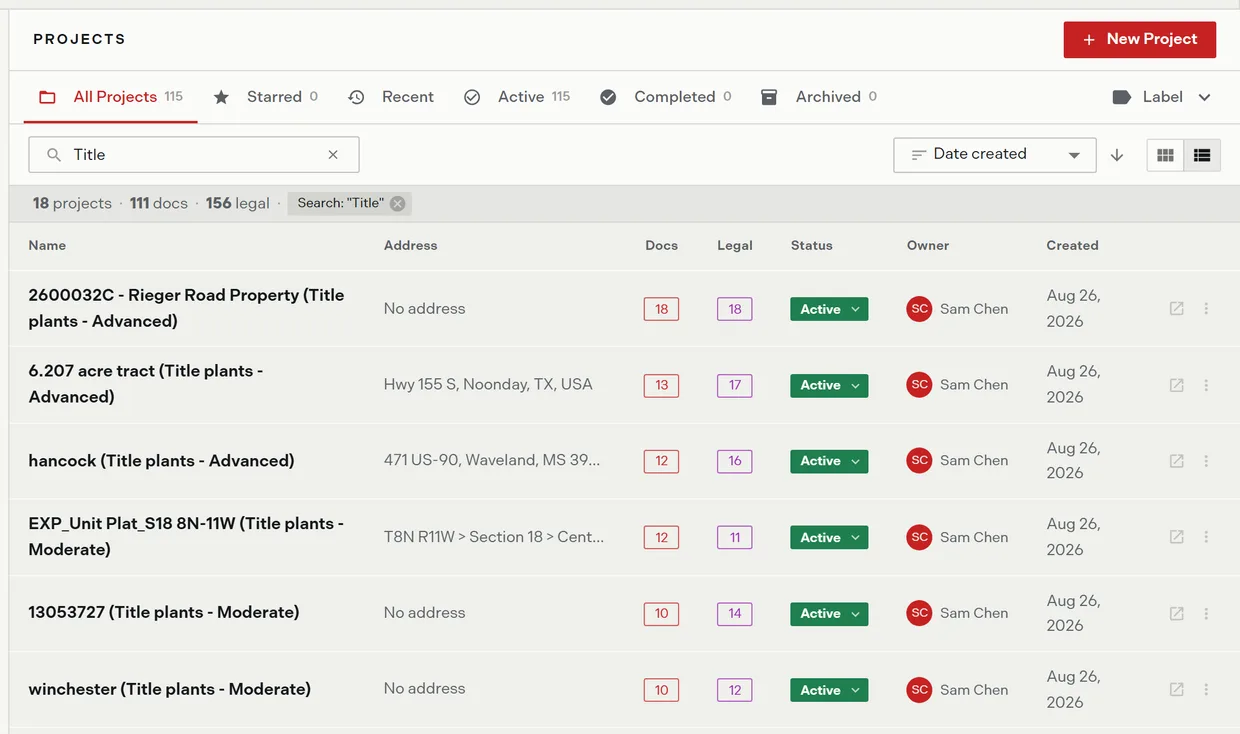
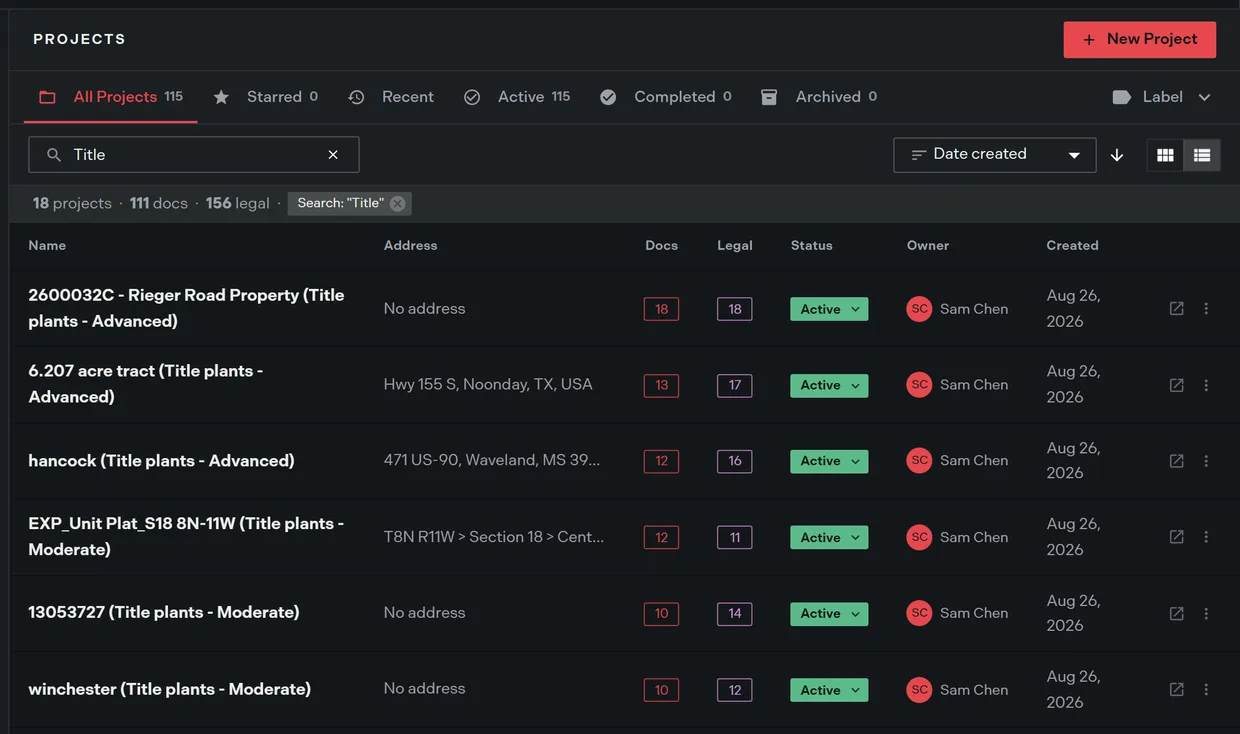
List view shows the same projects as a table: Name with its star and label badges, Address, Docs, Legal, Status, Owner in team-wide view, Created, and an actions cell. As the window narrows, Address, Docs, and Legal drop out first, then Owner and Created.
The details panel
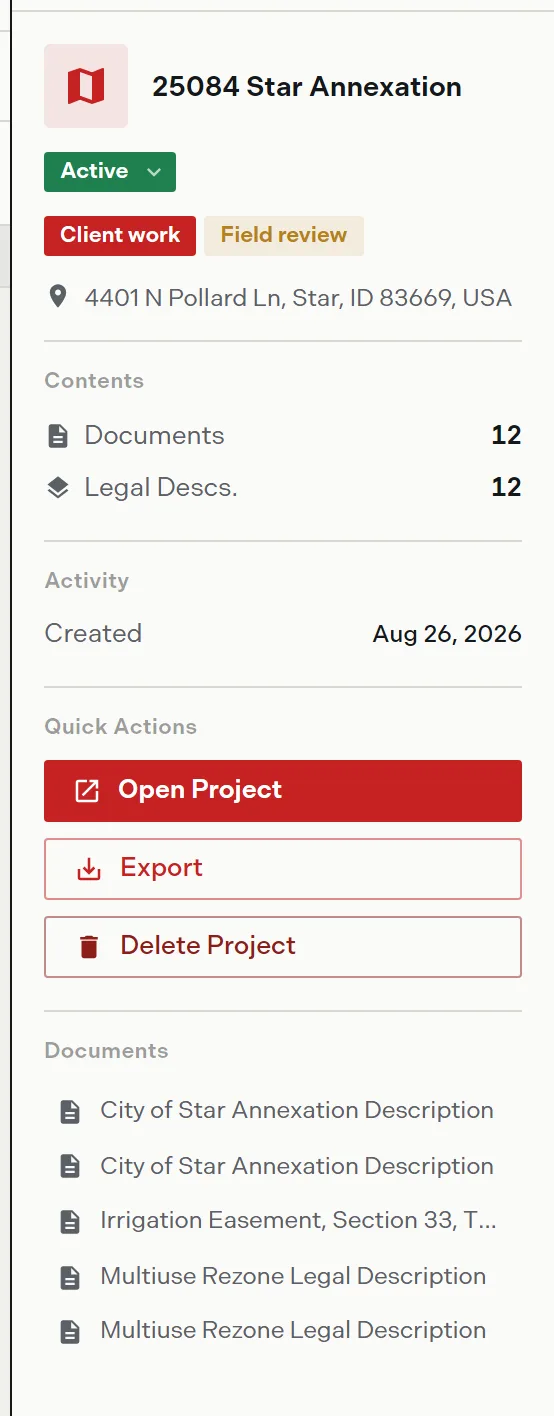
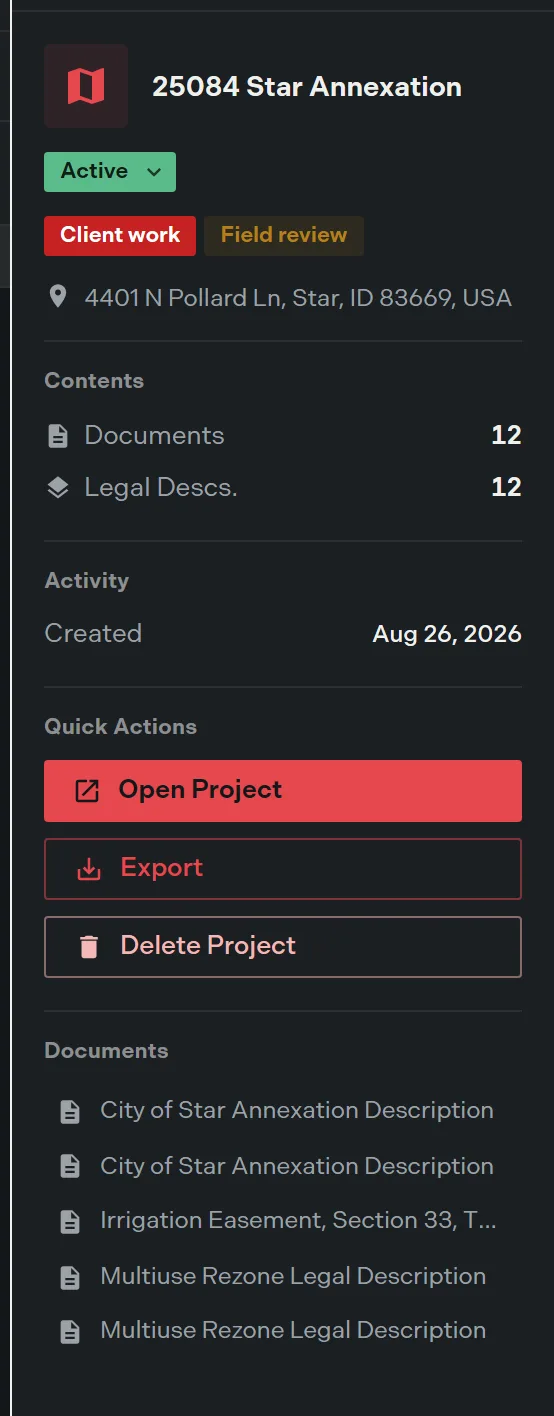
Click a card or row once to select it and open the Details panel on the right. Clicking the card title opens the project instead, so select from the card body.
The panel leads with the project name, its status button, label badges, and the address, then groups the rest under plain headings:
- Contents: the Documents and Legal Descs. counts.
- Activity: the created date.
- Quick Actions: Open Project and Export, then Delete Project for the project’s creator or Archive Project for anyone else who can archive it.
- Documents: the first five documents by name.
A Starred badge appears when the project is starred, and a View only badge when you can see the project but not edit it. On tablet and phone widths the panel becomes a right-hand drawer.
Opening a project and jumping to export
Six routes open a project into the map workspace: the card Open button, the card title, a double click on a card or row, the row’s open icon, Open Project in the More options menu, and the details panel button.
The card’s download icon, tooltip Export plot, and the panel’s Export button both go to the project’s export page. Export formats covers what each format carries.
The per-project menu
The button opens More options for the project name, holding Open Project, Star or Remove Star, Labels, Share where you can manage the link, Mark Complete or Mark Active, Archive where you can archive, and a red Delete for the creator. Archive is disabled once a project is already archived.
Star, status, delete, label, share, and promote failures each raise their own Try again message rather than failing silently.
Team-wide view
On Expert and above, owners, admins, and members granted View or Edit team project access see every project in the team, and the list adds the Owner column and the owner avatar. Below Expert everyone, including the owner, sees only their own projects.
A member at the No access level sees only the projects they created. Projects you can see but not edit carry a View only badge with a tooltip explaining why.
Team-wide view, the Owner column, and shared project links need Expert or Enterprise. Team project access is set per member on the Team page.
Options
| Control | What it does |
|---|---|
| New Project | Starts the create wizard |
| Star icon | Adds or removes the project from Starred |
| Status pill | Opens the Active, Completed, Archived menu |
| Label badges | Show which labels a project carries |
| Plot and Satellite | Switches every card preview between the plot drawing and imagery |
| Open | Opens the project in the map workspace |
| Download icon | Opens the project’s export page |
| More options button | Opens the per-project menu |
| Grid and list icons | Switches between the card grid and the table |
Related
- Find and filter projects, for the tabs, search, sort, and view memory
- Project labels, for personal labels and categories
- Project statuses, for Active and Completed
- Archive and delete, for retiring a project
- Share a project, for read-only guest links
- Dashboard overview, for the landing summary this page is not