

Availability: All plans
Trace needs one real-world point before it can place a plot on a basemap. The anchor is that point, and the anchor type tells Trace which survey point it represents. You set both in step 2 of the create wizard, and you can change them later from the project itself.
Before you start
- Have the description in hand, or at least the address, coordinates, or PLSS corner it starts from.
- Changing a project’s anchor needs edit access to that project.
Choose the anchor type
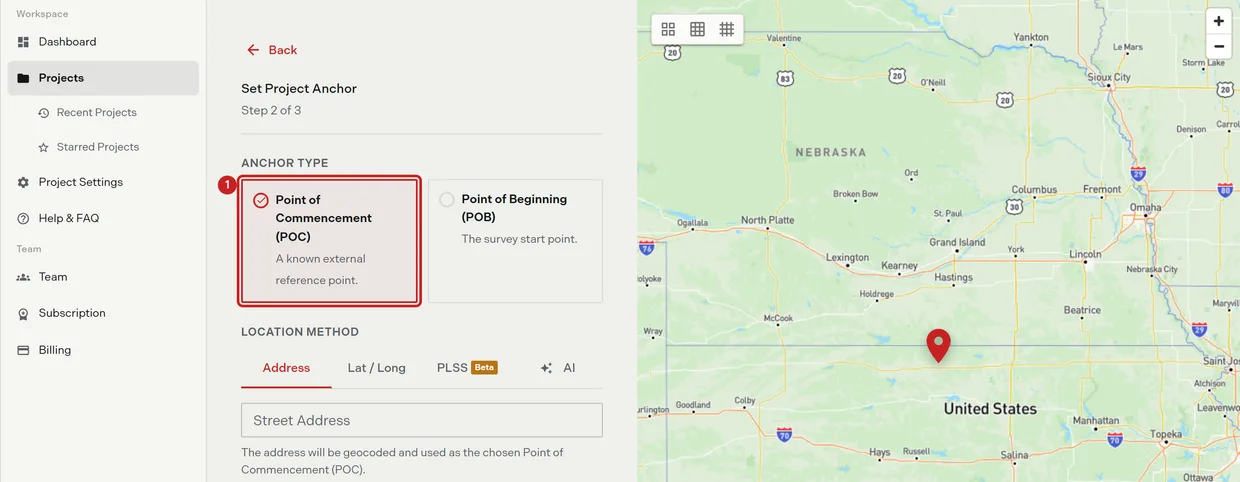
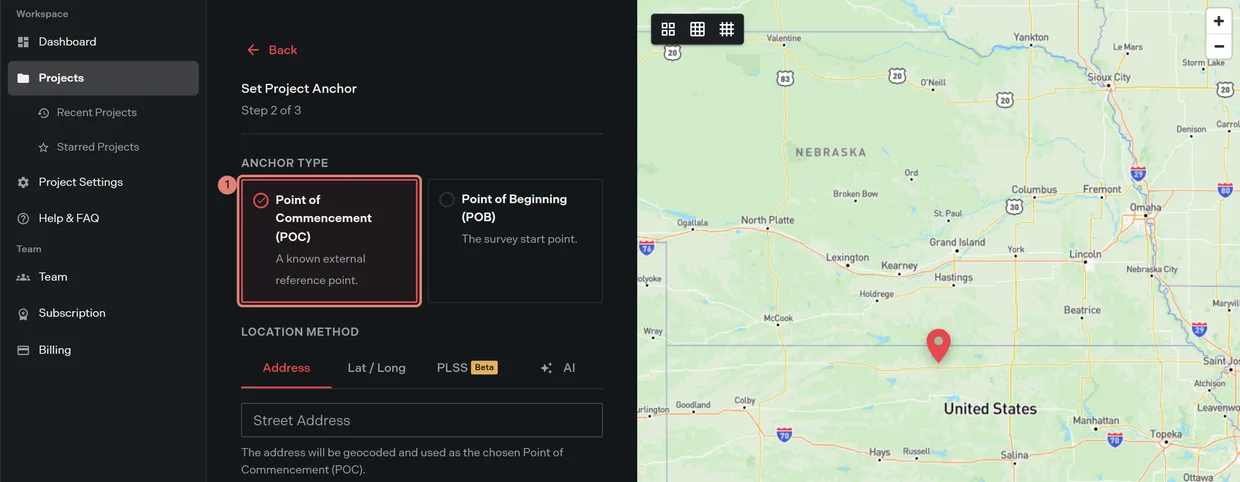
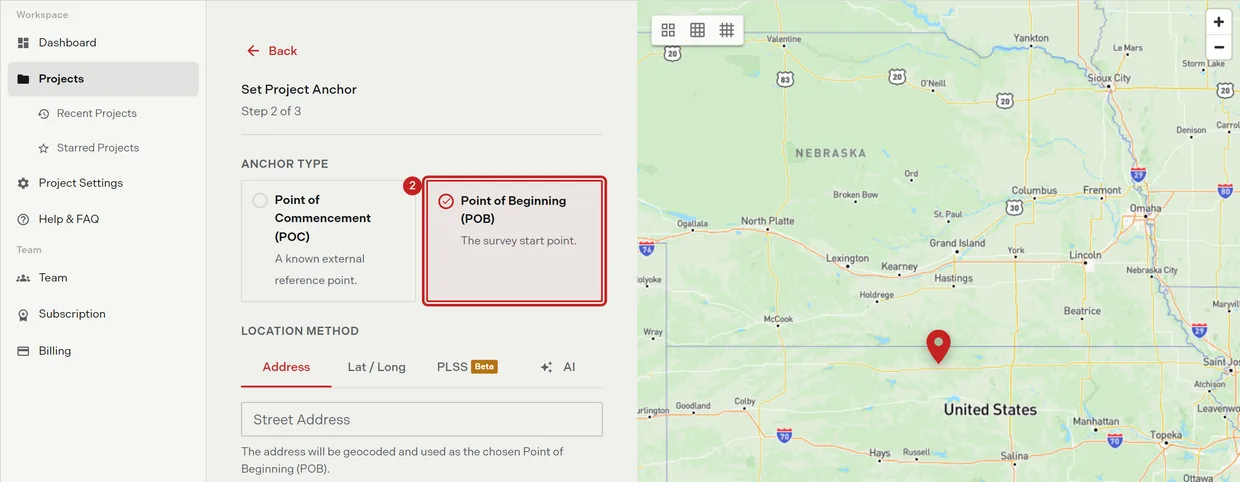
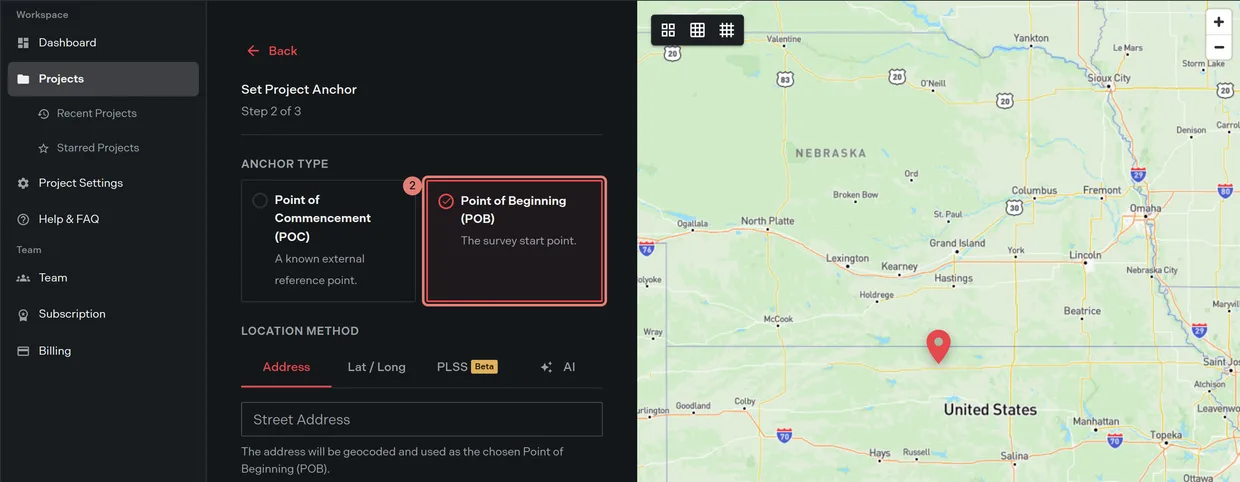
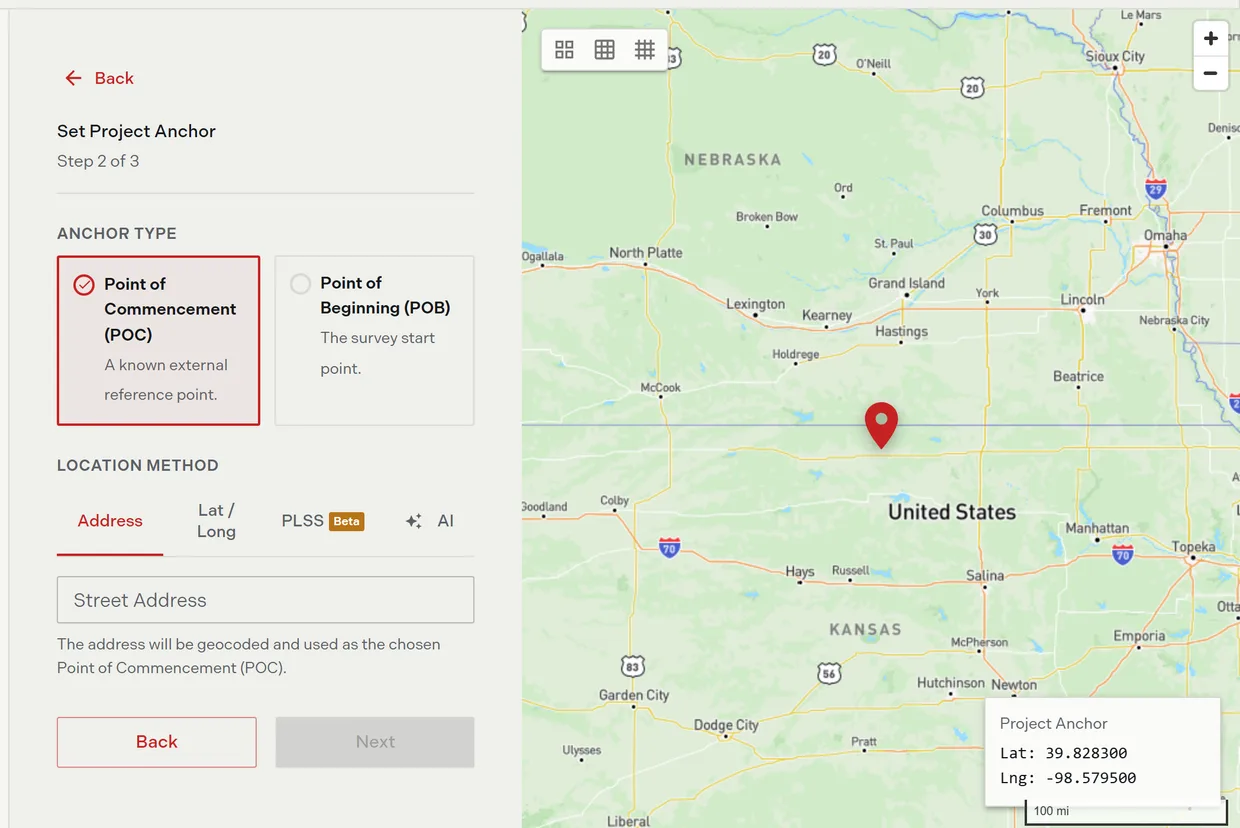
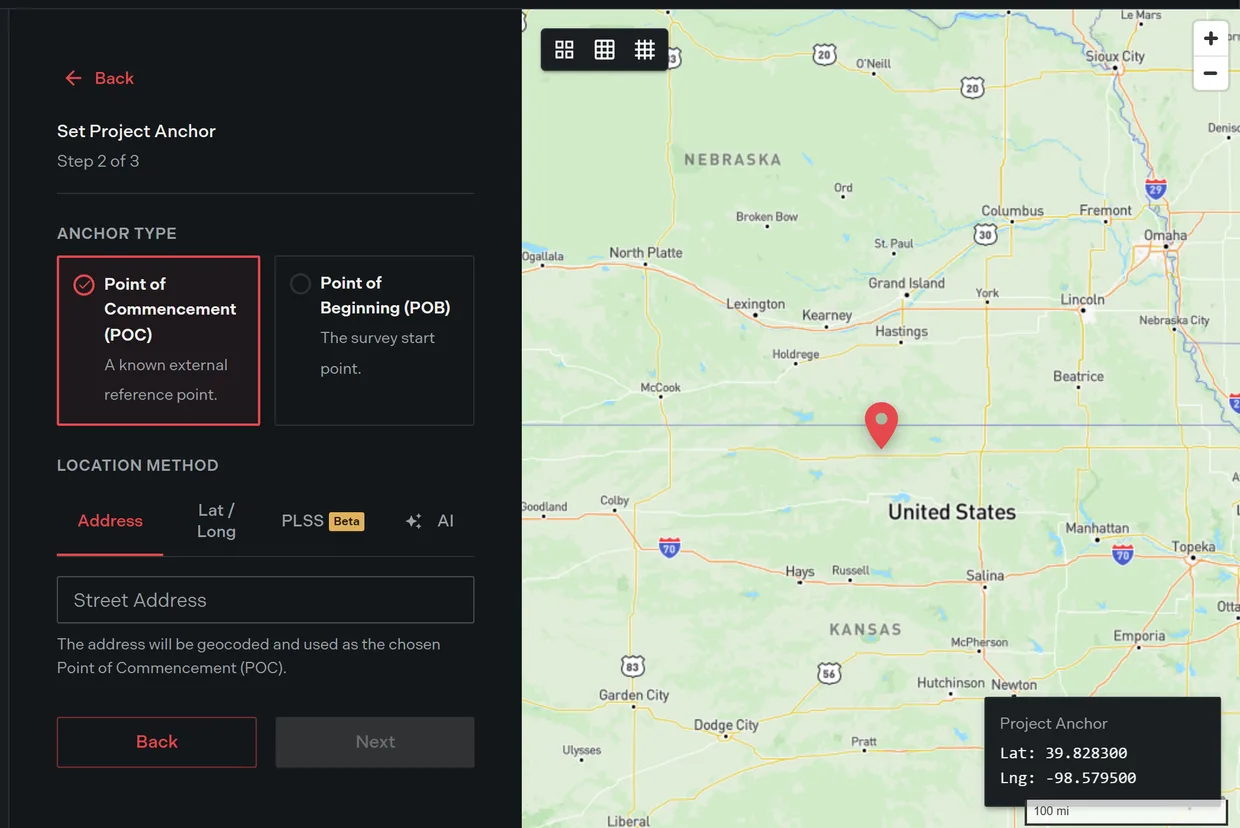
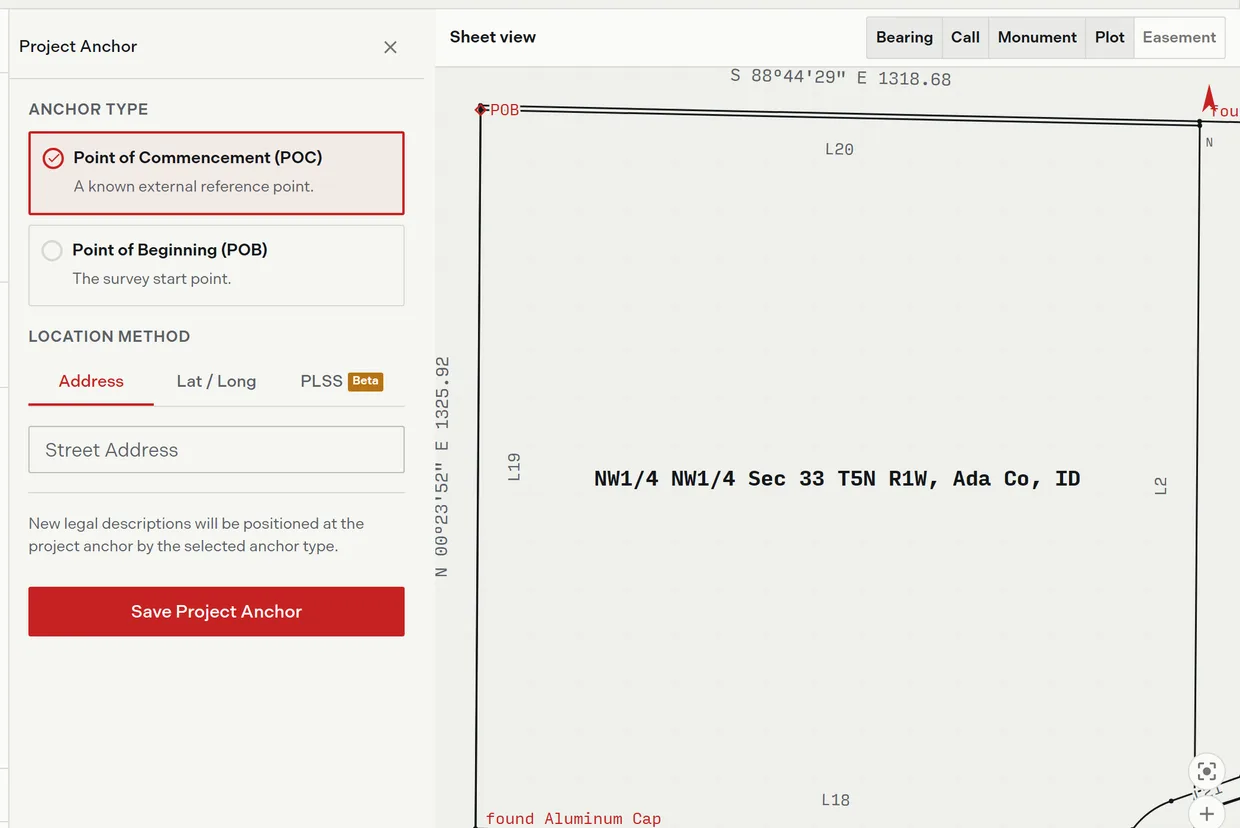
Set Project Anchor, step 2 of the create wizard, asks which survey point the anchor represents. The choice appears in the page address and in each method’s helper sentence.
- Click Point of Commencement (POC) when the description starts from a known external reference point and walks to the boundary.
- Click Point of Beginning (POB) when the anchor is the survey start point itself, the corner the first call leaves from.
Set the location
Four method tabs sit under the anchor type. The active tab lives in the page address, and Next stays unavailable until the method produces valid coordinates.
Address
- Click the Address tab.
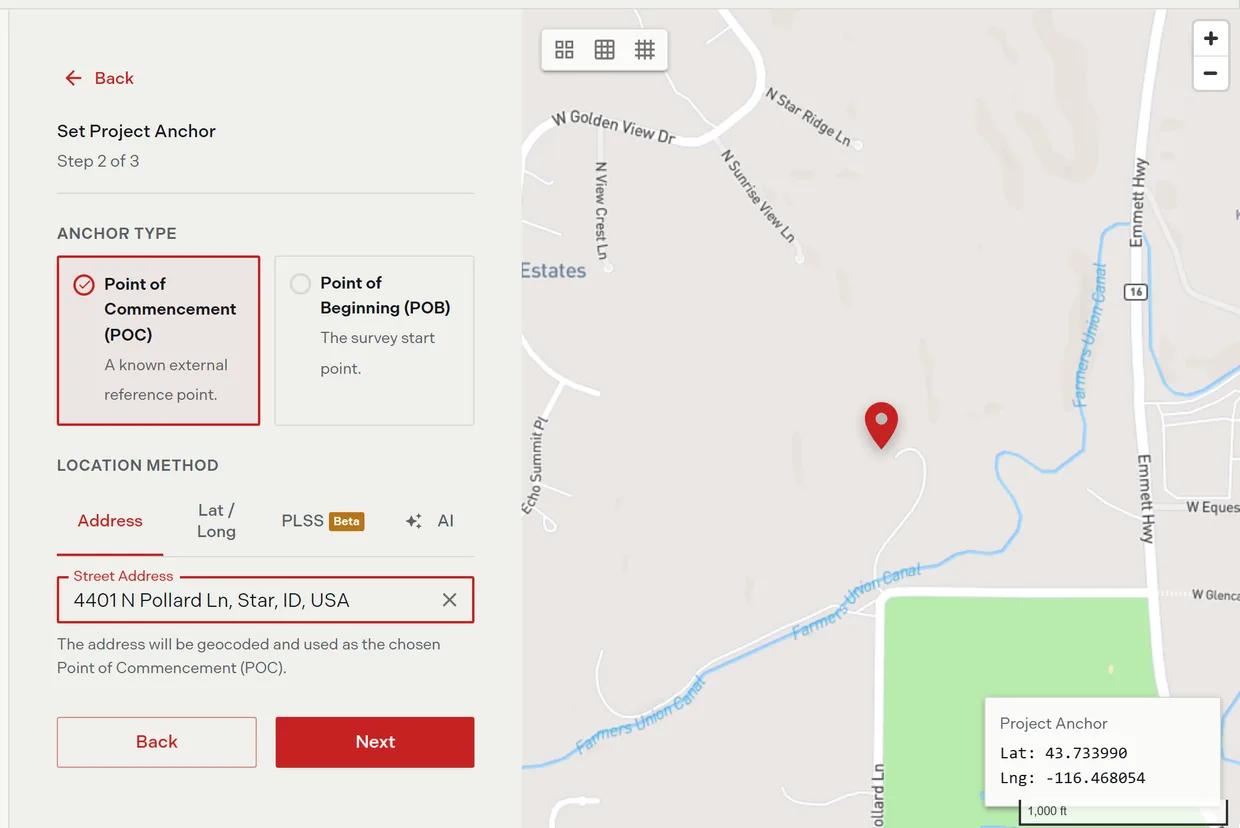
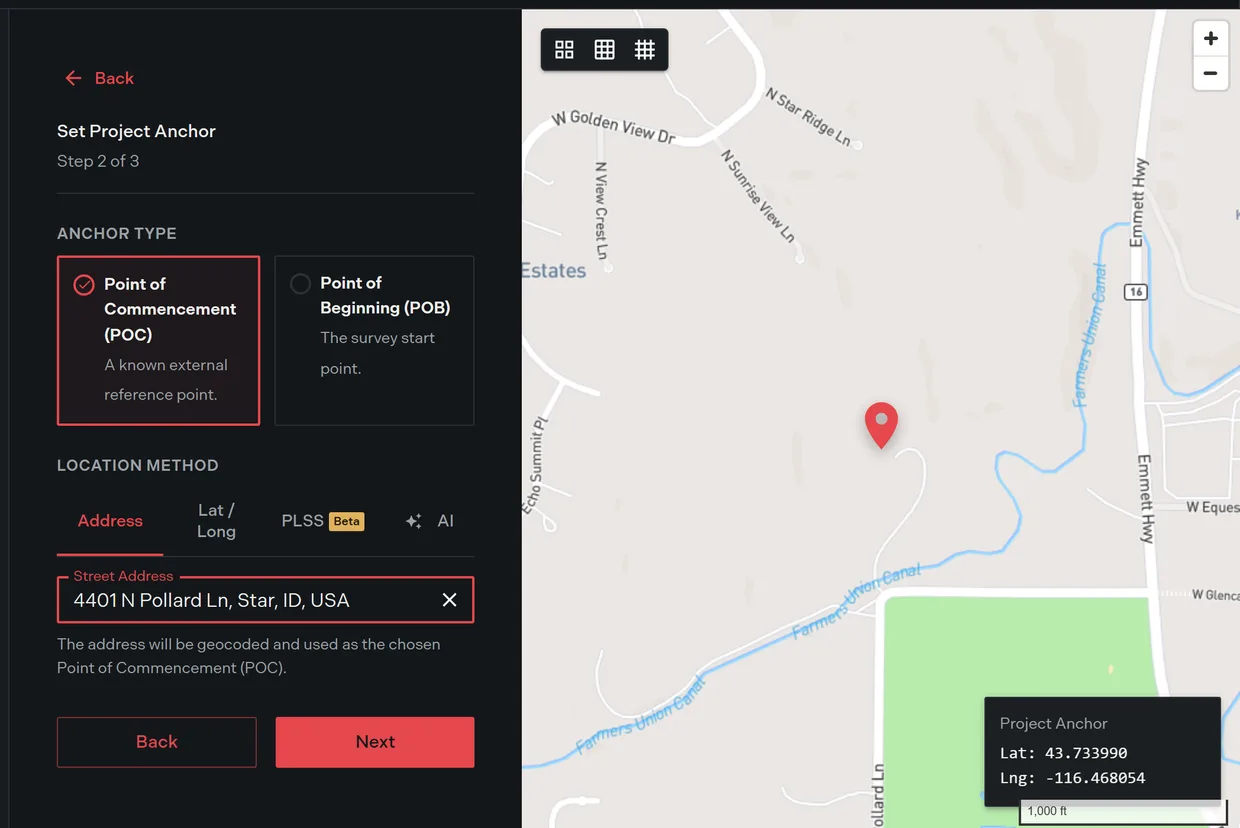
- Start typing a street address. Trace offers United States address suggestions as you type.
- Click a suggestion. Trace fills the coordinates and recenters the map on the parcel.
Lat / Long
- Click the Lat / Long tab.
- Enter the latitude and longitude in decimal degrees. Trace validates both against real-world ranges.
PLSS (Beta)
Work down from state, to township and range, to a section, to a quarter corner. Place a plot by PLSS covers the panel in full.
AI
Trace reads the document you upload, pulls out the anchor references it finds, and places every parcel for your review. This method uses 1 credit per document and sets the next step to upload mode. Credits and AI plots covers what consumes credits.
Drop the anchor on the map
The right pane carries a street map with a fixed crosshair at its center. Pan the map and the anchor follows the crosshair, which switches the method to coordinates. The pane also offers zoom controls, a scale bar, a live latitude and longitude readout, and township, section, and intersected PLSS layer toggles that turn themselves on in PLSS mode.
Panning does nothing in AI mode, because Trace is placing the parcels from the document instead.
Change the anchor later
The anchor is not locked in at creation. It decides where new legal descriptions and image overlays land, so it is worth correcting before you add more work to a project.
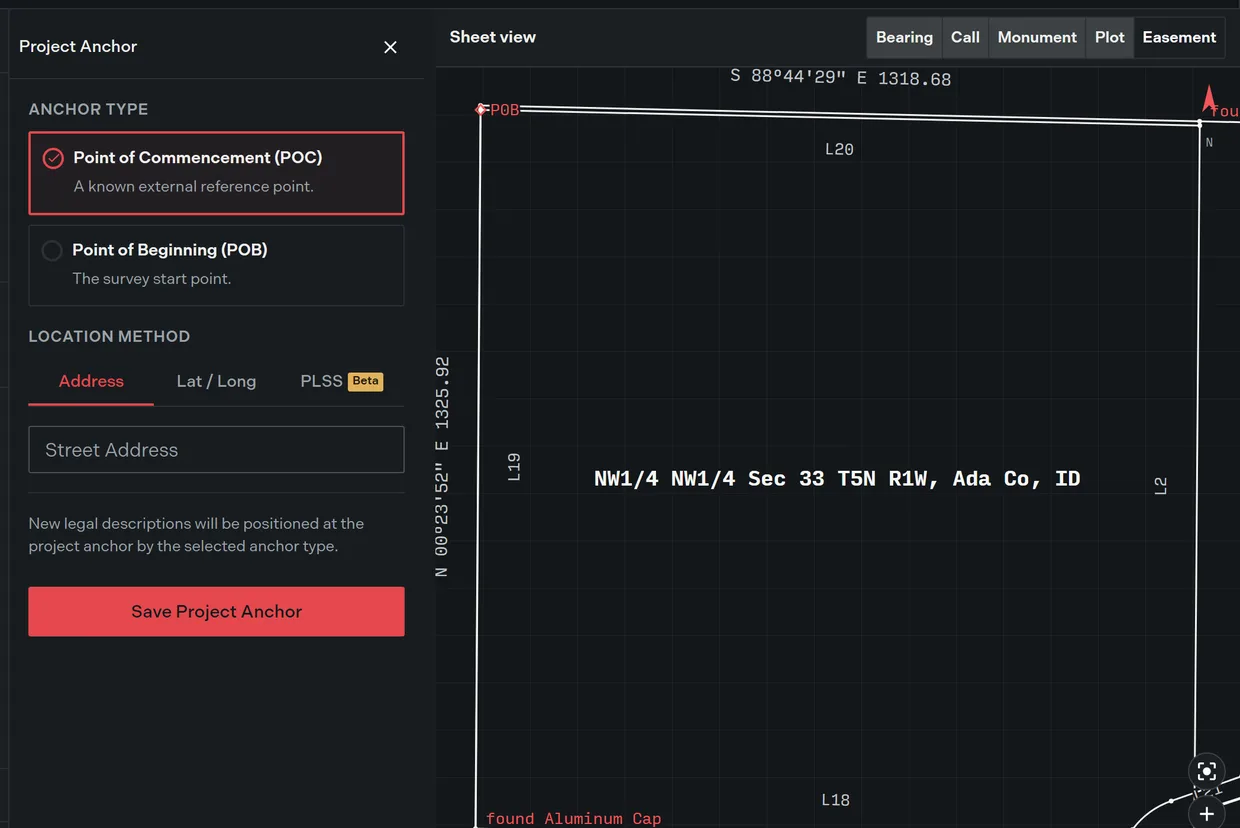
- Open the project, then open the Project Anchor pane.
- Set the Anchor Type to point of commencement or point of beginning.
- Set the location by address, by coordinates, or from a PLSS corner, the same three ways the wizard offers.
- Click Save Project Anchor. A Project anchor updated successfully. message confirms it. Nothing is saved until you click it.
PLSS anchoring needs Professional or above. On Free the tab carries a Beta badge and opens the plan chooser instead of switching.
Related
- Create a project, for the wizard end to end
- Place a plot by PLSS, for township, range, and section
- Move a plot, for repositioning geometry after it is drawn
- Credits and AI plots, for what the AI method costs
- Plot your first deed in Trace, for the whole journey from zero