

Availability: All plans
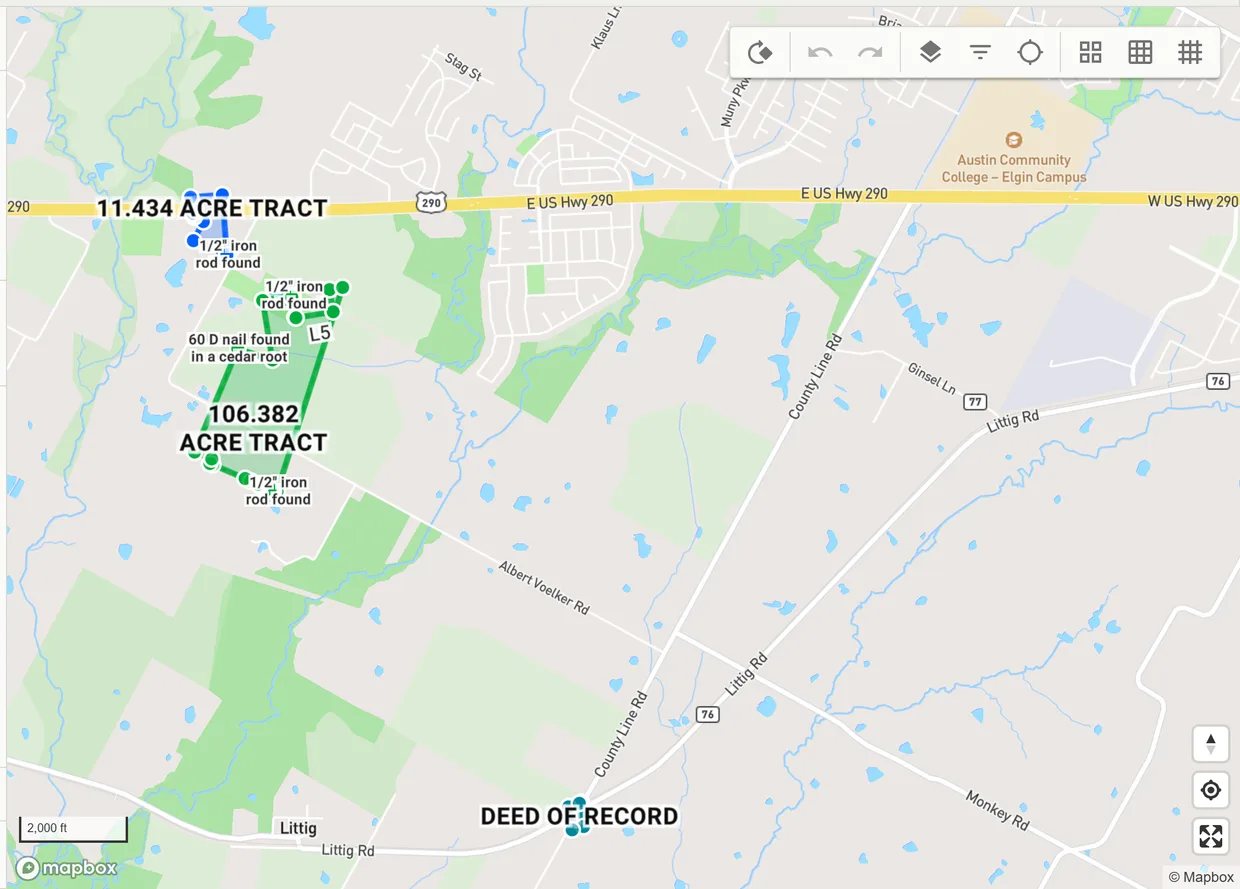
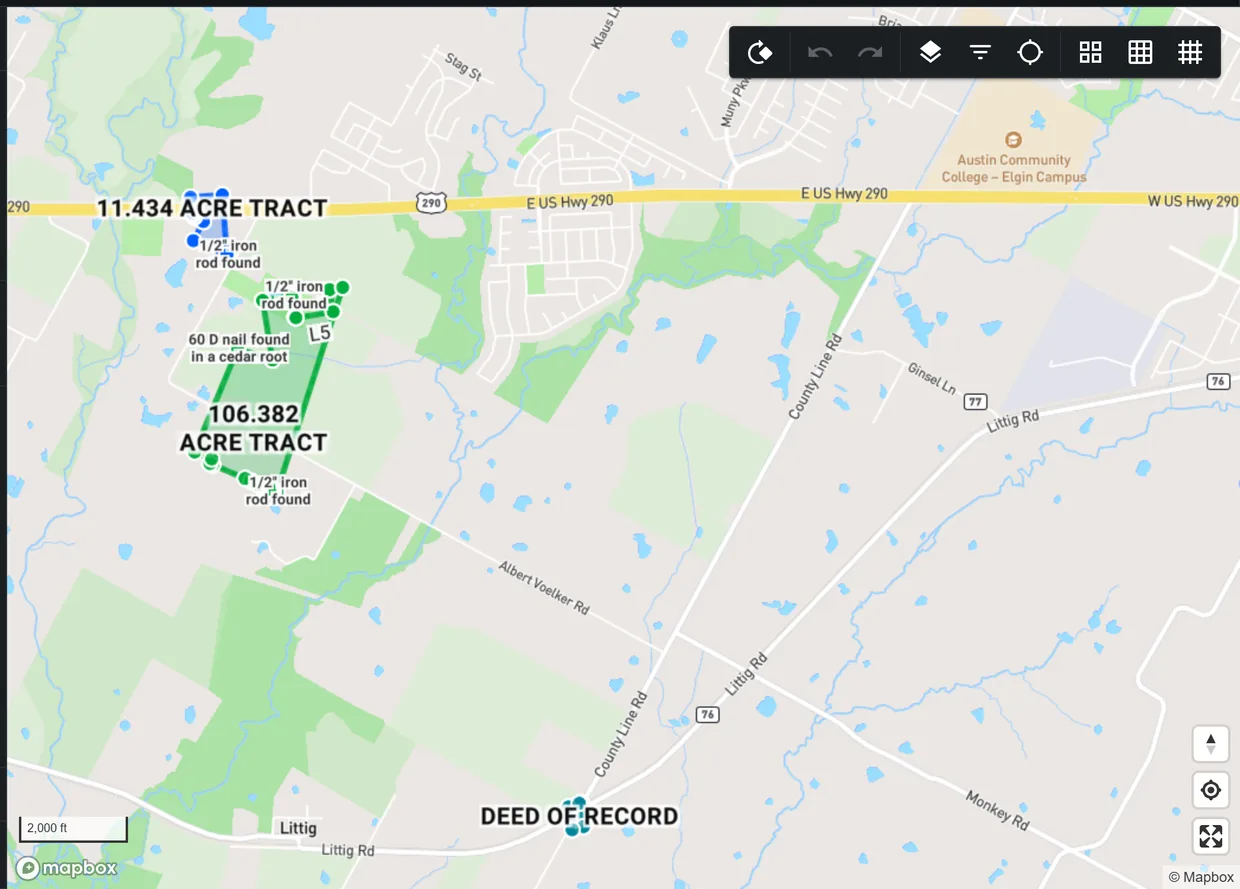
The map opens where you left it. When it does not, or when a plot has wandered off screen, four controls put the view back: fit to the layers, center on the project, reset the bearing, or find yourself.
Pan and zoom
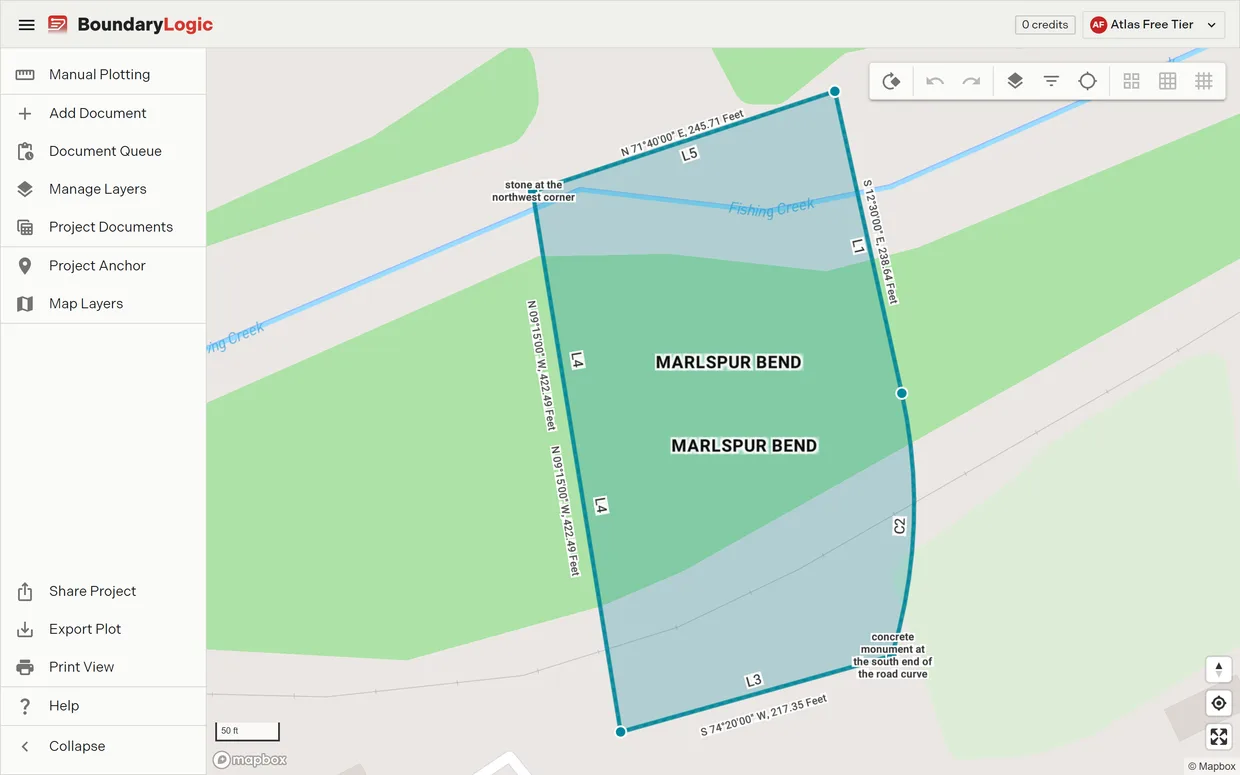
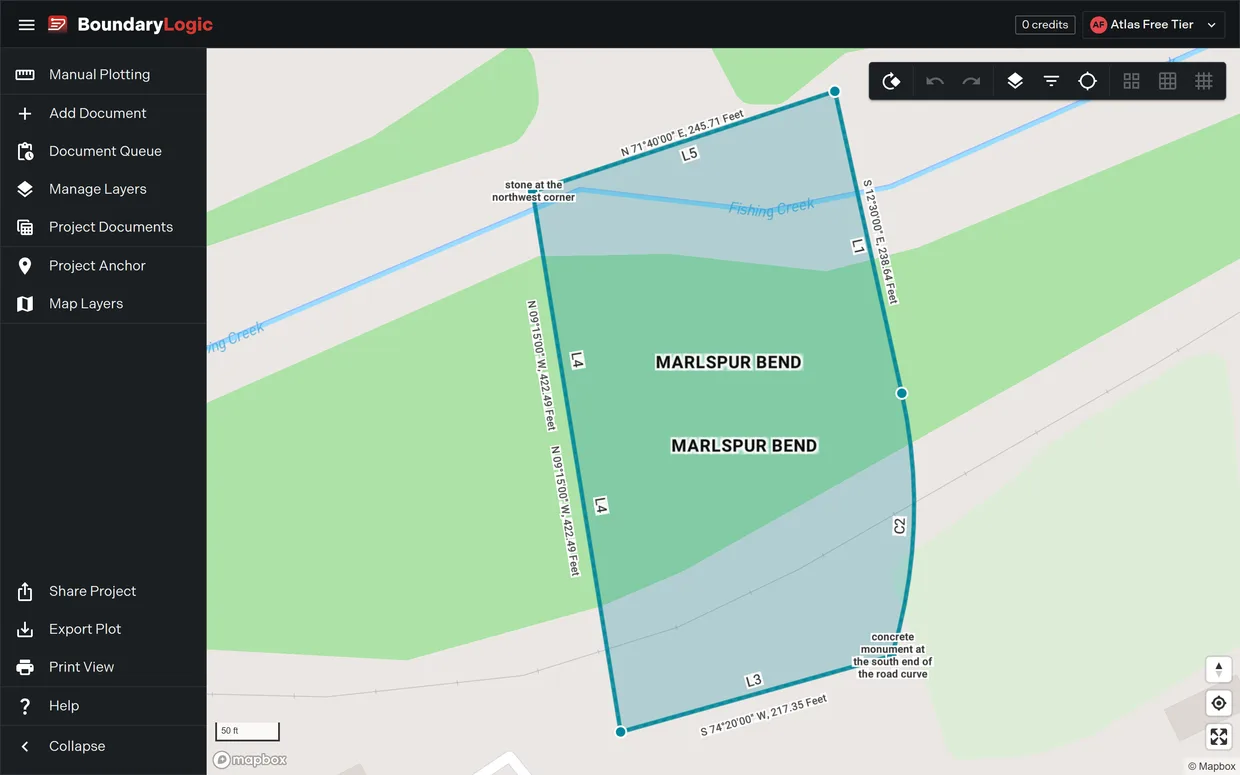
- Drag anywhere the pointer is not over a plot. Dragging on a plot moves the plot instead, unless it is locked.
- Scroll or pinch to zoom.
Trace saves the map’s center, zoom, bearing and pitch one second after it stops moving, and restores them the next time you open the project on that device, for up to 30 days.
Frame the whole project
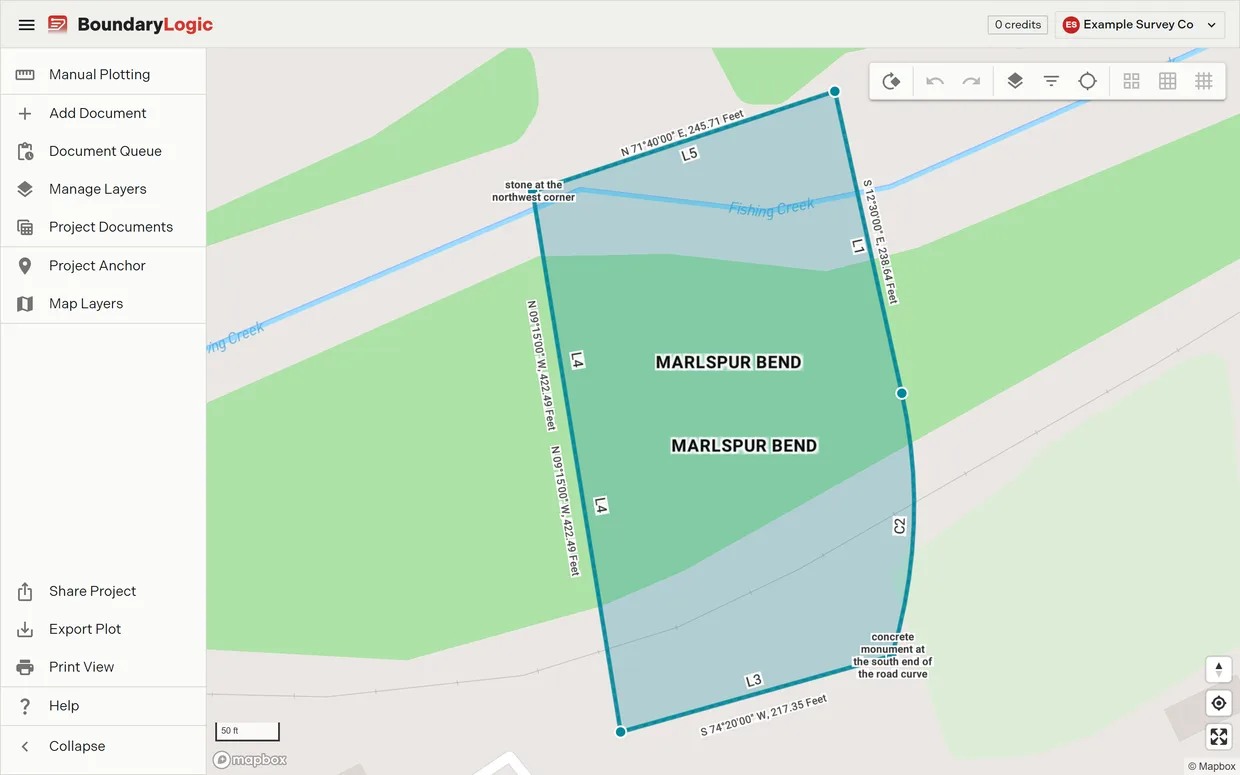
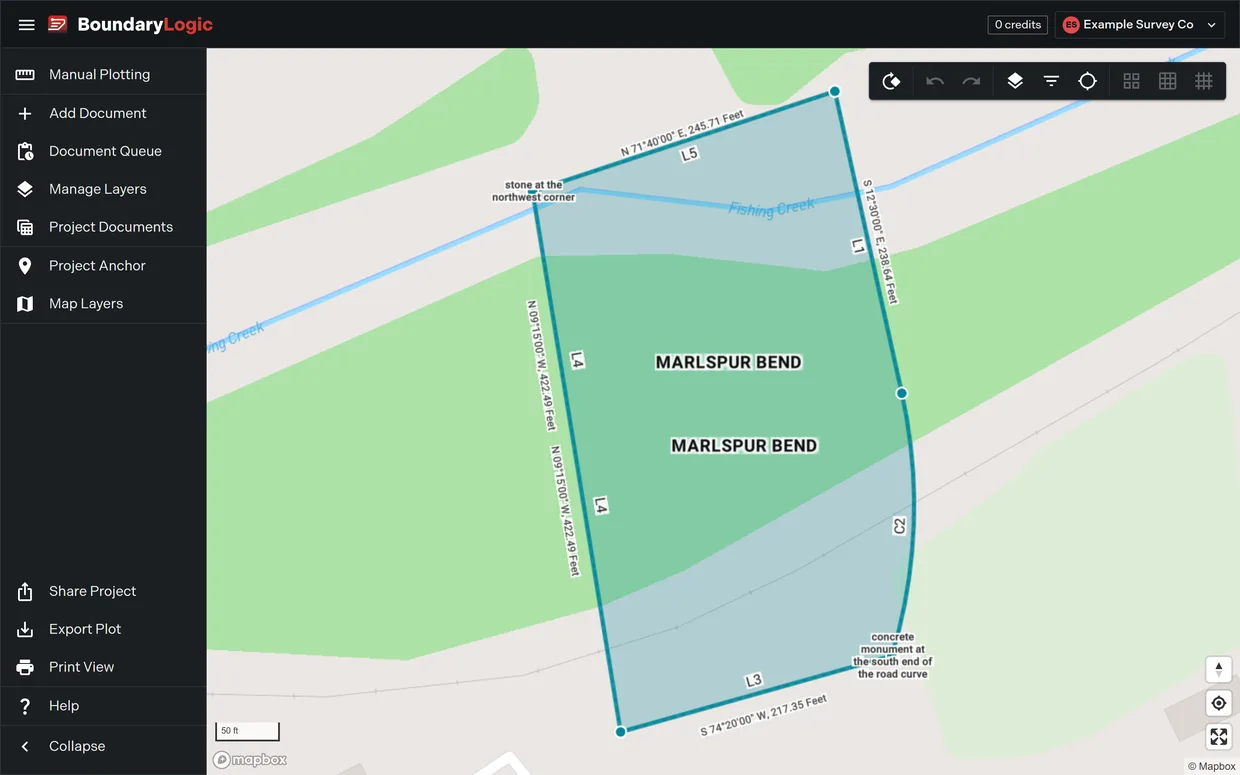
A project with no saved view opens framed on every visible layer. To get that framing back at any time, click Center on Project on the map toolbar. It flies the map to the project anchor, and falls back to the center of the United States when no anchor is set.
Right-clicking empty map and choosing Fly to Project Anchor does the same thing.
Straighten the map
Click the compass in the map’s corner. The map returns to north up. While the map is rotated the compass shows the current bearing, so it doubles as the answer to “which way am I facing”.
Find your own position
Click the locate control. The map centers on your device’s position, or reports that permission was denied if the browser is not allowed to share it. This is your position, not the project’s; use Center on Project to get back to the work.
Go full screen
Click the full screen control to expand the map to fill the screen. The same button or Esc brings it back. This is the map’s own control and it expands the map, not the browser page.
Read the scale
The scale bar sits with the other controls and reads in imperial units. The attribution link beside it opens the Mapbox and OpenStreetMap credits for the basemap.
Related
- The map workspace, for the project menu and the toolbar
- Map modes and styles, for the basemap you are panning over
- Manage layers, for centering on one layer instead of the project
- Move a plot, if what you actually want to move is the plot