

Availability: All plans
A project is the container for one job: its documents, its plotted boundaries, and its exports. Creating one takes three steps, and the last step decides whether you land in the manual plotting editor or the document upload flow.
Before you start
- You need a team. An account with no team is asked to create one first.
Steps
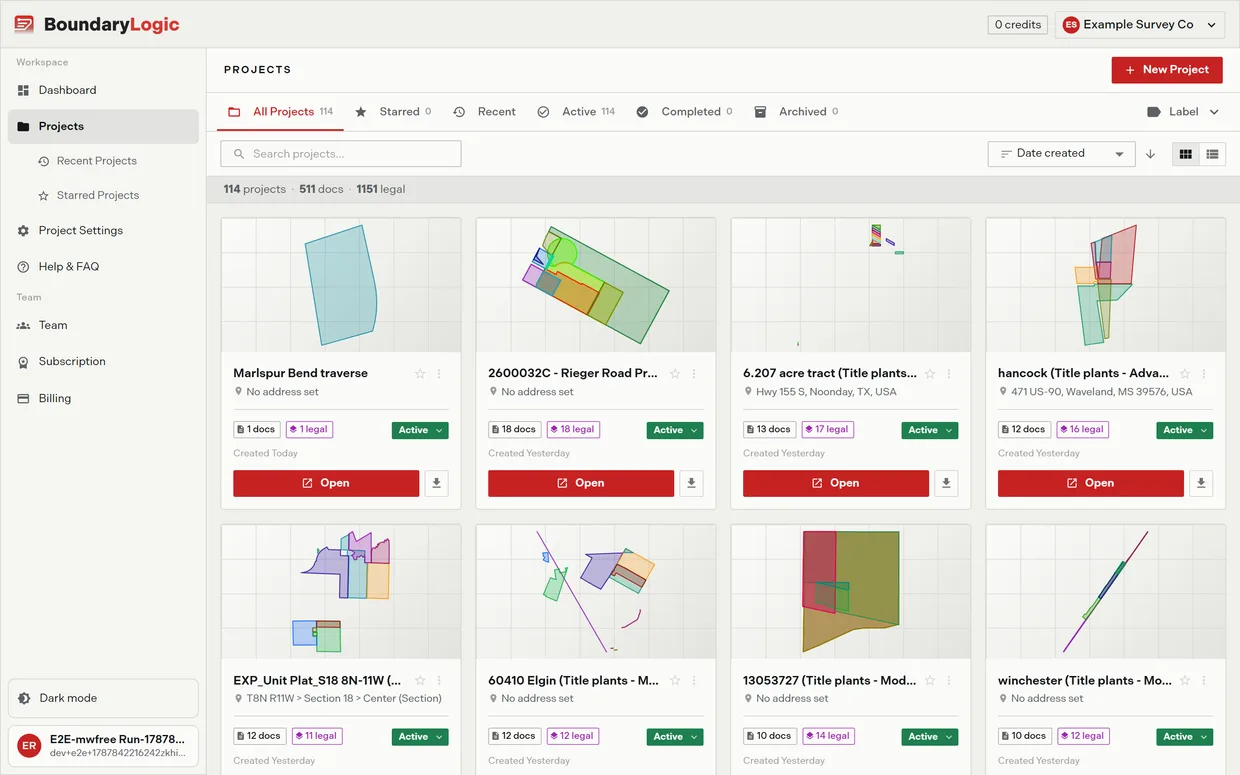
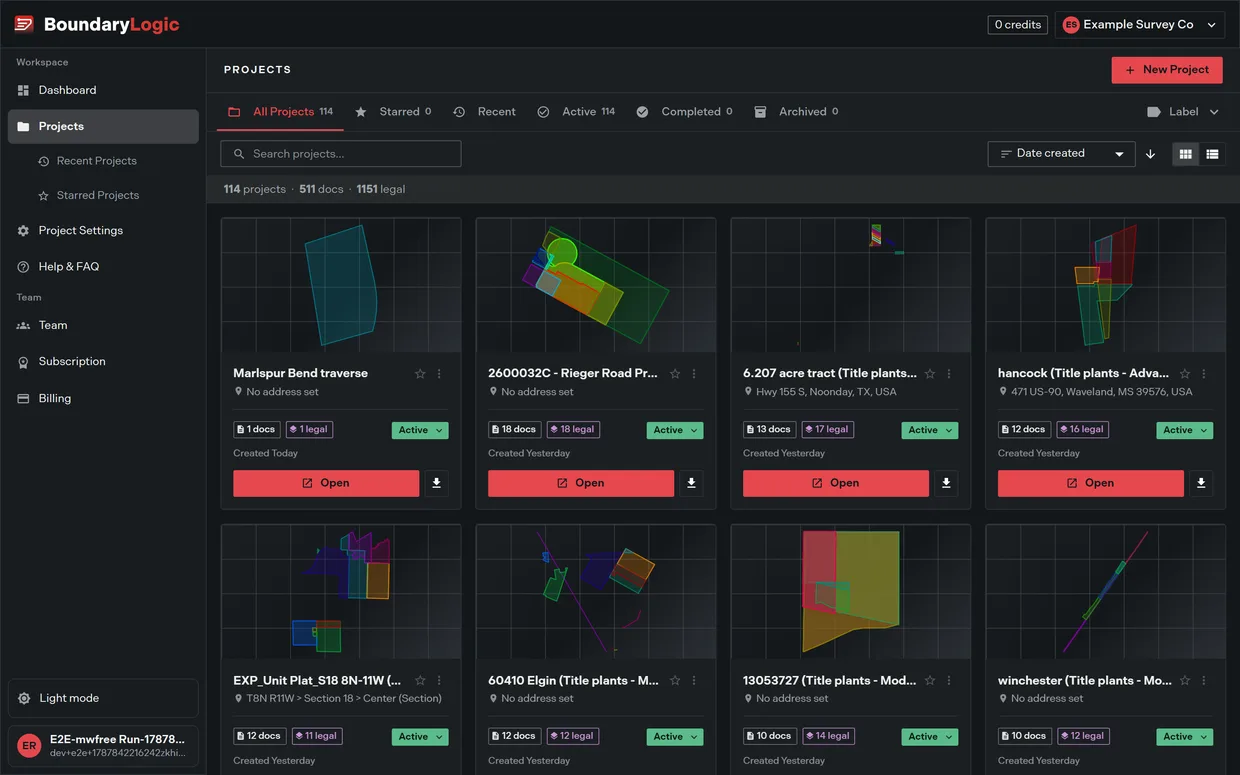
- In the Projects header, click New Project. You can also start from Upload Deed or New Project on the dashboard, or from the projects page when you have none yet.
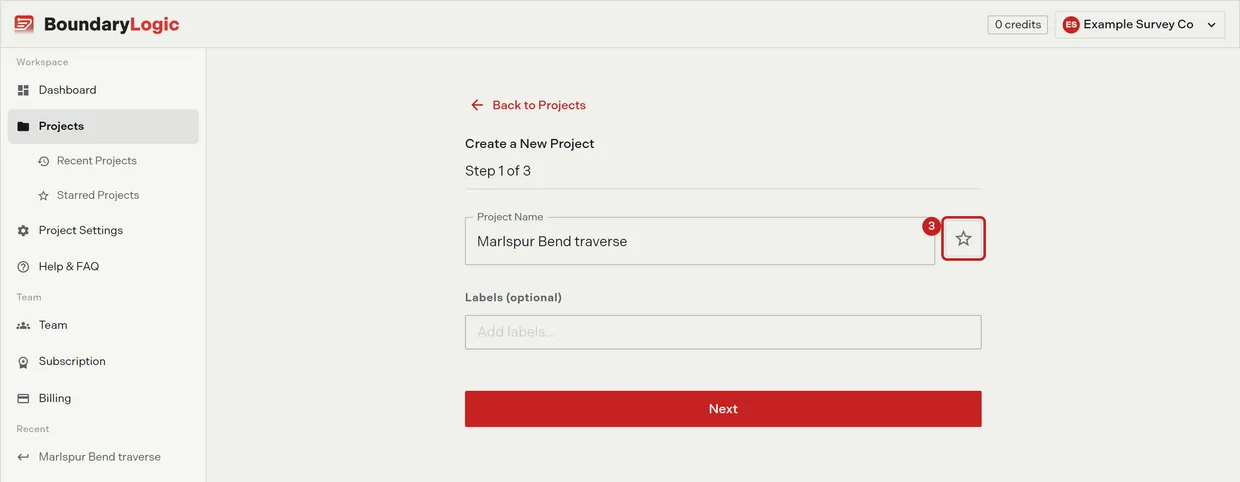
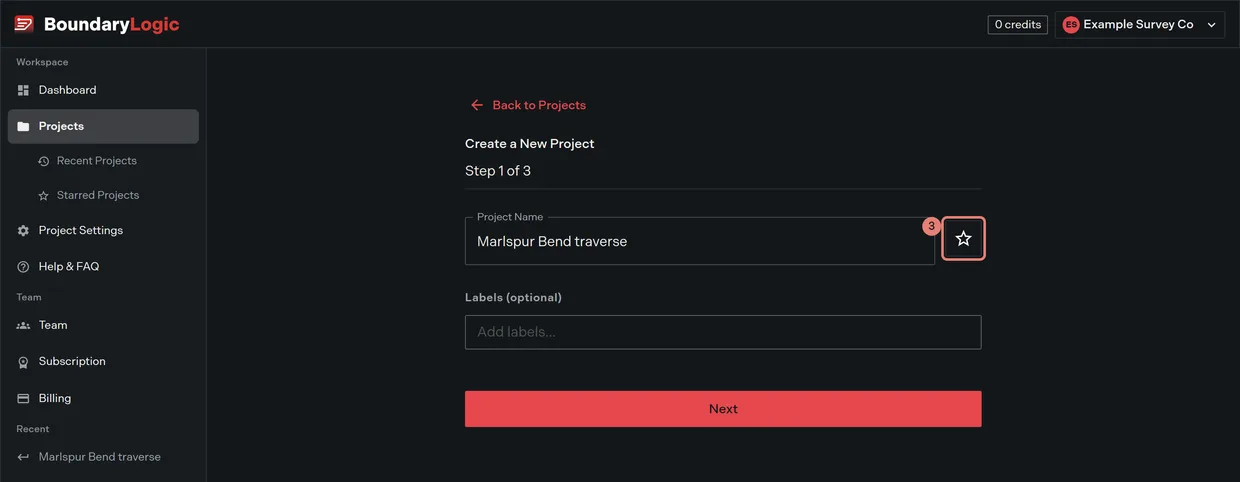
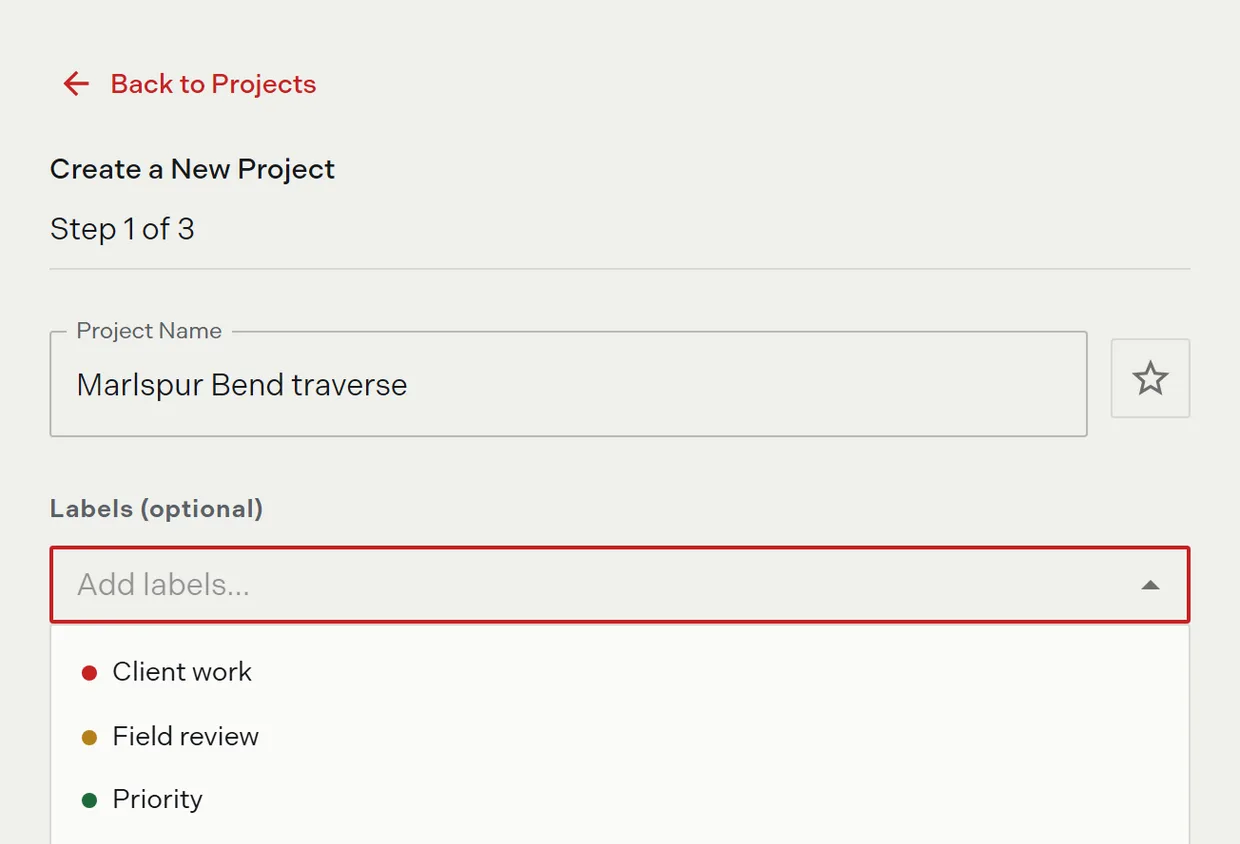
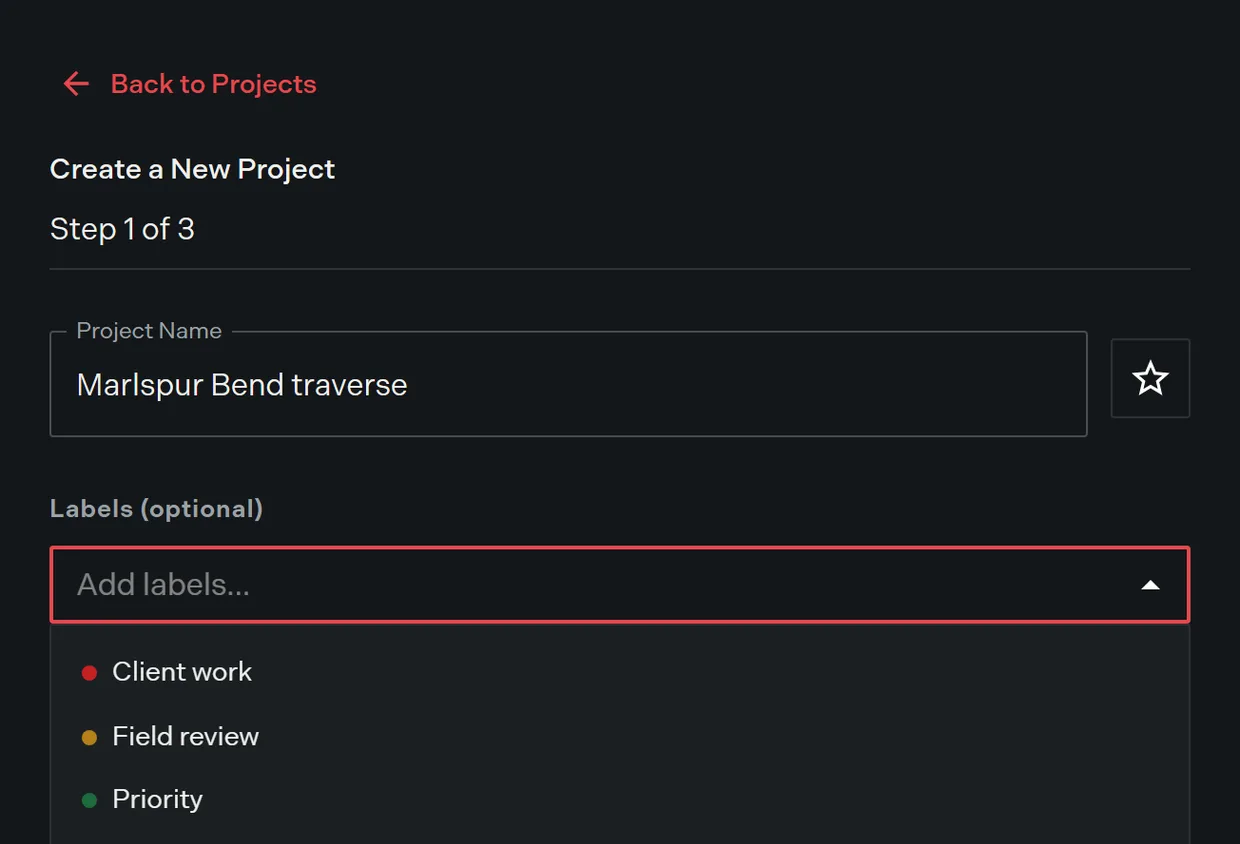
- Enter a Project Name. Next stays disabled until the name has something in it.
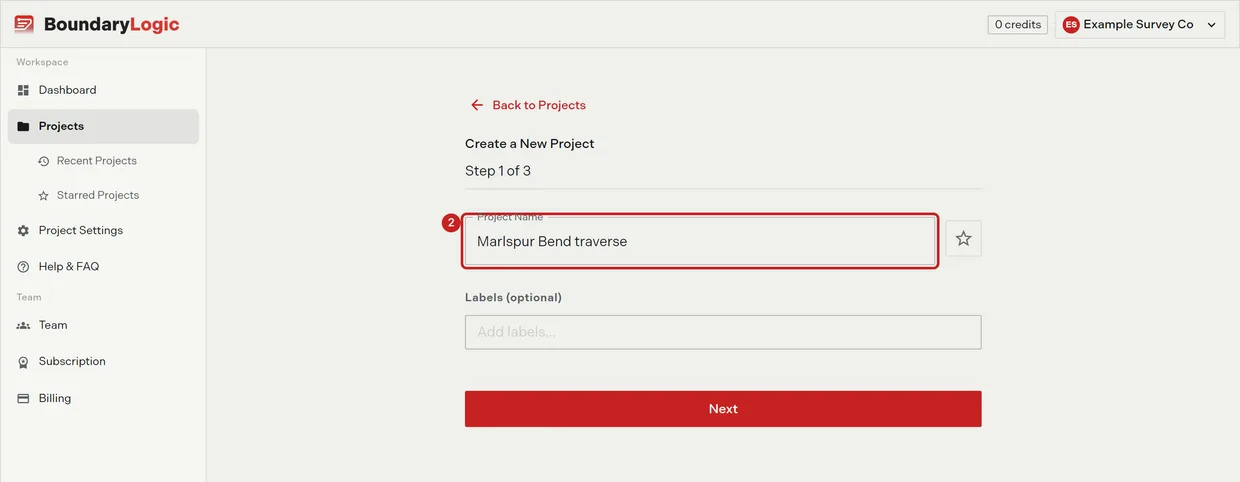
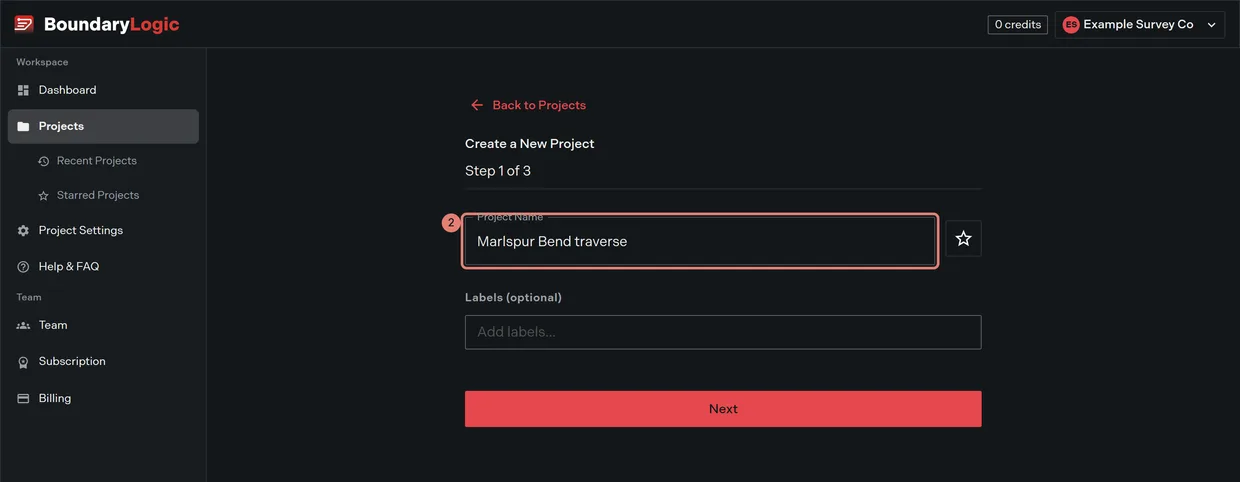
- Optional: click the star to pre-star the project so it appears under Starred from the start.
- Optional: pick labels from the label field, or use Create new label to make one inline and apply it.
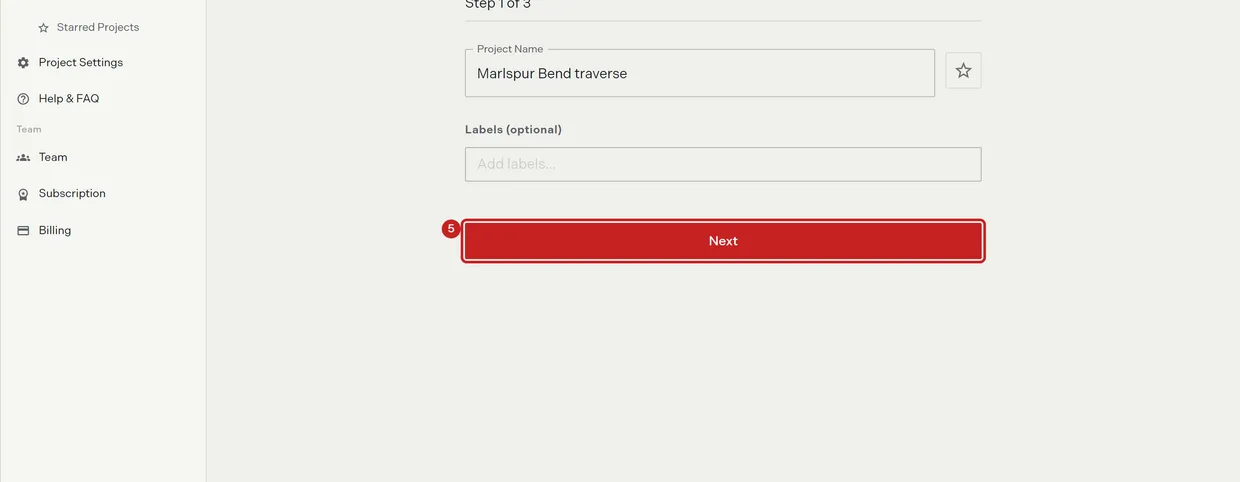
- Click Next.
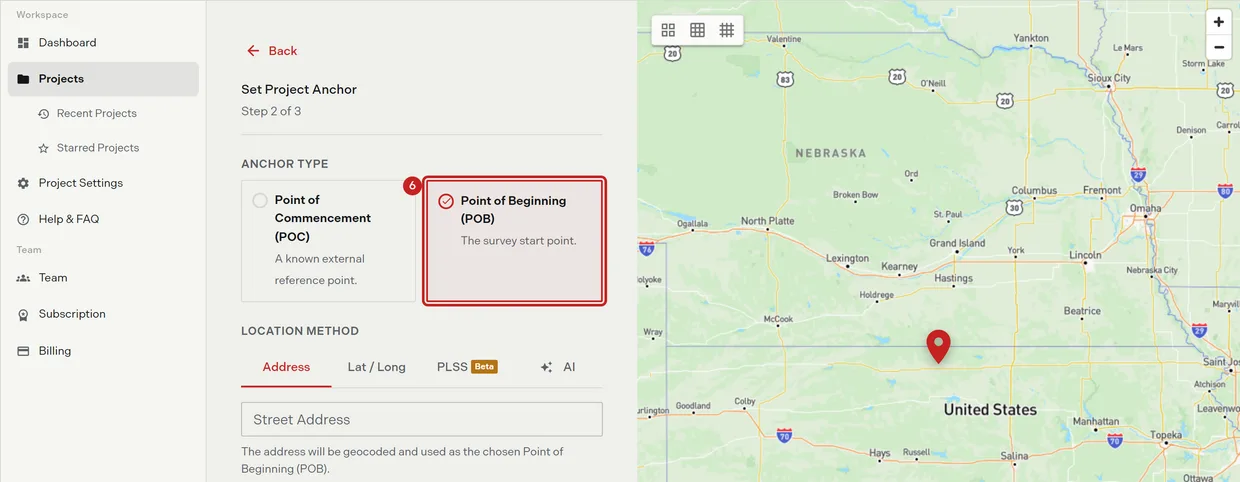
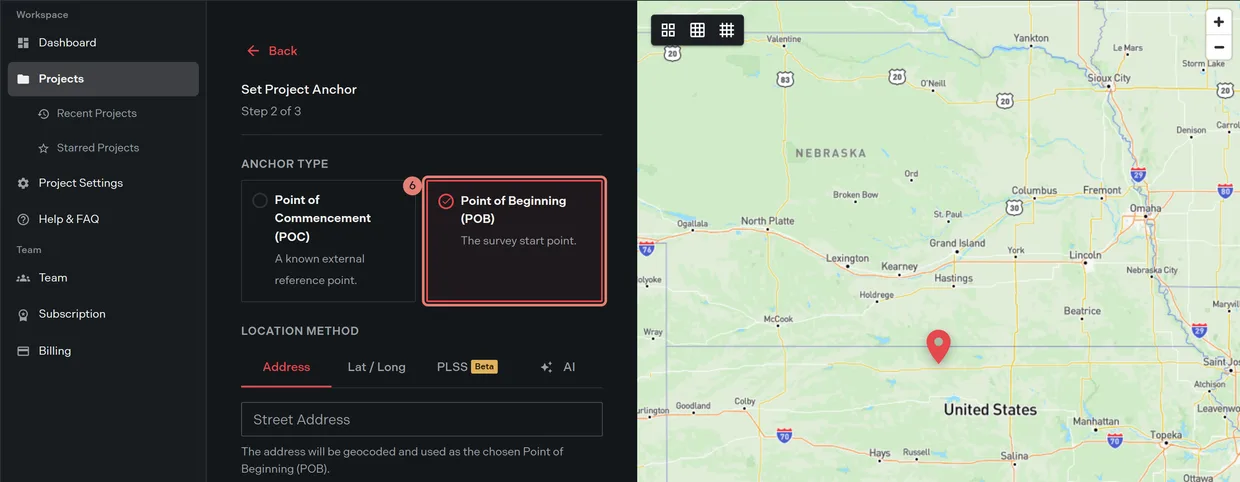
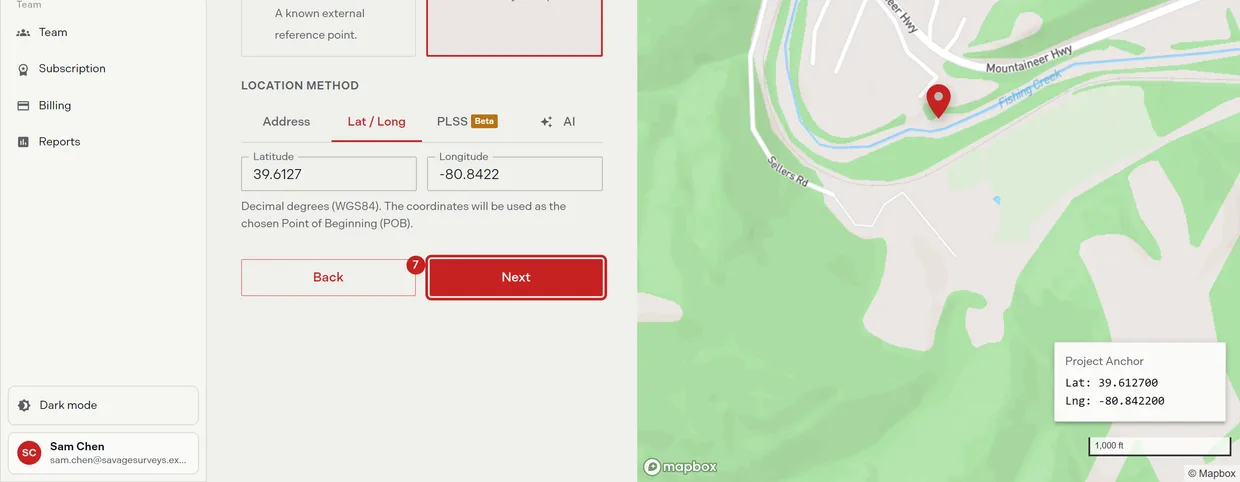
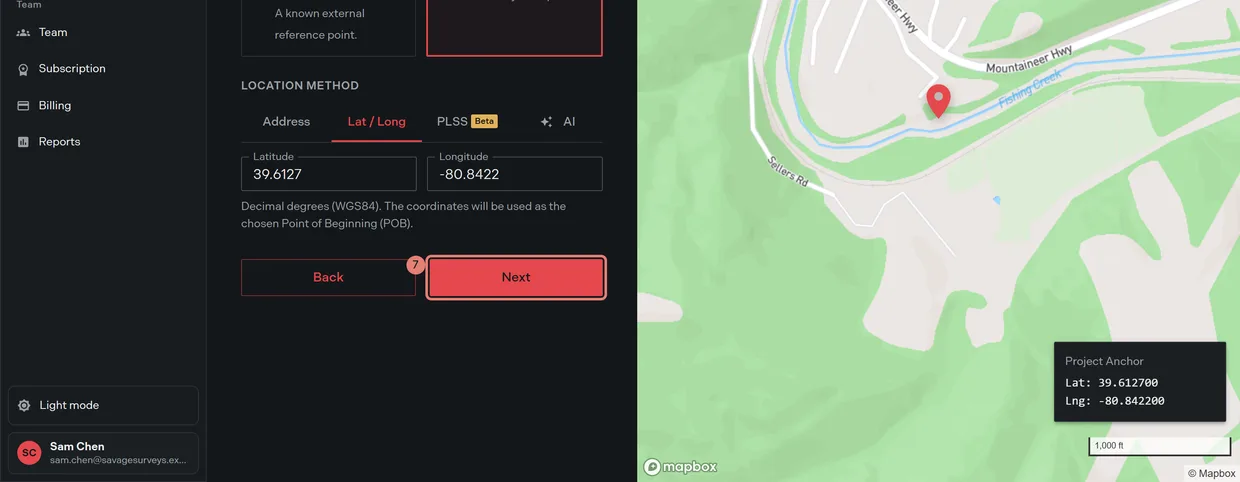
- Set the project anchor, which is where your plots land on the map. Locate a legal description covers the anchor types and the four ways to place one.
- Click Next.
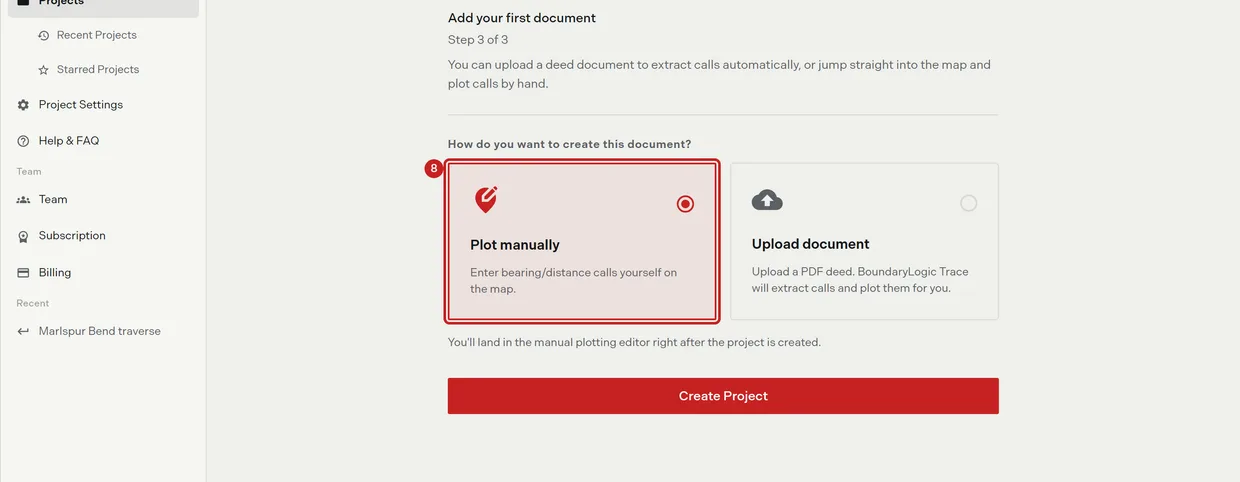
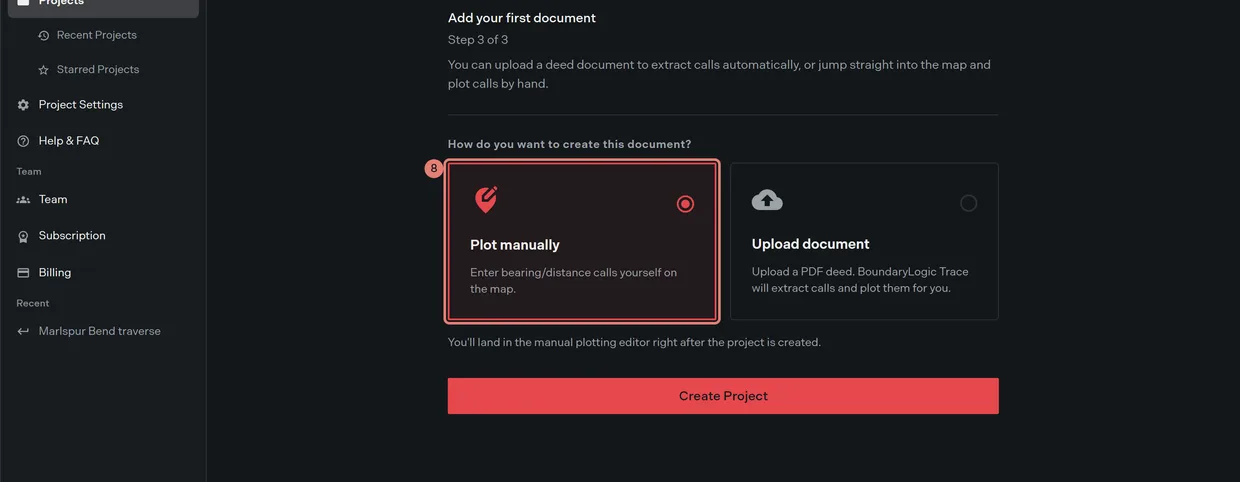
- Choose the first document. Plot manually takes you to the editor to type bearing and distance calls. Upload document takes you to the upload flow, where Trace reads a PDF deed and extracts the calls.
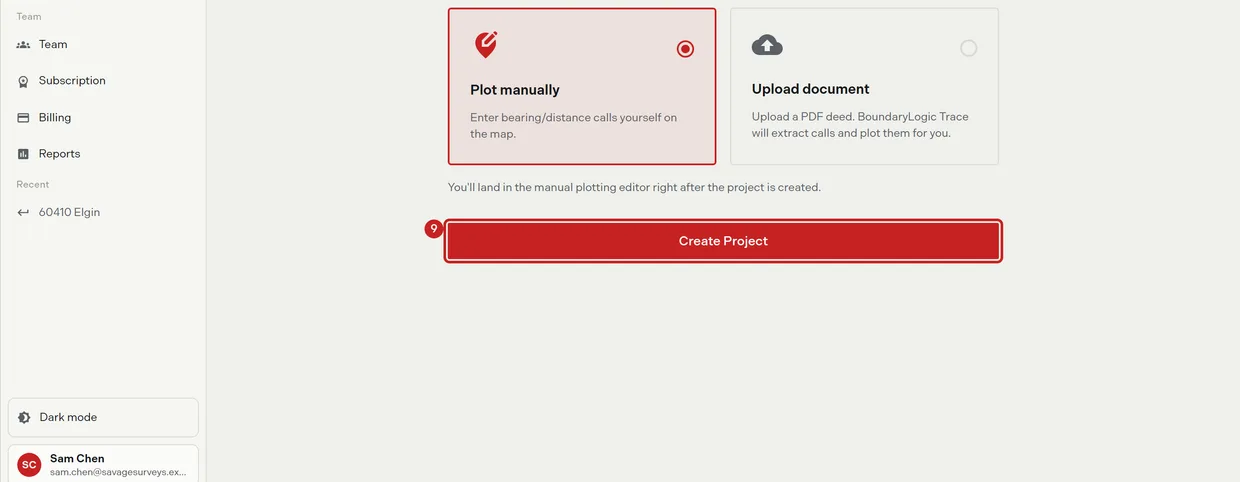
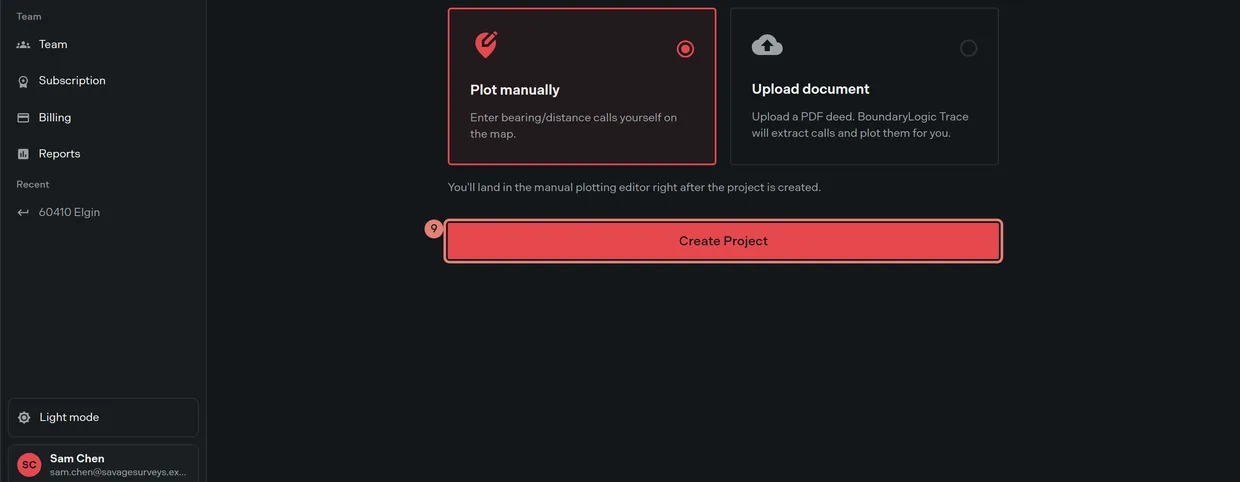
- Click Create Project. The button reads “Creating Project…” while it saves, then Trace opens the workspace your document mode chose.
Labels need a paid plan. On Free the label field is disabled with the tooltip “Available on Professional. Upgrade to label and organize your projects.” and clicking it opens the plan dialog. Project labels covers them.
Leaving before you finish
Going back to Projects with anything typed asks “Leave without saving?” and offers Stay on page or Discard & leave. Closing the tab mid-wizard triggers your browser’s own warning. Nothing is saved until you click Create Project.
Opening step 2 or step 3 directly, from a bookmark or a pasted URL, restarts you at step 1, because the wizard needs the name in hand.
If creation fails
An error message in the corner names the problem. If you have no team yet, Trace asks you to create a team before creating a project. The star and the labels are applied after the project itself is created, so a project can exist with the star or a label missing; set either one from the project list afterwards.
Related
- Locate a legal description, for step 2
- Plot from a document, if you chose Upload document
- The manual plotting workspace, if you chose Plot manually
- Project labels, for labels and categories
- Plot your first deed in Trace, for the whole job from zero