

Availability: All plans. Role: edit access on the project.
Give BoundaryLogic Trace a deed and it reads the legal description out of it and plots the boundary. Upload the file, paste the text, or open the manual editor instead. Every pass through the AI spends one credit, including a description you paste as text, and a five file upload spends five.
Before you start
- The project exists and you have edit access to it. A view only member sees a message instead of the uploader.
- The team has a credit for each document you are about to submit. Credits and plots covers where credits come from.
Steps
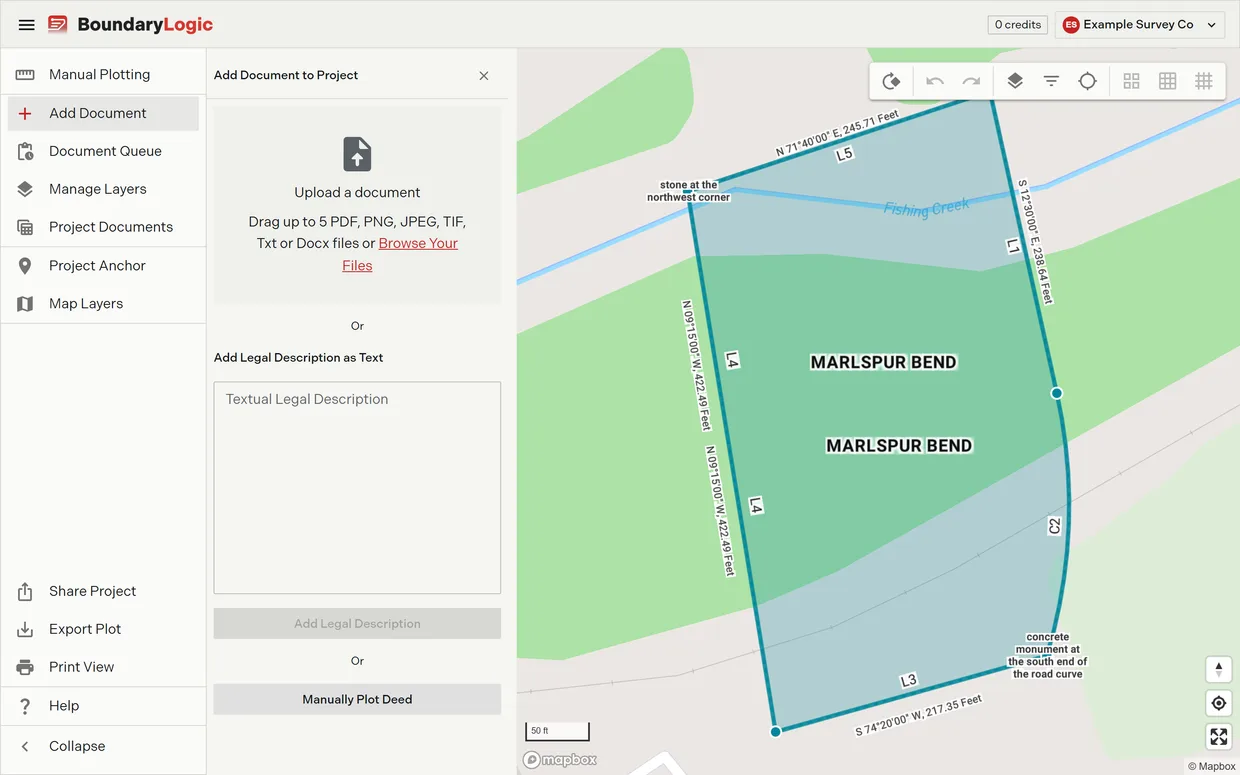
- In the project menu, click Add Document. The Add Document to Project pane opens beside the map.
- Drop your files on the drop zone, or click Browse Your Files and pick them. Trace takes up to 5 files at a time in PDF, PNG, JPEG, TIF, TXT and DOCX. Each file joins the queue as soon as it lands, processing starts on its own, and each one spends a credit.
- Optional: to plot a description you already have as text, paste it into Textual Legal Description and click Add Legal Description. The button stays disabled while the box is empty.
- In the dialog that follows, either name a new document and click Create Document, or pick one from Document and click Add to Document. Use the second when the description belongs to a deed already in the project.
- Watch the queue. Each uploaded file runs Upload, then OCR, then Plot; a pasted description runs one step. The document queue covers what each step is doing.
- Check the plot on the map. With Auto-plot after processing on, which is the default, Trace places the descriptions as soon as plotting finishes.
- If the descriptions did not land by themselves, open Document Queue from the project menu and click Add to Project Layers on the document’s card. Trace adds every description in it and redraws the project.
Plotting it by hand instead
Click Manually Plot Deed at the bottom of the pane to skip the AI and type the calls yourself. Manual plotting is open on every plan and spends no credits. The manual plotting workspace covers the editor, and Import with AI in its header brings you back here.
If the read comes back wrong
A document that produced no descriptions shows Error - Unplottable on its queue card with a Try Again button, which opens the Help Guide the AI dialog. Tell the AI where the description sits or what notation the bearings use, then send it back through. Every attempt spends another credit. When a document will not process covers the whole retry path, including the warnings Trace raises on descriptions it expects to plot badly.
Related
- The document queue, for the three processing steps and the processed and failed cards
- When a document will not process, for retries and guidance
- The documents and legal descriptions tables, for the full lists and their row actions
- Default project settings, for the Auto-plot after processing switch
- Credits and plots, for what a document costs
- Plot your first deed in Trace, to work through one from zero