

Availability: All plans. Role: edit access on the project.
The BoundaryLogic Trace New line and New curve quick commands write one correct call into the document for you, with a preview of the line before it lands. Use them when the record gives you a curve in parameters you would rather not convert by hand, or when you want the syntax written for you rather than typed.
Before you start
- Open the document in the manual plotting workspace, with the tract you are adding to already declared.
- Both forms append to the end of the document, so add your calls in the order you want them to appear.
Add a line
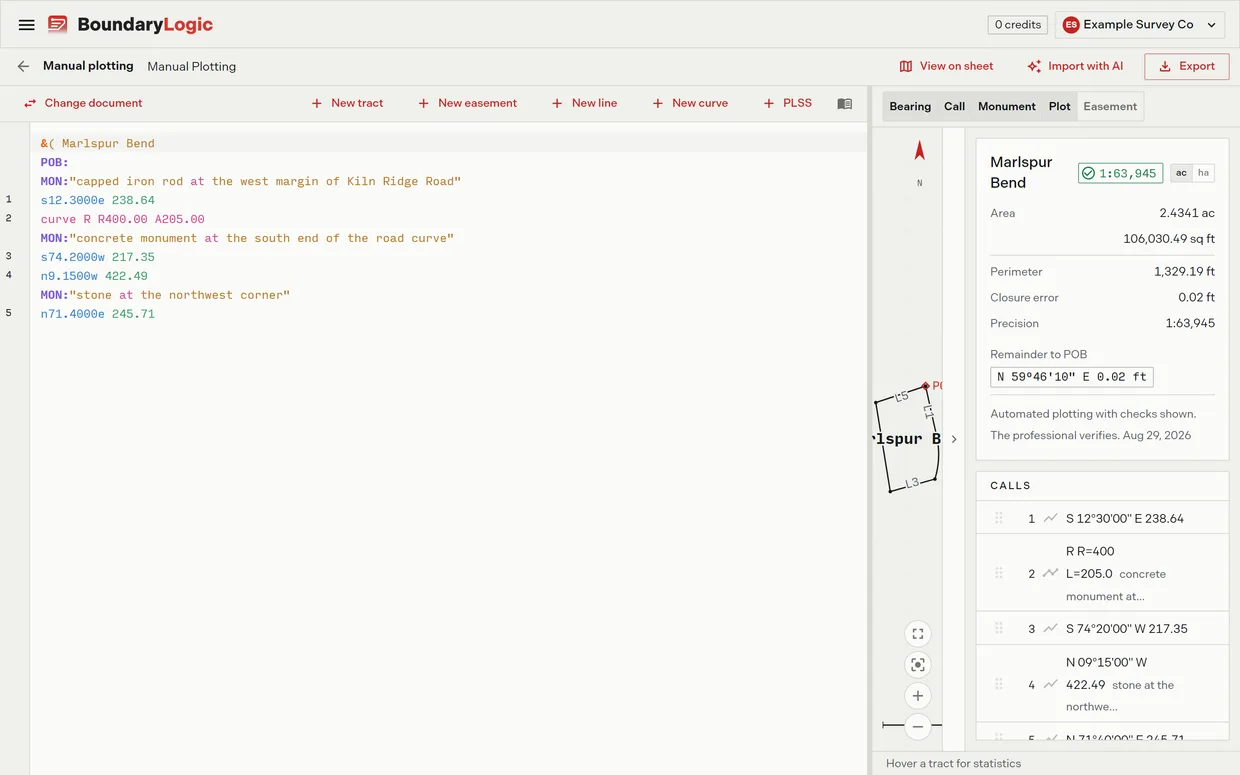
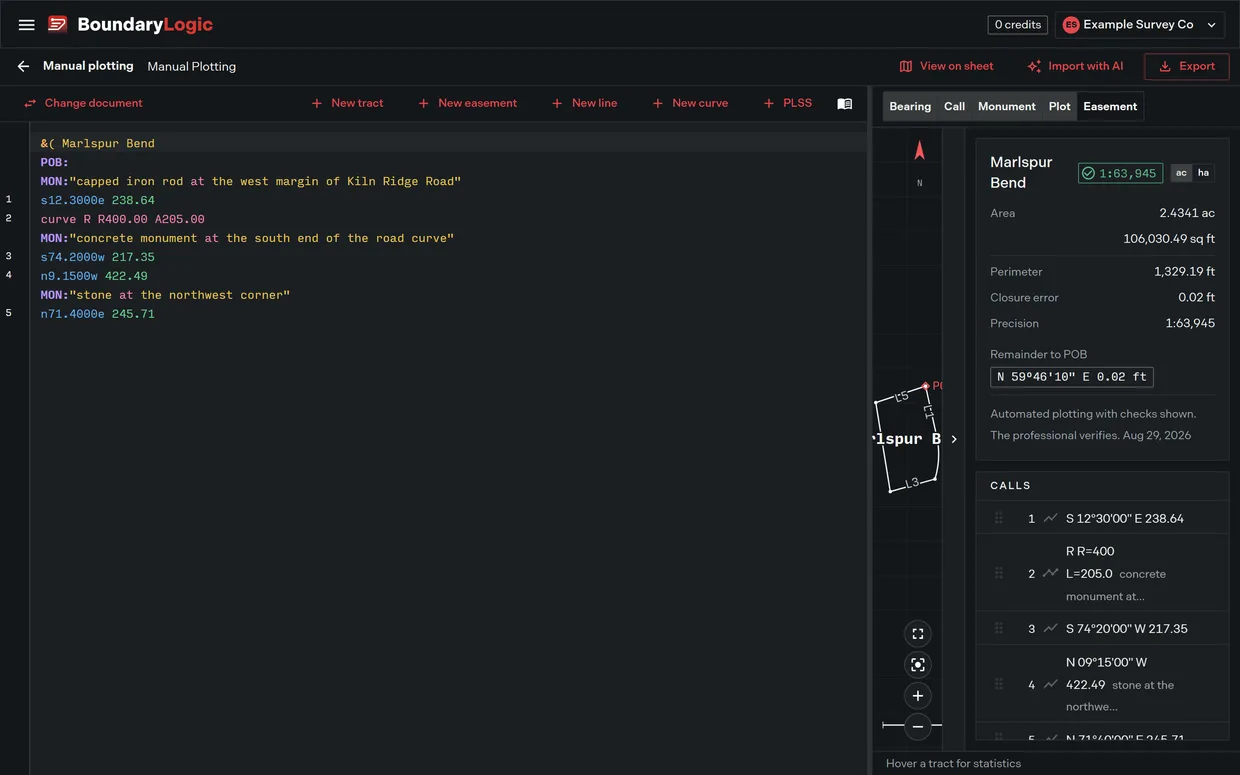
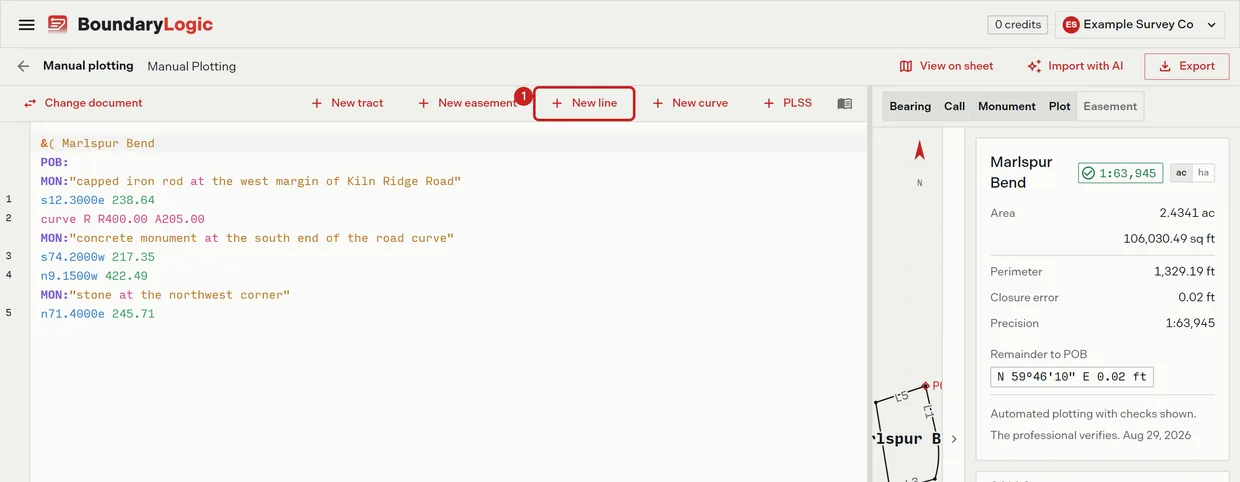
- On the editor toolbar, click New line. The form opens with the bearing fields empty.

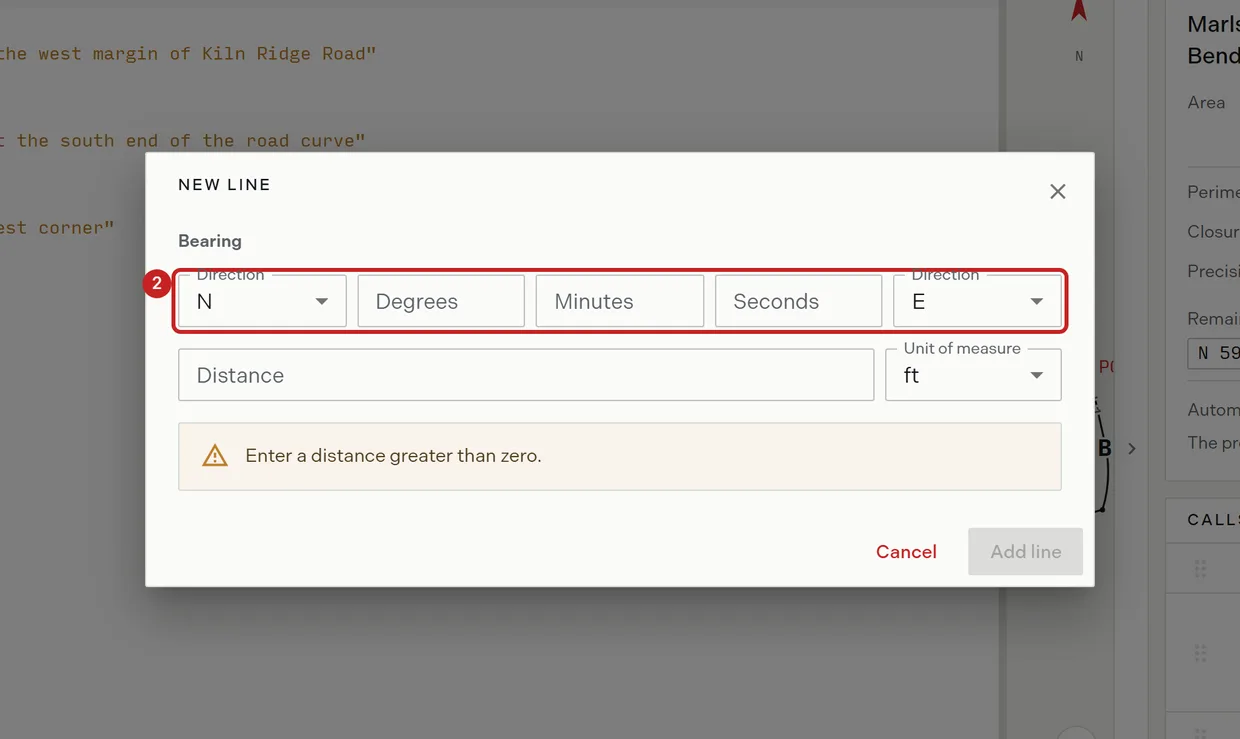
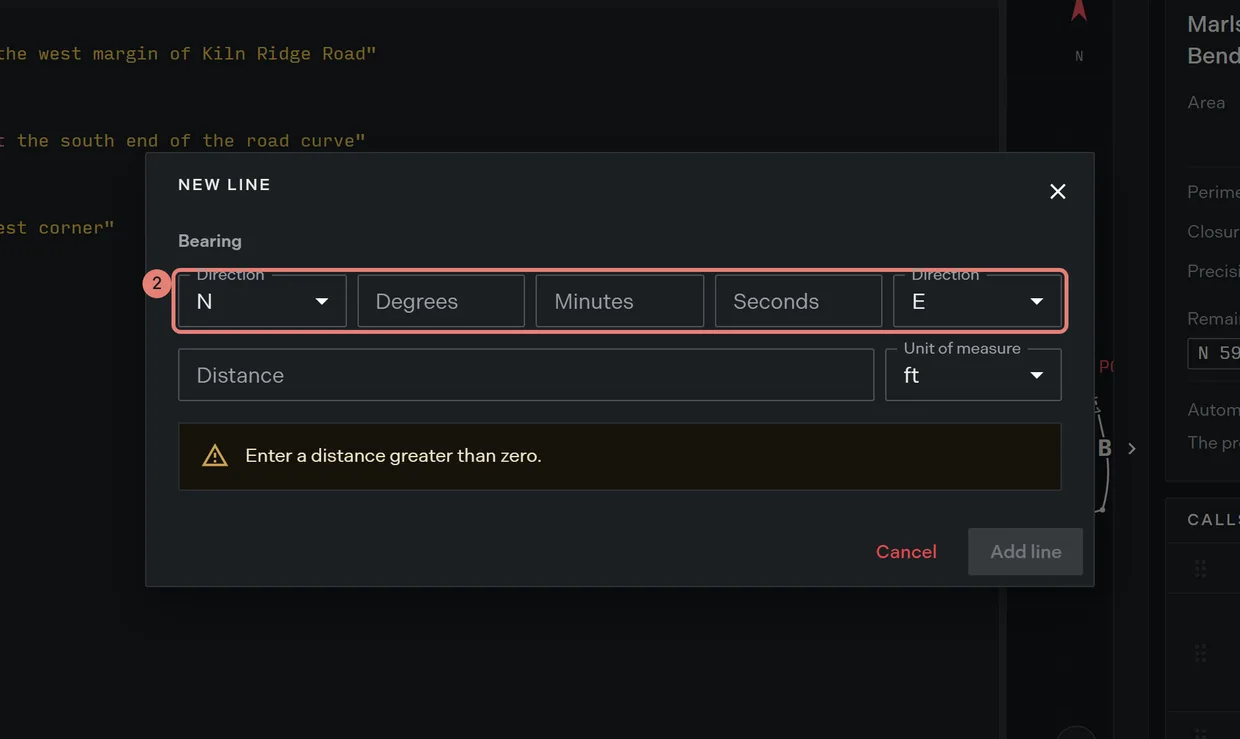
- Enter the bearing: the north or south letter, degrees, minutes, seconds, then the east or west letter. Out of range values warn in place: Degrees must be 0 to 90., Minutes must be 0 to 59. and Seconds must be 0 to 59.
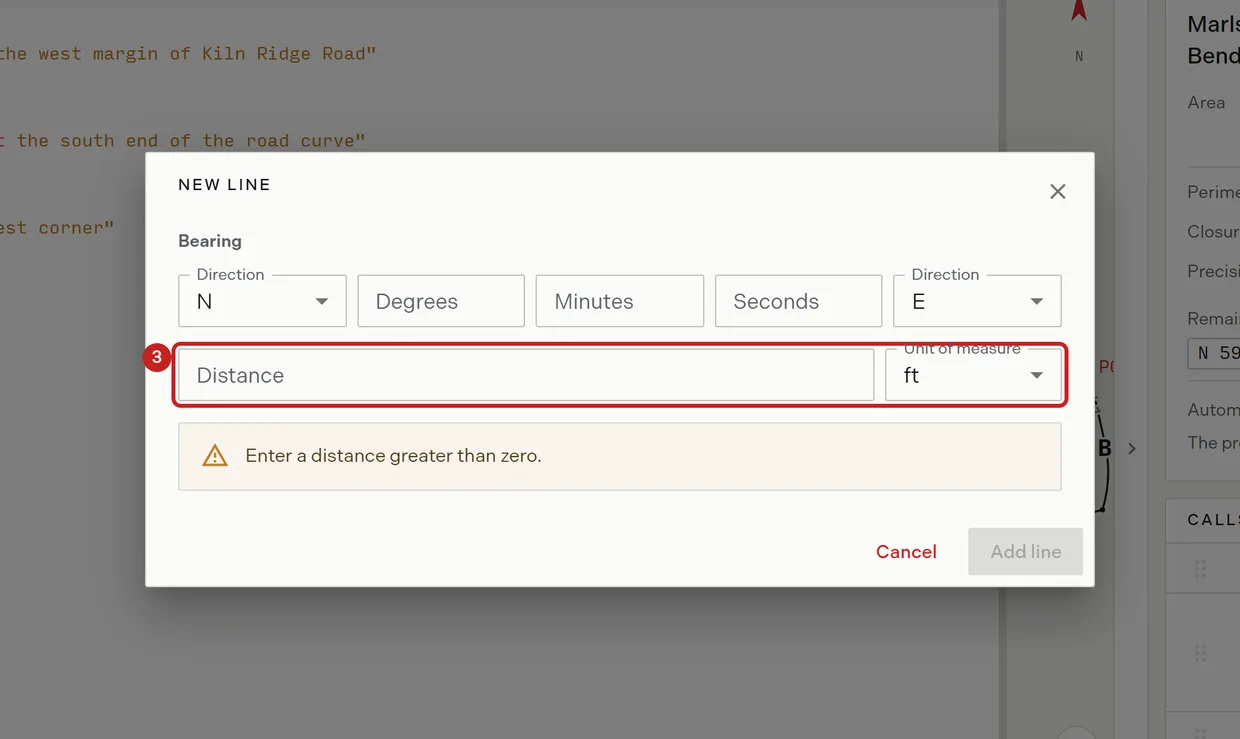
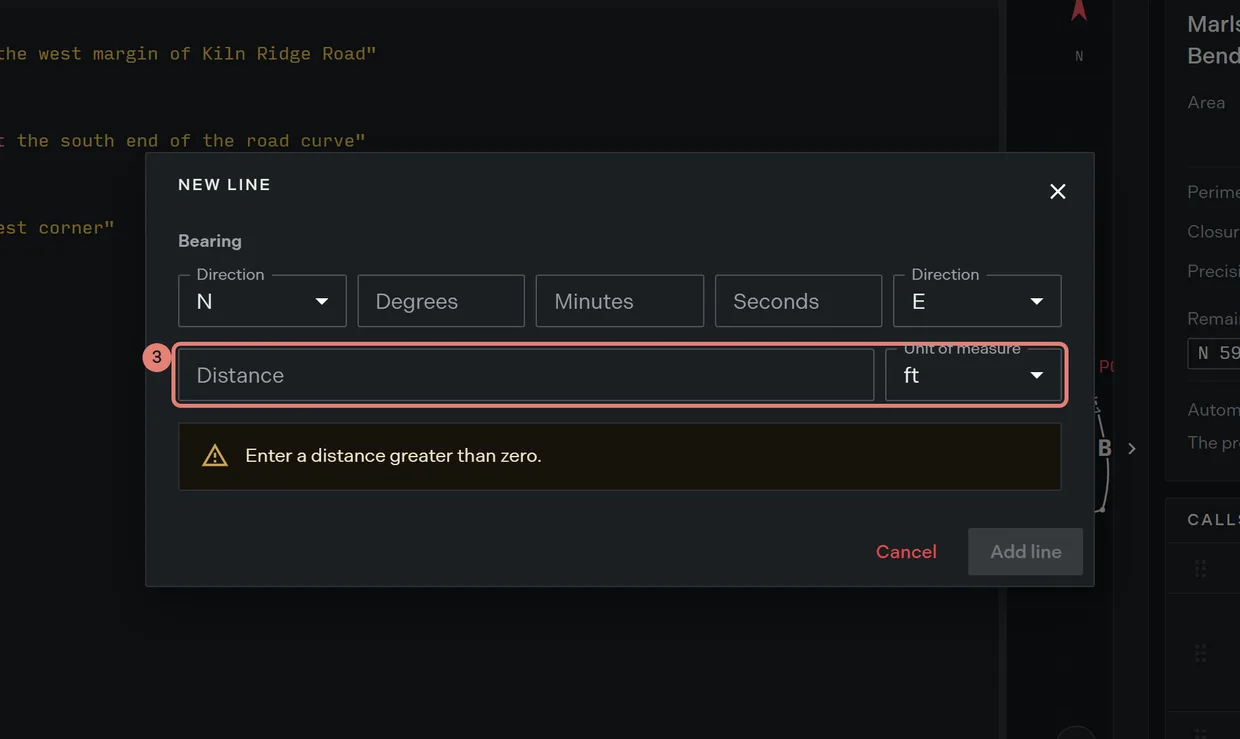
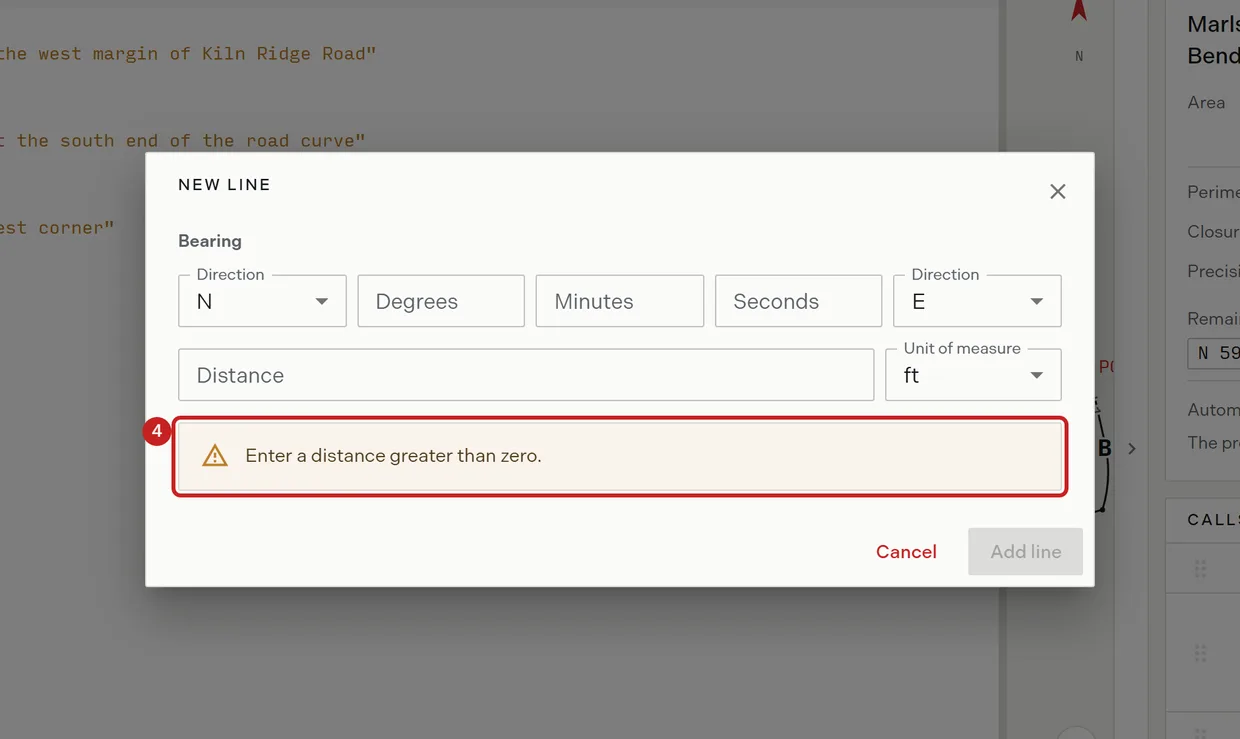
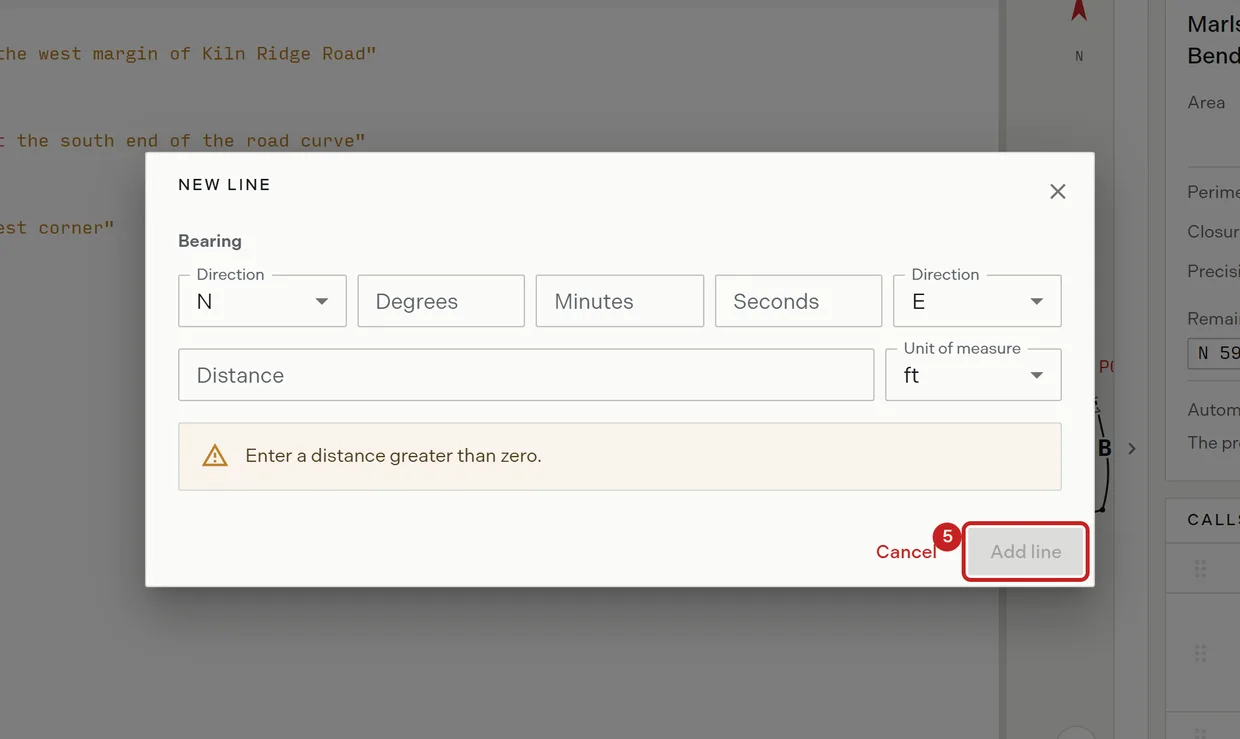
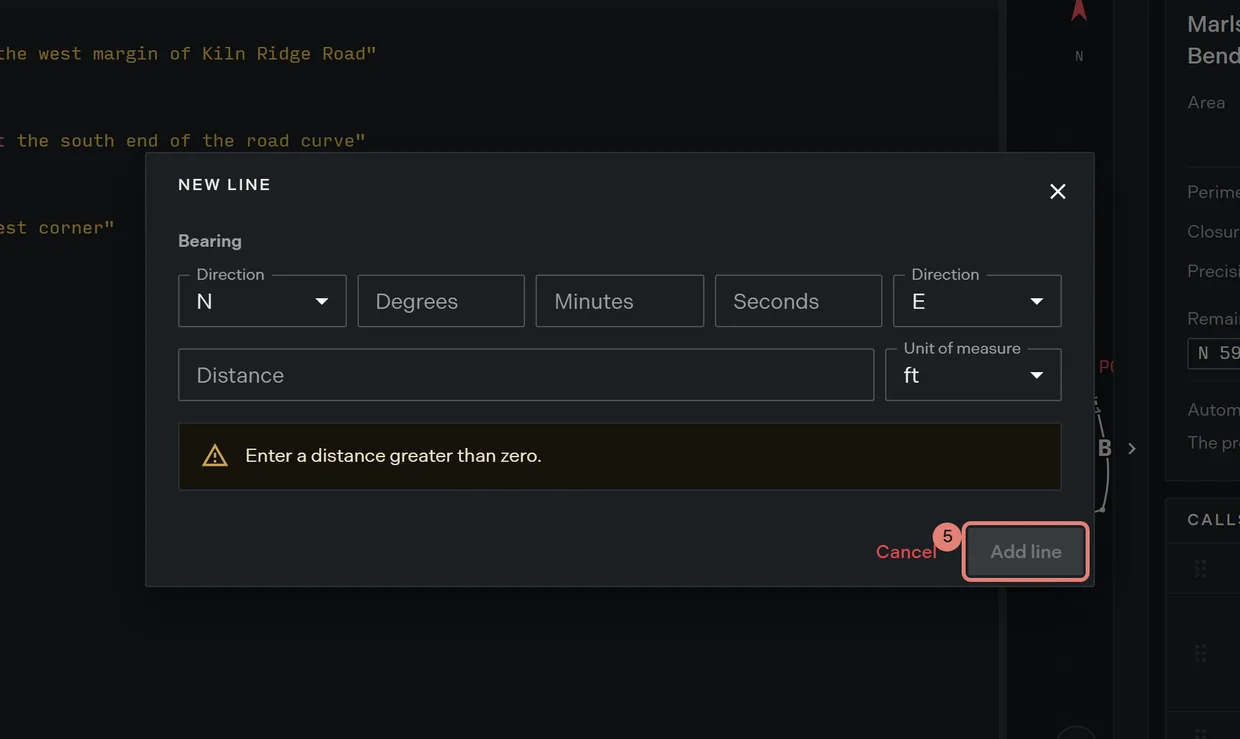
- Enter the distance and choose feet or meters. Meters are converted to feet on the written line. An empty or zero distance warns Enter a distance greater than zero.
- Read the preview. It shows the resolved bearing, the distance in feet, and the line to be written, as
N 45°30'20" E · 150.00 ft · n45.3020e 150.00.
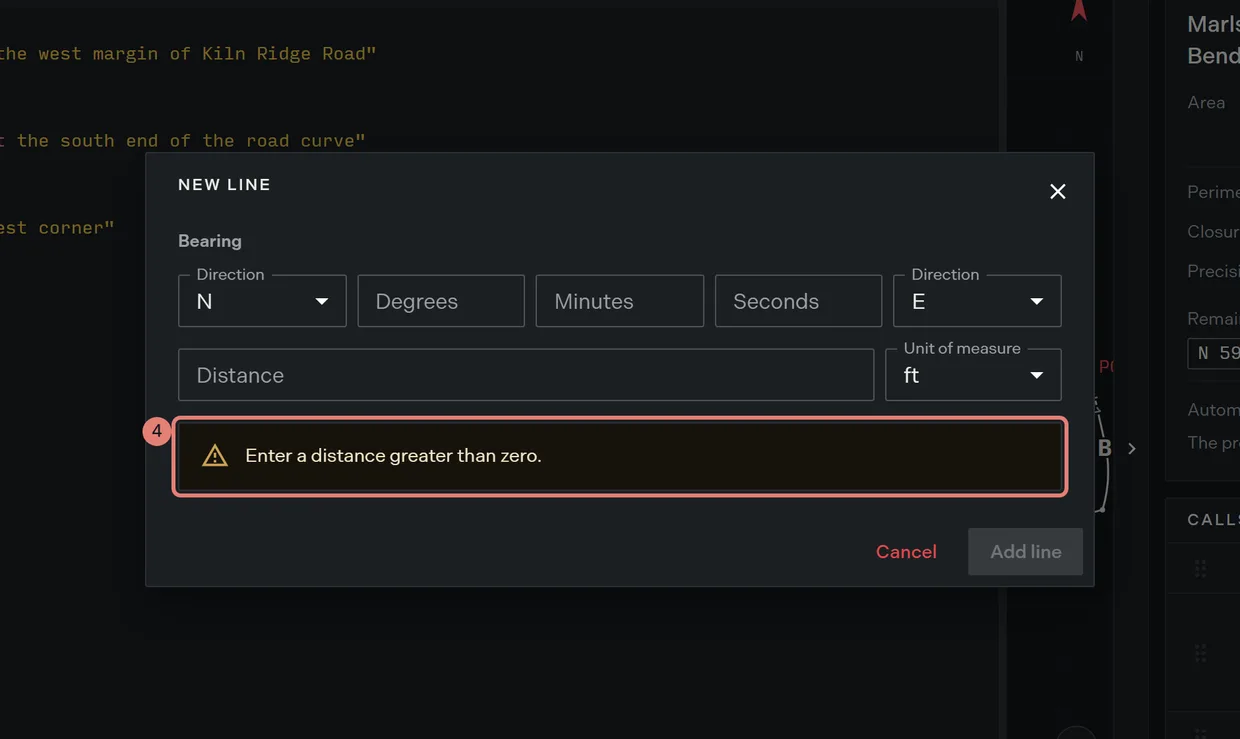
- Click Add line. The call is appended and the cursor lands at the end of the document, ready for the next one. The button stays disabled while any value is out of range.
Add a curve
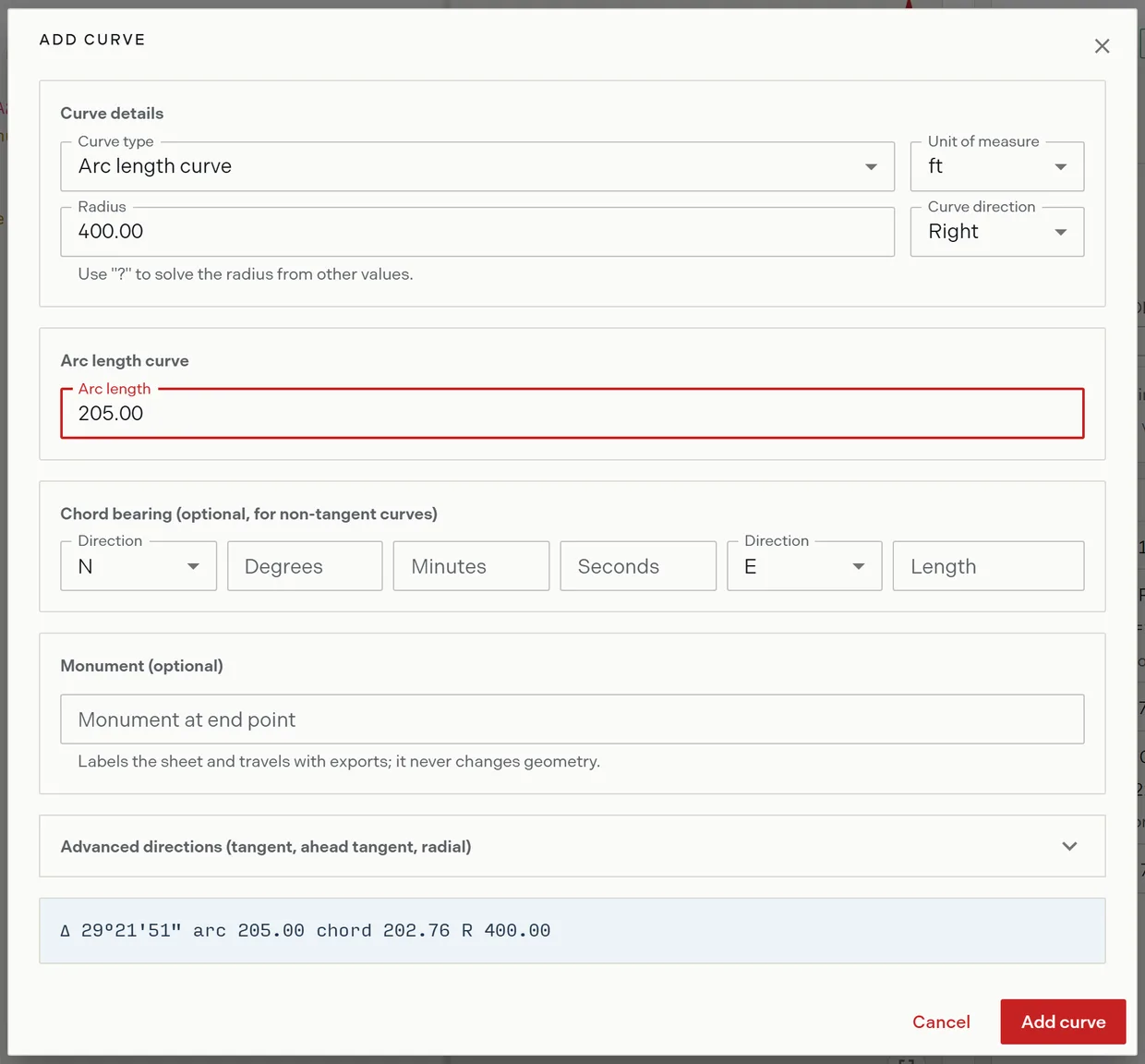
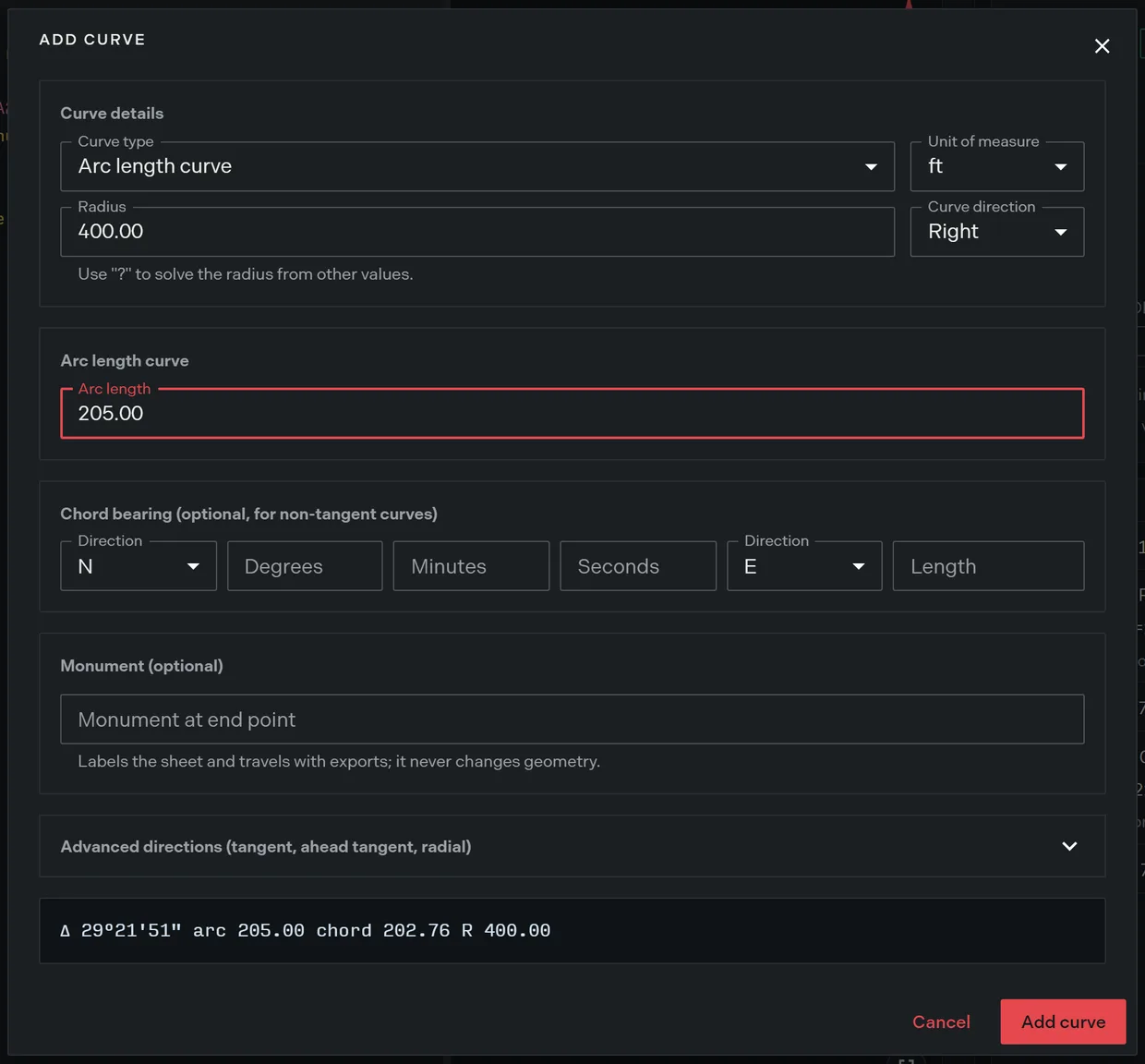
- On the editor toolbar, click New curve. The form opens titled Add curve.
- Choose the curve type. Each type swaps the fields below it to ask only for what that type needs.
- Enter the radius, or type a question mark to have Trace solve it. The radius field is hidden for a degree of curvature curve, which sets the radius itself.
- Choose the direction: Left, Right or Concave. Concave adds two more boxes: the side the curve bows toward and the general direction of travel, each from the eight compass points. A pair that is the same or opposite warns Concave direction must be to one side of the general direction.
- Fill the fields the type asks for, and choose feet or meters for the radius, arc and chord.
- Optional: enter the chord bearing and length. It is required for a chord defined curve and optional on any other type, where it fixes a non tangent curve’s orientation.
- Optional: open Advanced for the tangent direction, ahead tangent and radial direction. Trace opens this section for you when the curve you are editing already carries one of them.
- Optional: name the monument at the curve’s end point. The box offers the standard keywords and accepts any text.
- Read the preview, which restates the arc as
Δ 29°21'51" arc 205.00 chord 202.76 R 400.00and updates as the fields change. Until the required fields are filled it reads Complete the arc length curve fields to preview and add the curve. - Click Add curve. A parameter set that cannot describe one curve warns curve data insufficient instead.
Edit a curve you already typed
- Double-click the curve line in the editor, or put the cursor on it and press Ctrl+Enter. The form opens titled Update curve, prefilled from that line.
- Change the fields and click Update curve. Trace rewrites that line rather than appending a new one.
The omit and commencement prefixes go back verbatim, so an omitted curve is never silently plotted. Trace normalises the rest of the line as it rewrites it: the prefix spacing is dropped and the angle is written to full seconds, so # / curve L R50 D90 comes back as #/curve L R50 D90.0000. A line the form cannot read opens with empty fields and the notice Unable to read this curve line, so the fields start empty. followed by Trace’s own message.
Curve types
| Type | What it asks for |
|---|---|
| Arc length curve | Radius and arc length |
| Central angle curve | Radius and the central angle in degrees, minutes and seconds |
| Chord defined curve | Radius, plus the chord bearing and length |
| Degree of curvature | Degree of curve in degrees, minutes and seconds, plus the arc length |
Related
- Deed syntax reference, for typing the same calls by hand
- Tracts and points of beginning, for declaring the tract these calls belong to
- Editor tips and shortcuts, for the gestures that open the curve form
- How to plot a metes and bounds description, to work through a full description from zero