

Availability: All plans · Role: edit access
A plot lands on the project anchor, not on the ground the deed describes. Drag it when you can see where it belongs. Use Move Plot to Location when you cannot, and let an address, a coordinate pair or a PLSS corner put it there.
Before you start
- You need edit access to the project.
- Unlock the plot first if it is locked. A locked plot pans the map instead of moving.
- The PLSS tab needs Professional or above.
Drag it into place
- Hover the plot. Its fill and outline brighten once the pointer is within 8 pixels of it, which tells you which plot you are about to grab.
- Drag it to the new position. Trace saves the new anchor on release and the toolbar’s Undo button enables, its tooltip reading
Undo Move (Ctrl+Z). - Optional: press Undo, or Ctrl+Z, to put it back. Redo moves it forward again.
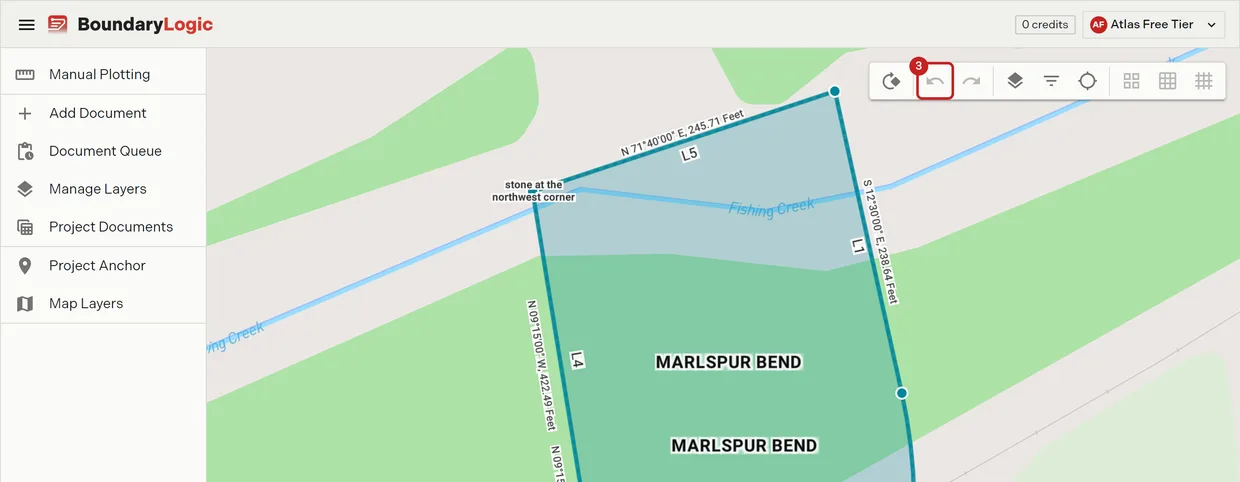
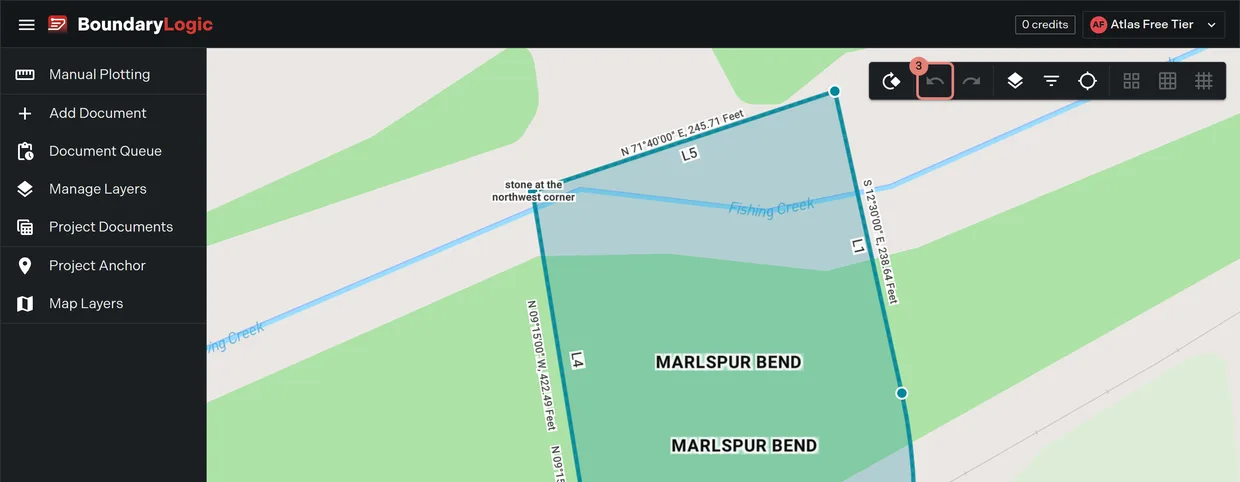
Click a plot to select it, and click it again or click empty map to clear the selection. Dragging is blocked while an undo or redo is running.
Move it by location
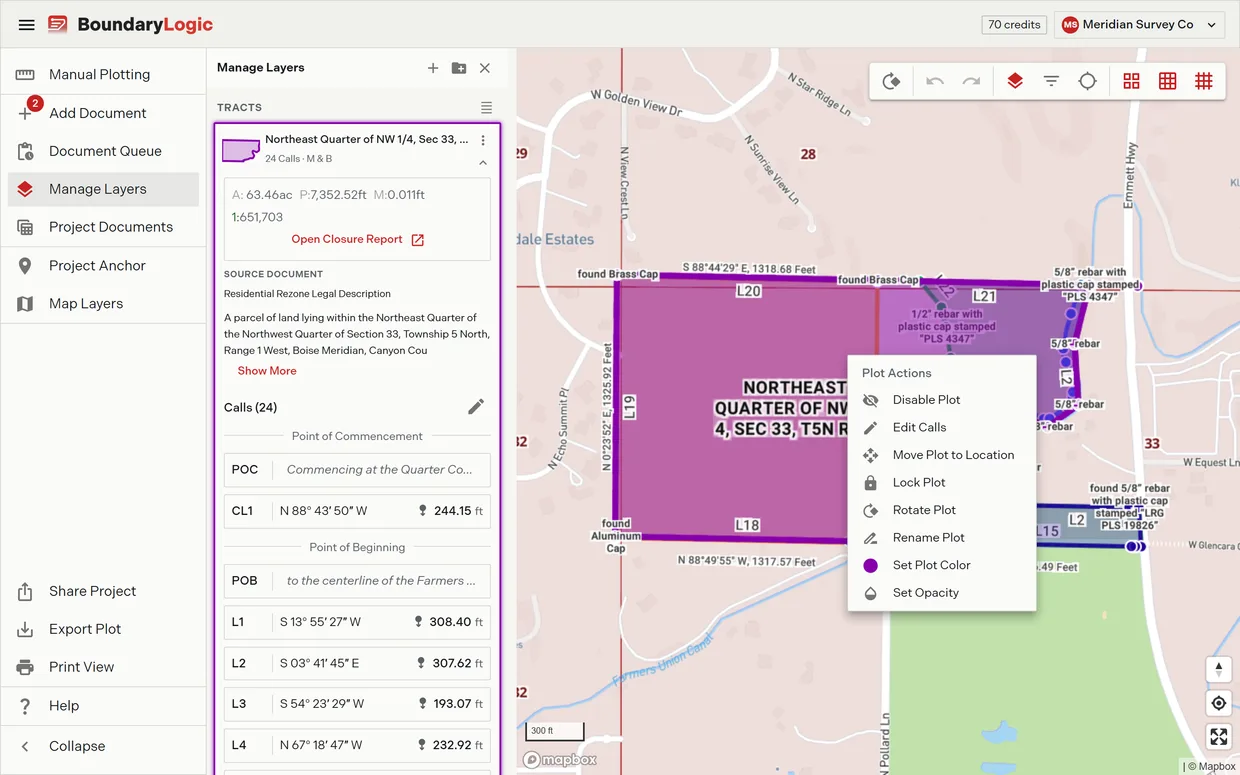
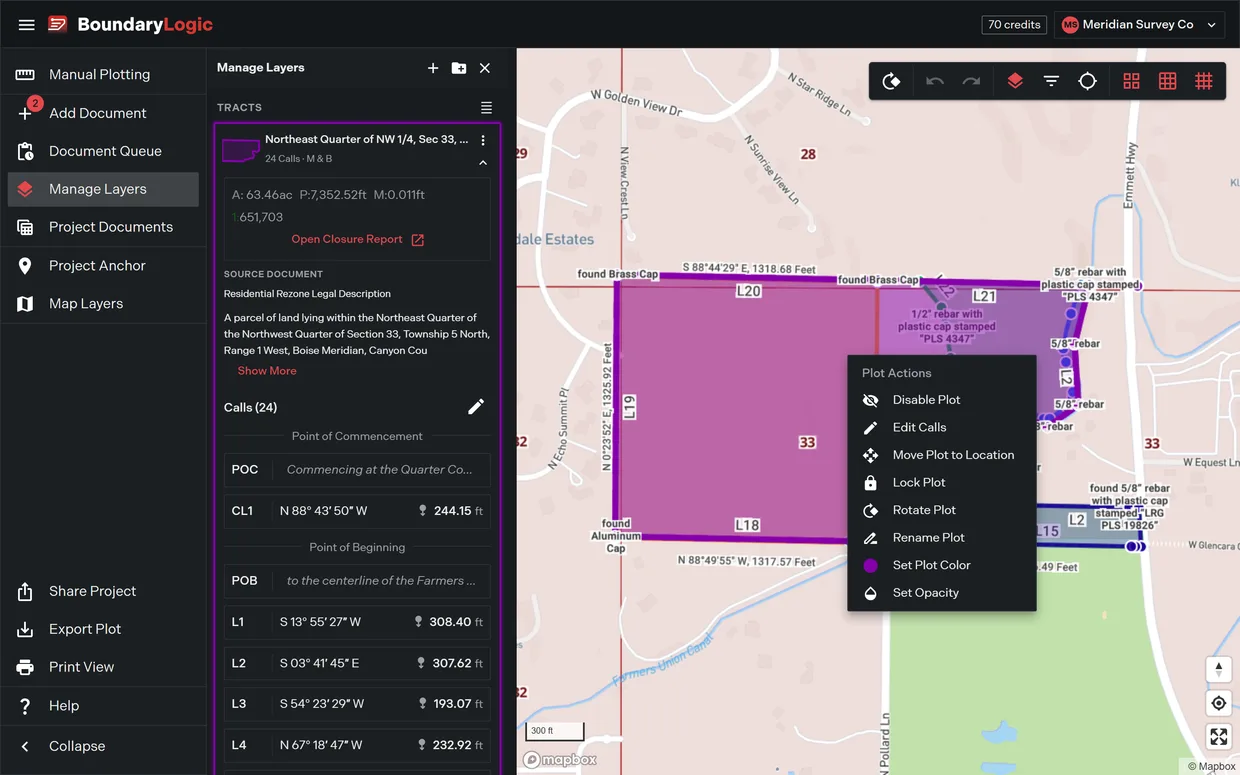
- Right-click the plot and choose Move Plot to Location, or select the plot and press M.
- Optional: pick the reference point. When the plot carries a point of commencement call, the dialog opens by asking whether the move re-anchors by that point or by the point of beginning.
- Choose a tab and set the destination. Address takes a street address from autocomplete suggestions. Lat / Long takes typed coordinates and rejects the move if either value is missing. PLSS drills a township, range and section.
- Click Move Plot. The plot re-anchors, the project drawing regenerates, and the map flies to the new position.
Move to Project Anchor is the one press version when the anchor itself is the target. Cancel backs out without touching the plot, and is disabled while a move is running. Move Plot stays disabled until a latitude and longitude are set.
Locate it by PLSS description
This is the sequence when the deed describes the tract by township, range and section rather than by a street.
- Click the plot to select it.
- Right-click it. The Plot Actions menu opens.
- Choose Move Plot to Location.
- Switch to the PLSS tab. The three PLSS map grids switch on behind the dialog and the panel reads “Select a state to continue.”
- Optional: switch the panel to Manual Entry if you would rather type the section number than click it. Manual entry adds a Section field beside State, Township and Range.
- Choose the state. Township and Range appear with their N, S, E and W toggles.
- Enter the township and range. The panel reads “Validating township…” while it checks, then draws the 36 section grid in survey order.
- Click the section. Click a quarter to refine, and a quarter quarter to refine again. The panel reports which target is selected and warns that “Accuracy may decrease for quarter and quarter-quarter sections.”
- Choose a placement target: one of the eight corners, or Place at center.
- Click Move Plot. The plot re-anchors on the chosen corner and the map flies to it with the PLSS grid drawn.
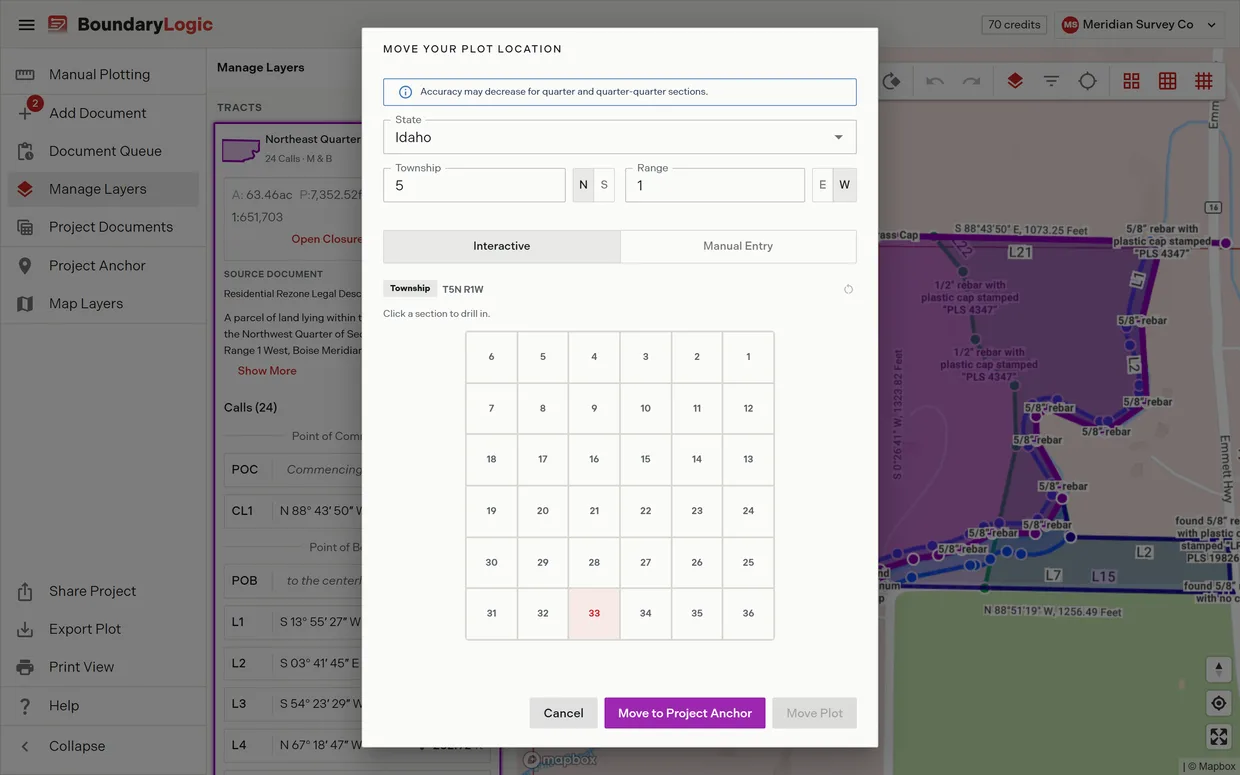
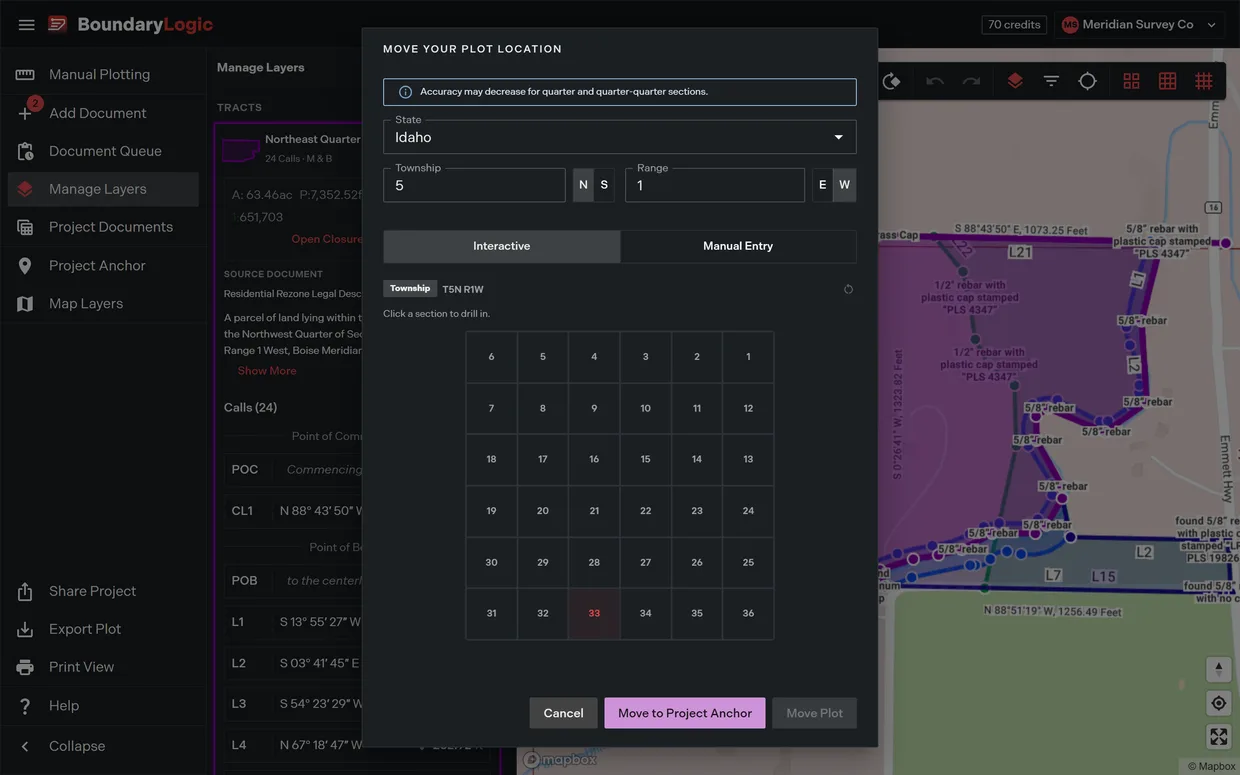
The PLSS tab needs Professional or above and carries a Beta badge. On Free the tab opens the plan chooser instead of switching. Address, Lat / Long and Move to Project Anchor work on every plan.
Related
- PLSS placement, for the drill panel in full and the states it covers
- Plot actions, for the rest of the menu
- Locate a description
- Manage projects, for setting the anchor new plots land on
- Locating a PLSS aliquot description, if you are starting from zero